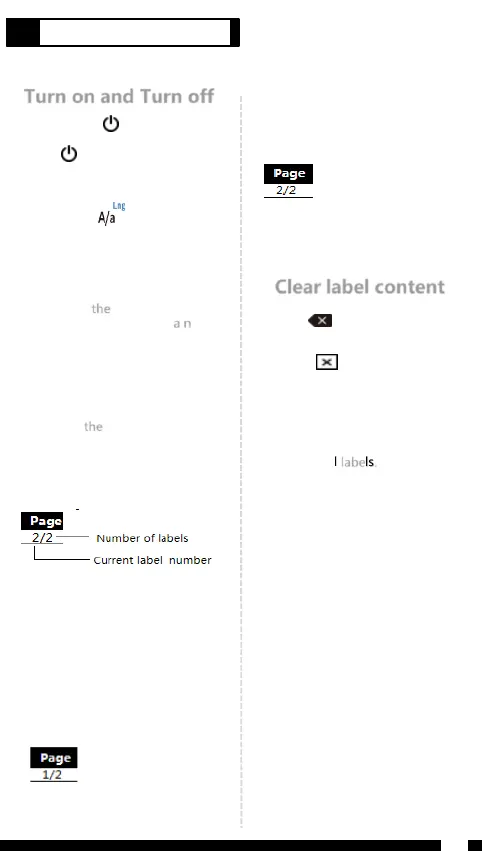
Turn on and Turn off
System language
Create mutiple lines
Add new label
Check label
Clear label content
Long press【 】 2 second,
Printer turn on.
Press【 】,Printer turn on.
Long press【 】You can select
system language.
Switch capital letter and small letter.
After input the first line content,
Press【Enter】Then create a new line.
This printer can add 20 pcs label
at most each time.
After edit the first label,Press
【Add】then create a new label.
e.g Creat two labels,screen
“Page”will show 2/2.
⚫ Page down
Press【Shift】+【】or long press
【】 , Screen will show the
second label content like below:
Note:
When editing a flag label,Press
【Shift】+【】/【】select cell,
Input cell area content.
Press【 】delete the character
before the cursor,delete one by
one.
Press【 】,You can select
delete“Format+Text”or”Text”.
If select“Format+Text”,D e le te
all settings for the label and the
contents of the label.
If select“Text”,Delete the text
content of all labels.
If you create multiple labels,
check or edit the first or previous
labels. e.g,If create 2 labels and
check the first label like below:
⚫ Page up
Press【Shift】+【】or long
press【 】 , Screen will show
the first labels content like below:
【 】 is the name of the button,《 》is display content。
6
Create General Labels
4
Chain Printing
Press【Menu】,Select《Chain
Printing》;
Press【Enter】You can select
“On”or “Off”;
When you select “On”,After
print will show as below:
1. New Label
2. Completed
If you have not completed all edits,
Then select《New Label》,Printer
not cut,Return to the editing
interface and edit the new label
that you need.
If you complete all editing,Select
《Completed》,then finish print.


 To Next Page