XLINK 500/100 Operations & Maintenance Manual page # 44
In order for LinkComm to connect to XLink via Wi-Fi, the device that is running
LinkComm must first connect to the Wi-Fi hotspot provided by XLink.
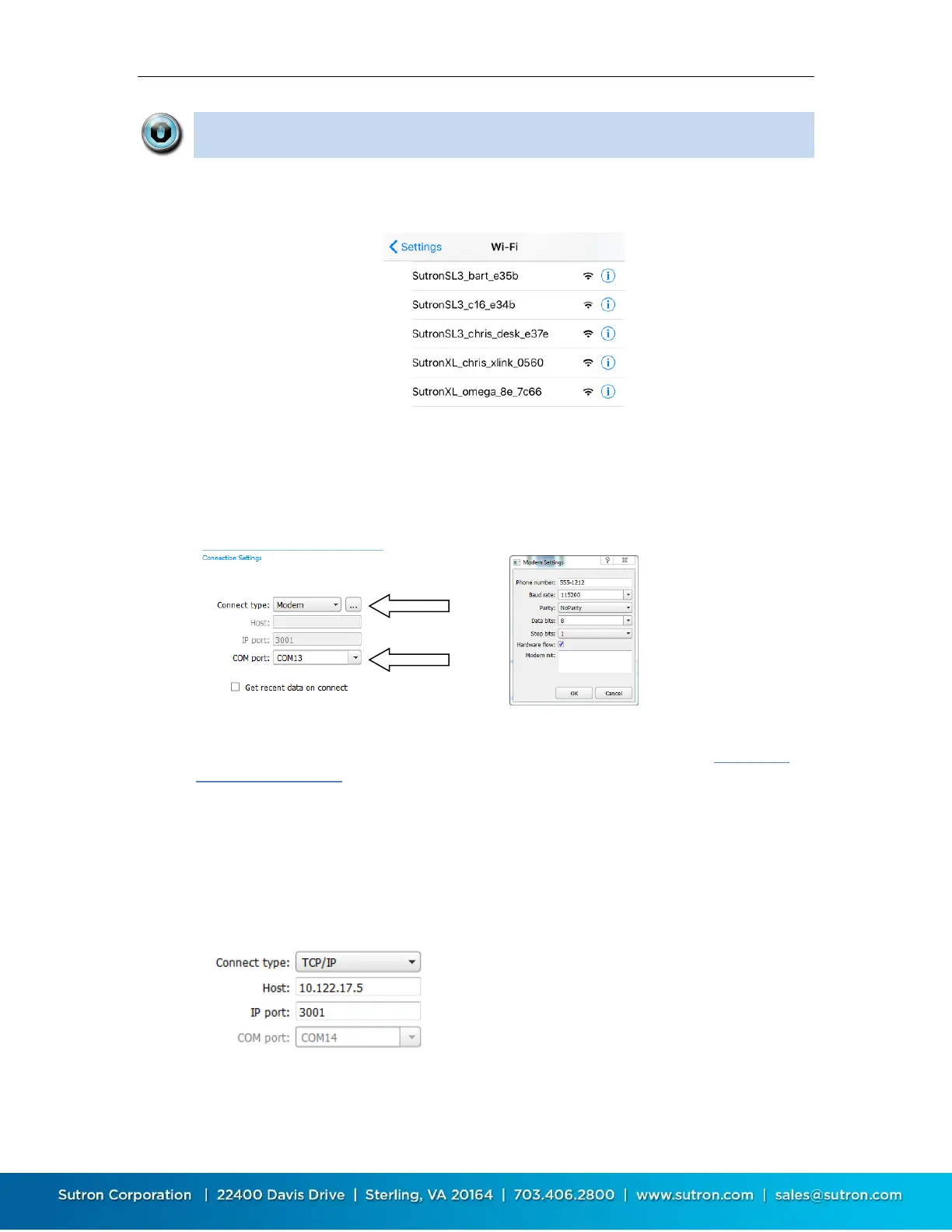
Here’s an example mobile Wi-Fi Settings screen showing several devices available for connection:
5.3.4. Connecting via Analog Modem
LinkComm can connect to a station with an external modem via a telephone modem. Connect
the modem to your computer, select the “Modem” Connect Type, and enter COM port. Press the
“…” button to enter phone number and other modem details. Note, LinkComm expects the
modem to support ASCII result codes (“OK”, “CONNECT”, etc.), and DTR call control.
5.3.5. Connecting via TCP/IP
LinkComm can connect to a station with an external Cell modem via TCP/IP. See “CONNECTING
EXTERNAL CELL MODEMS” for instructions. LinkComm will need to be run on a device that has
access to the same network that the modem is operating on. If the modem is on a private
network, the PC will need VPN access to that network.
Select Connect type: TCP/IP
Enter URL or IP address for the station
Make sure that the IP port matches the port you have enabled in the modem (usually
3001).
Press Connect


 To Next Page