XLINK 500/100 Operations & Maintenance Manual page # 40
5. Installing and Running
LinkComm
LinkComm is a software application designed setup and operate XLink. LinkComm is used to:
Check status
Set up configuration
Download and graph the log from
Upgrade firmware
Calibrate connected sensors
5.1. Installing the LinkComm mobile app
Mobile versions of LinkComm are available to run on Apple iPad and iPhone, and on Google
Android phones and tablets. They can be found on the Apple® App Store™, and Google® Play
Store™, respectively.
5.2. Installing the PC version of LinkComm
The PC version of LinkComm is available for download from
http://www.sutron.com/downloads.htm. The PC version is supported on Windows 7 and higher.
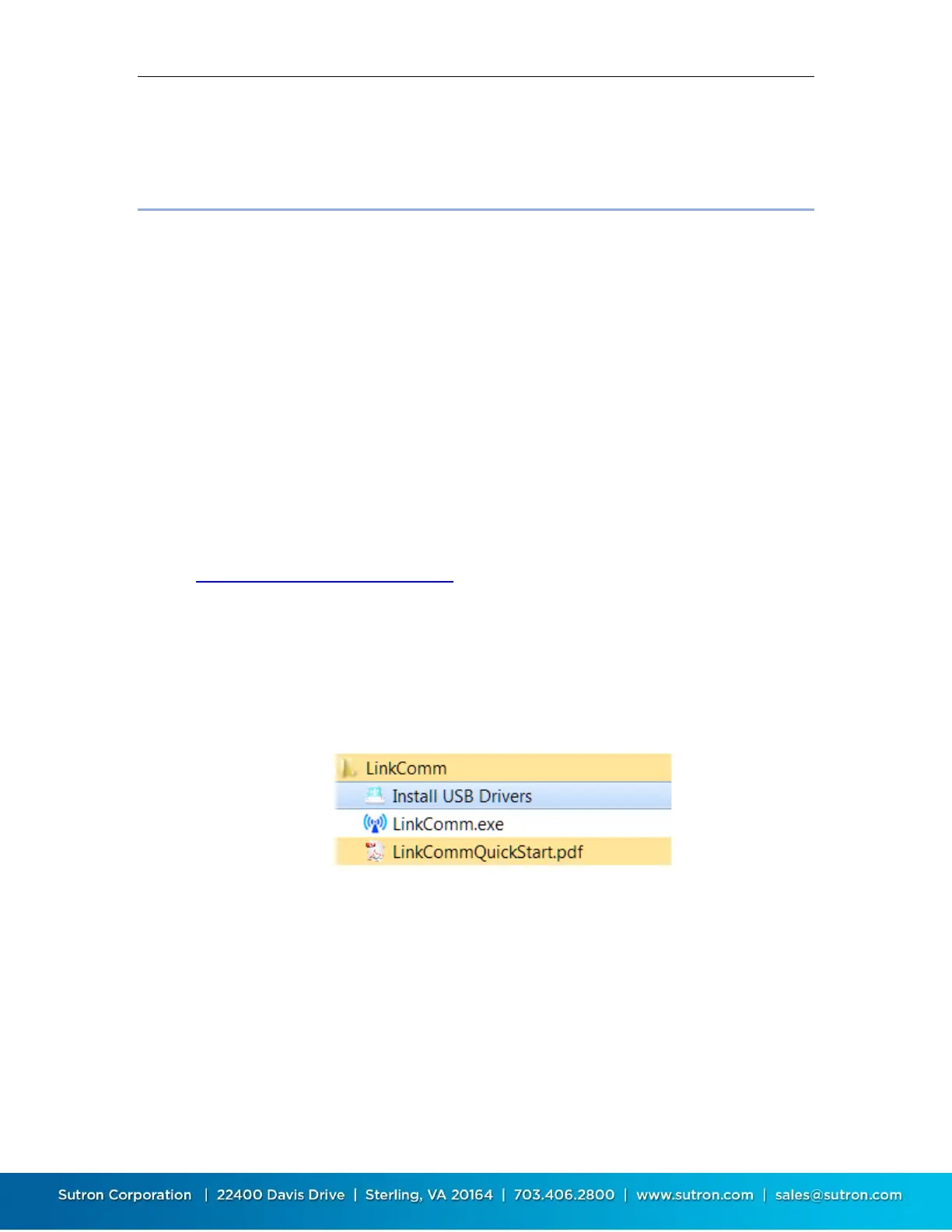
After downloading LinkComm, run the program and follow the instructions on the screen. For
Windows, extract all files to a folder on your computer. You may run LinkComm directly from this
folder by double-clicking “LinkComm.exe”, or, to install LinkComm so that it appears on the Start
menu, double-click “setup.exe” (Administrator privileges are required to install LinkComm).
If your PC is running Windows 7, you will need to install the USB drivers after installing
LinkComm. Note: this is not needed for Windows 8 and beyond.
5.3. Stations List View
When LinkComm starts, it displays the Stations List View, containing a list of stations that have
previously been setup in the software, along with the details of the selected station. The details
include the station name, type, connection settings, notes, and images.


 To Next Page