EasyManua.ls Logo

Sven GC-4040 - User Manual

Sven GC-4040
12 pages
Print Icon
To Next Page IconTo Next Page
Loading...
www.sven.fi
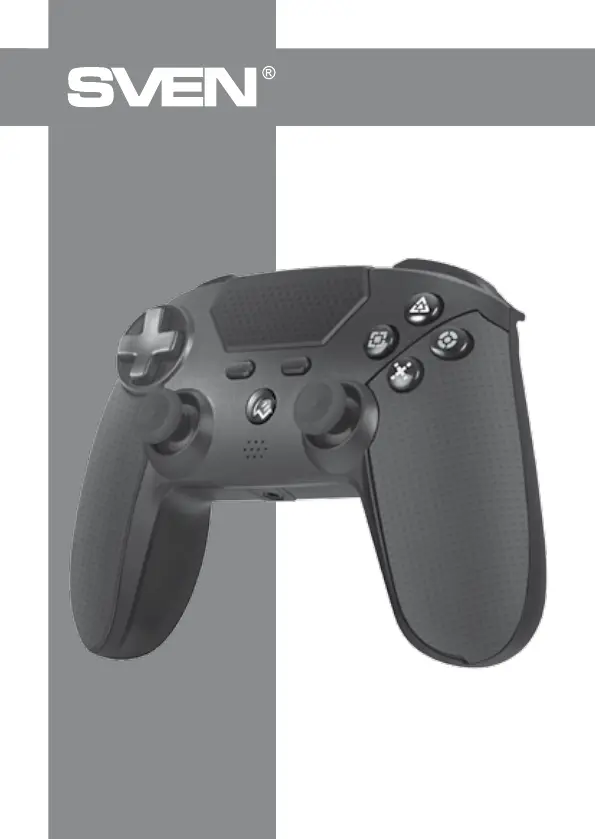
USER MANUAL
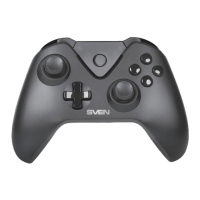
Wireless Gamepad
GC-4040

Questions and Answers

  • R
    Richard RochaAug 6, 2025
    What to do if Sven GC-4040 doesn’t react to buttons pressing?
    • J
      jennymartinAug 6, 2025
      If your Sven Video Game Controller isn’t reacting when you press the buttons, try pressing the “Reset” button located on the back side of the gamepad.
  • M
    Michaela HollandAug 17, 2025
    What to do if Sven GC-4040 is not detected by PS4?
    • E
      Elizabeth DanielsAug 17, 2025
      If your Sven Video Game Controller is not being detected by your PS4, try restarting your console.
  • M
    Michael LeeAug 26, 2025
    What to do if after the gamepad connection OS Windows doesn’t detect Sven GC-4040 Video Game Controller?
    • S
      Sarah ColemanAug 26, 2025
      If Windows doesn't detect your Sven Video Game Controller after you connect it, try connecting the gamepad to another USB port.

Summary

Buyer Recommendations

Product Description

Package Contents

Safety Precautions

Special Features

System Requirements

Description of Construction

Connection and Installation

Connect to PS4 Console

Connect the gamepad to the console via Bluetooth using a data cable, then press the Home/PS button.

Connect to PC via Data Cable

Connect the gamepad to a USB PC port for automatic driver installation and configuration.

Connect to PC via Bluetooth

Connect the gamepad to PC by opening Bluetooth settings, choosing 'Add device', and pressing SHARE+PS buttons.

Headset Connection

The gamepad has a 3.5mm jack for headset connection, works with PS4 console wired or Bluetooth.

LED Indication

PS4 and PC Buttons Accordance Table

Troubleshooting

Sven GC-4040 Specifications

General IconGeneral
TypeGamepad
ConnectivityWired
InterfaceUSB
Number of buttons12
D-padYes
VibrationYes
CompatibilityPC
Analog Sticks2
Cable Length1.8 m

Related product manuals