
 Need help?
Do you have a question about the Swann DVR4-950 and is the answer not in the manual?
Details compliance with Class B digital device FCC rules and potential interference guidelines.
Outlines legal restrictions on using the device for unauthorized recording of conversations.
Provides essential safety guidelines for product installation, operation, and maintenance.
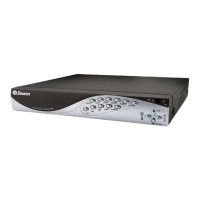
Details the front panel buttons, indicators, and the functions of the removable remote control.
Instructions for activating and preparing the remote control for first-time use.
Instructions on how to detach the remote control from the DVR unit for secure storage.
Identifies and describes the ports and connections available on the rear of the DVR unit.
Explains the procedure for turning the DVR on and off using the provided power adapter.
Describes the DVR's ability to automatically resume recording after a power interruption.
Guide on how to enter and move through the DVR's setup menus using the remote control.
Step-by-step process for configuring the DVR's current date and time settings.
Explains the elements displayed in the single camera feed and their meanings.
Details how to view multiple camera feeds simultaneously, with and without cameras connected.
How to adjust visual attributes like brightness, contrast, hue, and saturation for cameras.
How to set the frame rate per camera for recording, impacting quality and storage.
Configure recording quality, event duration, and schedule for optimal storage use.
Set recording modes for different times of the day using a 24-hour clock.
Configure motion detection sensitivity, alarm duration, and motion area for cameras.
Define specific areas on the camera view for motion detection to trigger recordings.
Adjust display settings like borders, video aspect ratio, and automatic camera switching.
Configure audio recording, muting, input, and output volume levels.
Manage system configurations including hard disk, password, event list, and firmware.
Access recorded events, configure loss alarms, and manage firmware upgrades.
Quickly locate and playback recordings by specifying a start and end time.
Save settings, exit without saving, or load factory default configurations.
Steps for configuring a new hard drive for use with the DVR after installation.
Detailed steps for backing up video footage from the DVR to a USB flash drive.
Instructions for installing and using the VVFPlayer software to view backed-up footage.
Explains the playback controls and elements of the VVFPlayer software interface.
How to extract specific segments from larger video files into new .VVF files.
Steps to convert video footage into AVI format for playback on other computers.
Details the product warranty period, coverage, exclusions, and user responsibilities.
 General
| Video Channels | 4 |
|---|---|
| Storage Capacity | Up to 2TB |
| Hard Drive Support | 1 SATA HDD |
| Compression Format | H.264 |
| Remote Access | Yes |
| Network Interface | Ethernet |
| Power Supply | 12V DC |
| Mobile App | Yes |
| Video Output | HDMI, VGA |
| Audio Output | 1 channel |
| USB Ports | 2 |
| Motion Detection | Yes |
| Operating Temperature | -10°C to 55°C |










 To Next Page
