Setting 1 DHCP without hostname
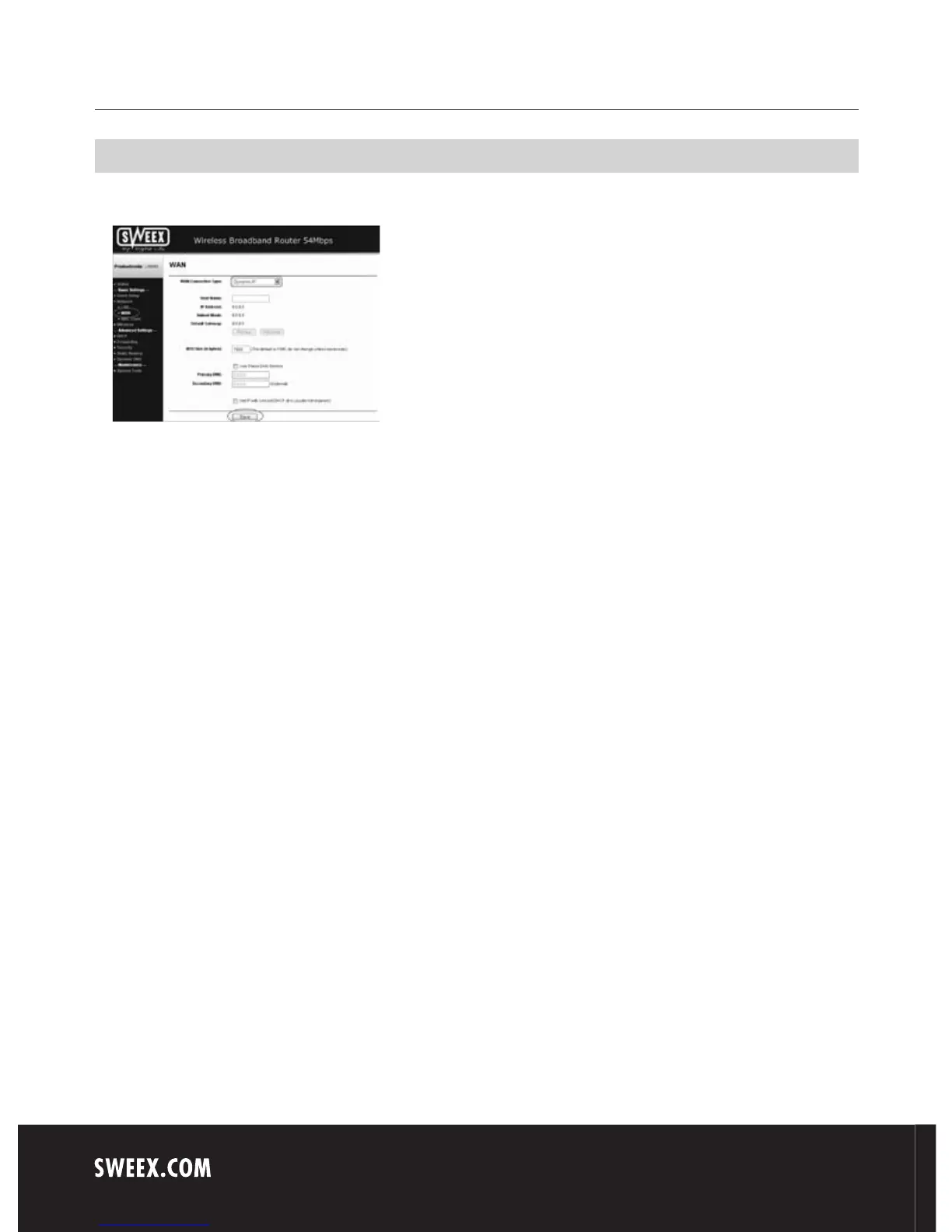
1. Left in the column, click “Network". Now click “WAN”.
2. Under “WAN Connection Type” select “Dynamic IP”. This setting is for providers who use a DHCP connection.
3. Click “Save” to save the settings.
In order to check whether the Internet connection has been set up successfully, go to the status screen by clicking “Status” left in the column. The
“WAN” section will display your Internet IP address. It can sometimes take up to 1 minute for this IP address to appear. You have now completed
the configuration and are ready to surf the Internet.
If after 1 minute your IP address continues to show as 0.0.0.0, check your settings again and complete the following steps:
1. Switch off the router and the modem.
2. Disconnect the network cable between the router and the modem at the “WAN” port.
3. Switch on the router and wait until it is fully started up.
4. Switch on the modem and wait until it is fully started up and until all the correct lights are lit.
5. Reconnect the network cable between the modem and the router via the “WAN” port of the router.
6. Connect the router via 192.168.50.1 and check your Internet connection in the status screen.


 To Next Page