EasyManua.ls Logo

SWEEX LW320 - User Manual

SWEEX LW320
33 pages
Print Icon
To Next Page IconTo Next Page
Loading...
4
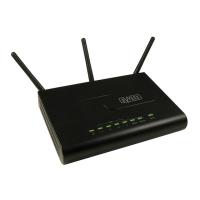
LW320/LW321 Sweex Wireless 300N Router
Do not expose the Sweex Wireless 300N Router to extreme temperatures. Do not place the device in direct sunlight or in the direct vicinity of
heating elements.
Do not use the Sweex Wireless 300N Router in extremely moist or dusty surroundings.
Protect the device against powerful shocks and falls – they may damage the internal electronics.
Never attempt to open the device yourself, there are no serviceable parts inside. Opening the device will cause the warranty to lapse.
Package Contents
In this package you will find:
Wireless 300N router
Power adapter
Network cable
Quick Installation Guide
CD-ROM with this manual
If you find that any of the package contents are missing, please return the package to the sales point where it was bought..
Terminology list
This manual will contain a number of technical terms. It is important to know what they mean before you begin installing and configuring the
router.
Router: This is the product you have just bought. A router acts as a boundary between two networks, WAN and LAN.
Network cable. A network cable is used for connecting network devices such as computers, modems and routers. You may already have such
a cable, the cable in the package contents is intended to connect the
router to
your modem.
ISP: Internet Service Provider, this is the company that supplies you your Internet connection.
Broadband modem: From here on: modem. Your modem is the device you already have or that has been supplied to you by your ISP that
currently provides your internet connection. The two most common modem types are cable modems and ADSL modems, but other kinds of
modems also exist.
LAN: LAN stands for “Local Area Network”, in the case of this router, the LAN consists of the four yellow ports and the wireless network. With
the router, all your computers will form a single LAN.
WAN: WAN stands for “Wide Area Network”, in most cases this means the Internet.
Wireless security: By default, the router’s wireless network is not secured. This means that anyone in range (including your neighbours) can
connect to the network and use your internet connection. Wireless security protects your network so that only authorised devices can gain
access. Sweex recommends all users to secure their wireless network after installation using either the WPA or WPS methods explained
further on in the “securing your wireless network” chapter of this manual.
English version


Other manuals for SWEEX LW320

Question and Answer IconNeed help?

Do you have a question about the SWEEX LW320 and is the answer not in the manual?

Summary

Sweex Wireless 300 N Router Setup and Features

Safety and Handling Precautions

Lists essential warnings regarding device placement, environment, and handling to prevent damage or warranty voiding.

Simple Setup Guide

Step-by-Step Basic Installation

Provides a detailed 7-step procedure for the basic router setup and installation.

Connecting to Wireless Network

Connecting via Windows XP and Vista

Instructions for connecting to the wireless network using Windows XP and Vista operating systems.

Wireless Setup with WPS

Windows Vista WPS Configuration and Network Naming

Guides users through WPS setup on Vista, including naming the network and choosing security options.

Windows 7 Wireless Connection

Connecting via Windows 7 and WPS Setup

Instructions for connecting to the wireless network using Windows 7, including WPS setup.

Wireless Network Security

Implementing Wireless Security Protocols

WEP, WPA;WPA2, and WPS Configuration

Step-by-step guides for securing the network using WEP, WPA/WPA2, and WPS protocols.

Troubleshooting Router Access and XP Settings

Router Login Failure and XP IP Settings

Solves router login issues and guides on checking Windows XP IP settings.

Troubleshooting Windows XP Network Configuration

Modifying XP Network Connections and TCP;IP

Details modifying network connections and TCP/IP properties in Windows XP.

Troubleshooting Windows Vista Network Configuration

Accessing Vista Control Panel and Network Settings

Guides on accessing the Control Panel and configuring network settings in Windows Vista.

Troubleshooting Windows Vista Network & Sharing

Managing Vista Network Connections and Status

Steps to manage network connections and view status in Windows Vista.

Troubleshooting Windows Vista IP Configuration

Troubleshooting Windows 7 Network Configuration

Troubleshooting Windows 7 Network & Sharing

Troubleshooting Windows 7 IP Configuration

Troubleshooting Internet Explorer Issues

Troubleshooting Proxy Server Settings

Troubleshooting Connectivity Problems

Troubleshooting Wireless Connectivity Issues

Troubleshooting Wireless Network Management

Summary

Sweex Wireless 300 N Router Setup and Features

Safety and Handling Precautions

Lists essential warnings regarding device placement, environment, and handling to prevent damage or warranty voiding.

Simple Setup Guide

Step-by-Step Basic Installation

Provides a detailed 7-step procedure for the basic router setup and installation.

Connecting to Wireless Network

Connecting via Windows XP and Vista

Instructions for connecting to the wireless network using Windows XP and Vista operating systems.

Wireless Setup with WPS

Windows Vista WPS Configuration and Network Naming

Guides users through WPS setup on Vista, including naming the network and choosing security options.

Windows 7 Wireless Connection

Connecting via Windows 7 and WPS Setup

Instructions for connecting to the wireless network using Windows 7, including WPS setup.

Wireless Network Security

Implementing Wireless Security Protocols

WEP, WPA;WPA2, and WPS Configuration

Step-by-step guides for securing the network using WEP, WPA/WPA2, and WPS protocols.

Troubleshooting Router Access and XP Settings

Router Login Failure and XP IP Settings

Solves router login issues and guides on checking Windows XP IP settings.

Troubleshooting Windows XP Network Configuration

Modifying XP Network Connections and TCP;IP

Details modifying network connections and TCP/IP properties in Windows XP.

Troubleshooting Windows Vista Network Configuration

Accessing Vista Control Panel and Network Settings

Guides on accessing the Control Panel and configuring network settings in Windows Vista.

Troubleshooting Windows Vista Network & Sharing

Managing Vista Network Connections and Status

Steps to manage network connections and view status in Windows Vista.

Troubleshooting Windows Vista IP Configuration

Troubleshooting Windows 7 Network Configuration

Troubleshooting Windows 7 Network & Sharing

Troubleshooting Windows 7 IP Configuration

Troubleshooting Internet Explorer Issues

Troubleshooting Proxy Server Settings

Troubleshooting Connectivity Problems

Troubleshooting Wireless Connectivity Issues

Troubleshooting Wireless Network Management

SWEEX LW320 Specifications

General IconGeneral
BrandSWEEX
ModelLW320
CategoryWireless Router
LanguageEnglish

Related product manuals