10
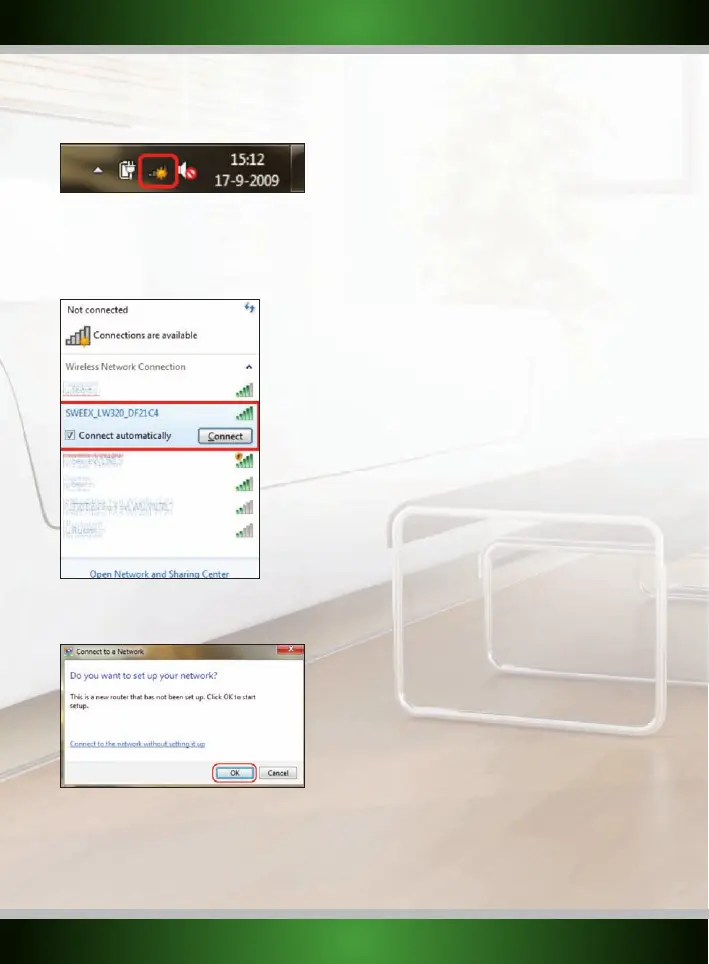
Windows 7: Windows 7 will indicate when wireless networks are available. You can recognise this by the following icon in the bottom-right of
your screen:
Note: If you see a small red cross through the icon, no networks are in range of your computer. Please consult the troubleshooting section of this
manual if this is the case.
Click the icon and a list of wireless networks will appear, select the “Sweex LW320/321 network, check the “Connect Automatically” checkbox,
click “Connect” and follow the instructions on-screen:
When you connect for the first time, Windows 7 will allow you to easily setup and secure your wireless network through the WPS method. After
connecting you will see the following screen:
After clicking “OK” you will be asked for the PIN code of your router. You can find this code printed on the label on the bottom of the router. Fill
in the code and click “Next”:
English version



 To Next Page