19
After a WPS secured connection has been set up for the first time, all previously connected devices will lose their connection. You will have to
connect them using the same WPS method or by manually entering the WPA key as described below.
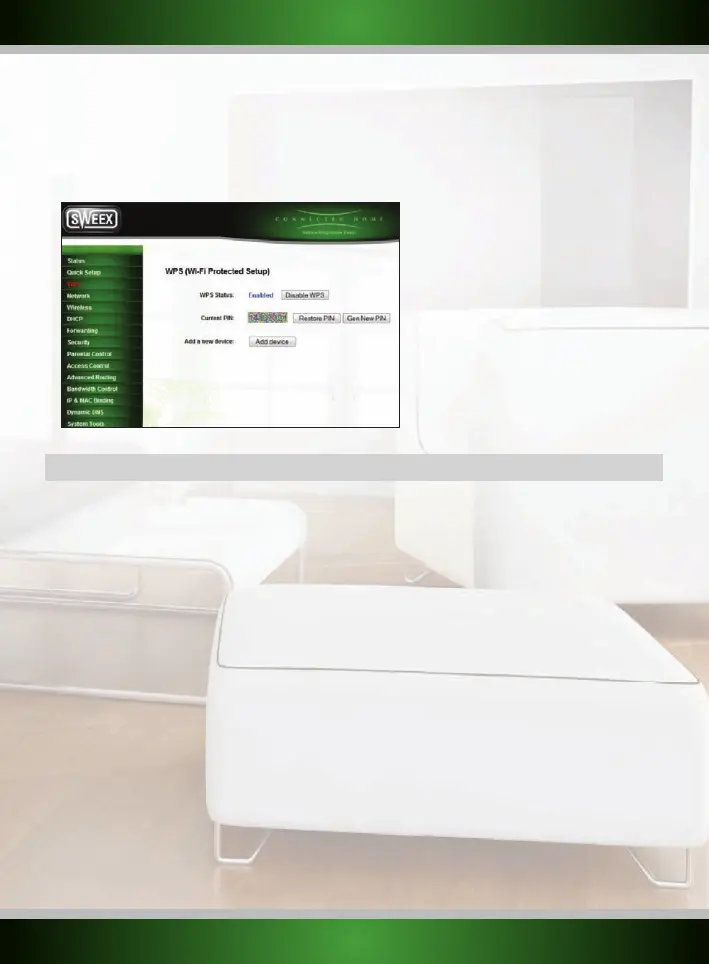
To connect a non-WPS device to a WPS secured router, click “WPS” in the menu on the left side, the “WPS Key (ASCII)” is the WPA key you can
use for connecting non-WPS enabled devices.
Advanced features
In this chapter we will describe some of the advanced features in the router. The following sections assume basic knowledge of computer
networking technology and terminology.
Static DHCP
By default, the router dynamically assigns IP addresses to all connected devices through the DHCP protocol. This is the most user-friendly
method of network configuration but it can also lead to IP addresses that change over time or when a device reconnects. In certain cases this
is undesirable behaviour, for example when you use port forwarding it is necessary for the device’s IP address to remain constant. One possible
solution is to configure a static IP address in the device itself but this can cause problems when you also use the device on other networks.
Another solution
is to
instruct the router to always assign the same IP address to the device. This is called static DHCP or DHCP address
reservation.
To setup static DHCP for a device, log in to the router as described in the “Advanced setup” chapter and click “DHCP” – “Address Reservation” in
the menu on the left. You will see the following screen:
English version



 To Next Page