20
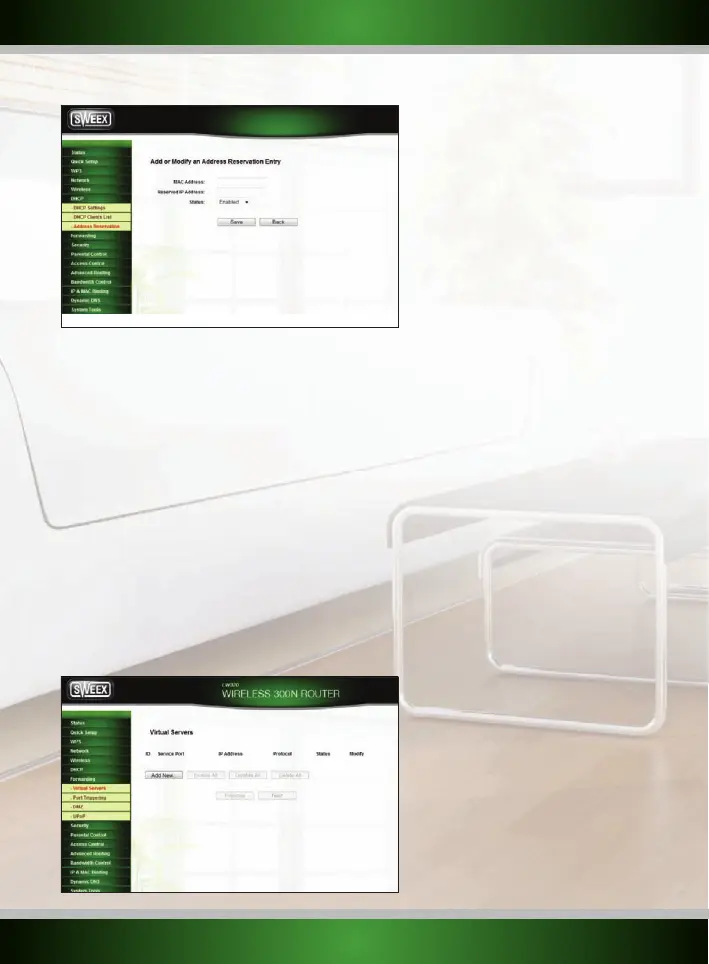
To configure a device for a static DHCP address, fill out the device’s corresponding MAC address in the “MAC Address” section and fill in the
“desired IP in the “Reserved IP Address”, then click the “Save” button. Look at the “DHCP Clients List” to see the IP and MAC addresses of all
automatically configured devices currently active on your network.
Note: Do not assign static DHCP addresses in the range 192.168.32.100 to 192.168.32.200! This range is already used for dynamically
assigned addresses. The addresses 192.168.32.1 (the router itself) and 192.168.32.255 (broadcast address) may also not be used.
Port forwarding (virtual server) and DMZ setup
For certain applications, devices and servers, it may be necessary so setup port forwarding for them to operate properly behind the router’s
firewall. This is because by default, the firewall blocks all incoming connections and allows only outgoing connections. For technical reasons the
built-in firewall is inherent to the routing function and cannot be disabled completely.
Port forwarding instructs the router to accept an incoming connection on a certain port and forward it to the IP address of a device in your local
network. Please note that use of the term port in this chapter refers to TCP or UDP ports and is not
related to
the physical WAN and LAN ports at
the back of the router.
DMZ is a special case of port forwarding where the router is instructed to forward all incoming connections to the specified address.
To setup port forwarding, login to the router as described in the “Advanced setup” chapter and click “Forwarding” – “Virtual Servers” in the
menu on the left. You will see the following screen:
English version



 To Next Page