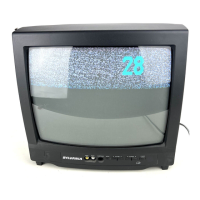
[ This manual covers 13" and 19". The operation of the two models are exactly the same except the appearance. 19" model is illustrated in this manual. I
OPERATING CONTROLS AND FUNCTIONS
• FRONT PANEL -
-REAR PANEL-
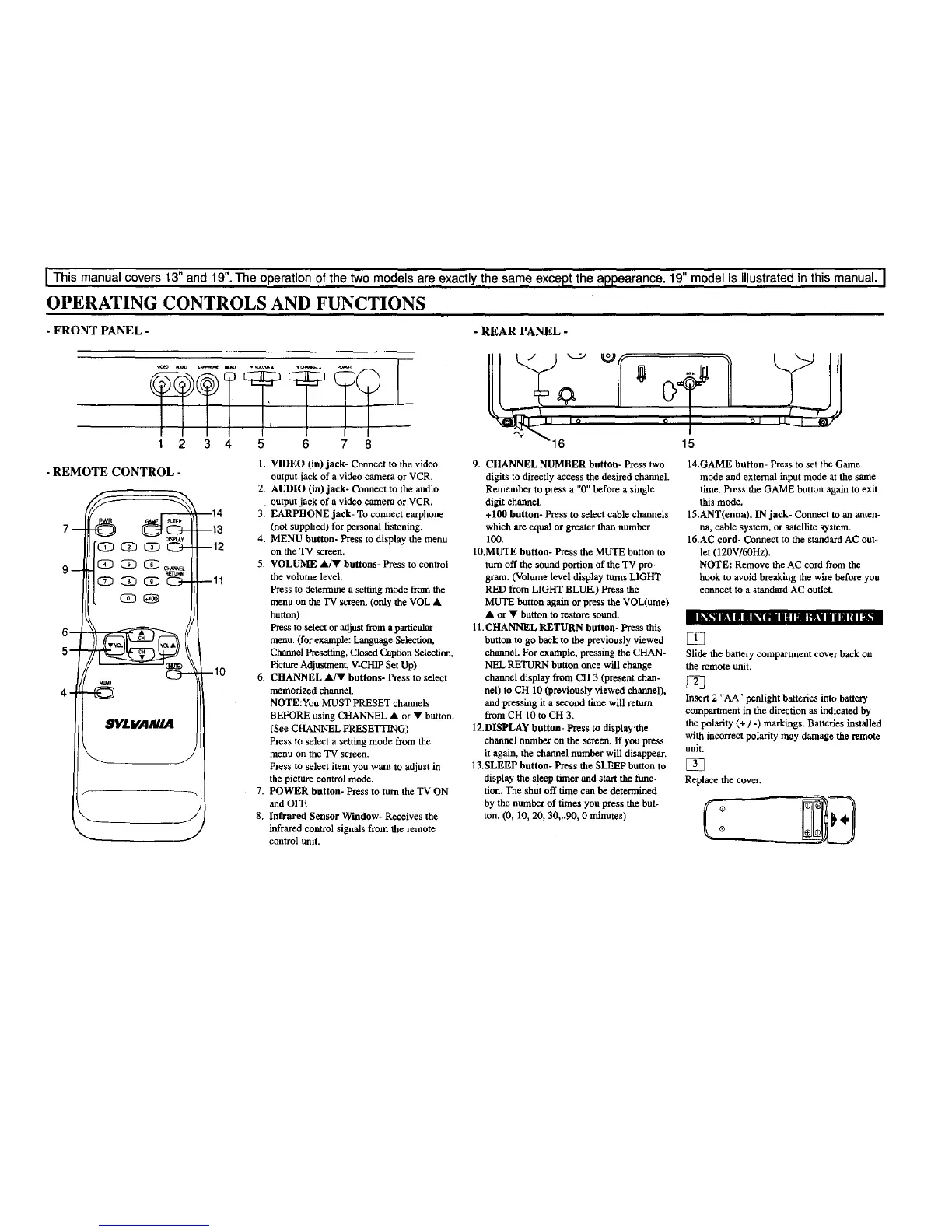
1 2 3 4 5 6 7 8
-REMOTECONTROL-
9-- (ZD _) c._
5-
4- -t_
SYLVANIA
114
113
--1:>
--11
I I_ii_Ji_ili _ I _ Ill NIt I _1
-10
1, VIDEO (in) jack- Connect to the video
output jack of a video camera or VCR.
2, AUDIO (in) jack- Coimect to the audio
. output jack of a video camera or VCR.
3. EARPHONE jack- To connect earphone
(not supplied) for personal listening.
4, MENU button- Press to display the menu
on the TV screen.
5, VOLUME ak/V buttons- Press to control
the volume level.
Press to determine a setting mode from the
menu on the TV screen. (only the VOL •
butch)
Press to select or adjust from a particular
menu. (for example: Language Selection,
Channel Presetting, Closed Caption Selection,
Picture Adjustment, V-CI-IIP Set Up)
6. CHANNEL A/V buttons- Press to select
memorized channel.
NOTE:You MUST PRESET channels
BEFORE using CHANNEL • or • button.
(See CHANNEL PRESETTING)
Press to select a setting mode from the
menu on the TV screen.
Press to select item you want to adjust in
the picture control mode.
7. POWER button- Press to turn the TV ON
and OFF.
8. Infrared Sensor Window- Receives the
infrared control signals from the remote
control unit.
16 15
9. CHANNEL NUMBER button- Press two
digits to directly access the desired channel.
Remember to press a "0" before a single
digit channel.
+100 button- Press to select cable channels
which are equal or greater than number
100.
10.MUTE button- Press the MUTE button to
turn off the sound portion of the TV pro-
gram. (Volume level display turns LIGHT
RED from LIGHT BLUE.) Press the
MUTE button again or press the VOL(ume)
• or • button to restore sound.
ll.CHANNEL RETURN button- Press this
button to go back to the previously viewed
channel. For example, pressing the CHAN-
NEL RETURN button once will change
channel display from CH 3 (present chan-
nel) to CH 10 (previously viewed channel),
and pressing it a second time will return
from CH i0 to CH 3.
12.DISPLAY button- Press to display the
channel number on the screen. If you press
it again, the channel number will disappear.
13.SLEEP button- Press the SLEEP button to
display the sleep timer and start the func-
tion. The shut off time can be determined
by the number of times you press the but-
ton. (0, 10, 20, 30,..90, 0 minutes)
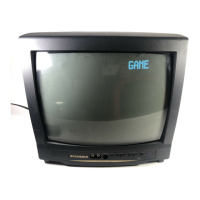
14.GAME button- Press to set the Game
mode and external input mode at the same
time. Press the GAME button again to exit
this mode.
15.ANT(enna). IN jack- Connect to an anten-
na, cable system, or satellite system.
16.AC cord- Connect to the standard AC out-
let (120V/60Hz).
NOTE: Remove the AC cord from the
hook to avoid breaking the wire before you
connect to a standard AC outlet,
Slide the battery compartment cover back on
the remote unit.
EZ3
Insert 2 "APt" penlight batteries into battery
compartment in the direction as indicated by
the polarity (+ / -) markings. Batteries installed
with incorrect polarity may damage the remote
unit.
Replace the cover.


 To Next Page