–
8
–
EN
0C28
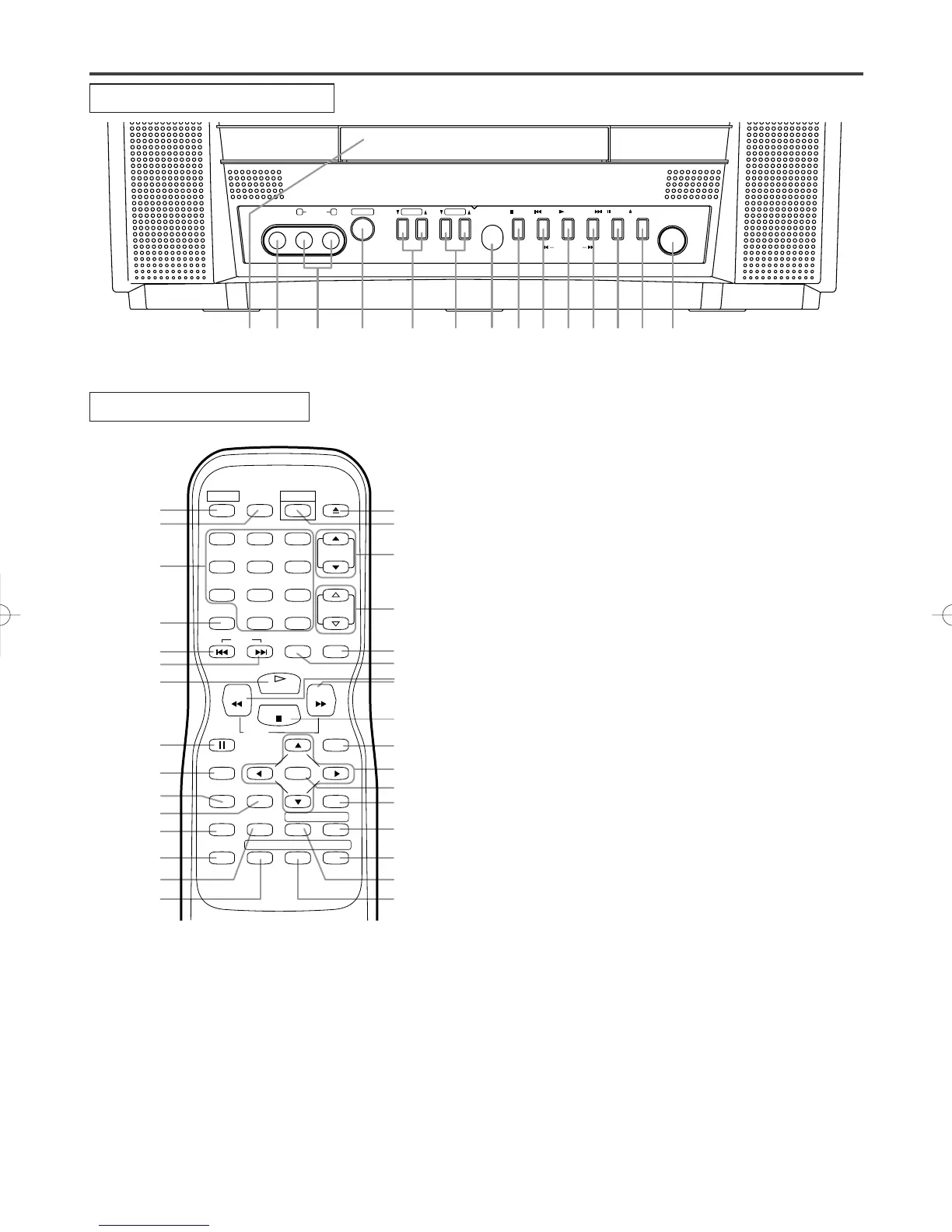
7. Remote Sensor Window
8. STOP Button [page 20]
Stops operation of the disc.
9. SKIP H Button [page 22]
Begins playback from beginning of current chap-
ter or track.
SEARCH (REV) E Button (Front Panel)
[page 21]
During playback or in the pause mode, press and
hold button down
for a few seconds to change
reverse playback speed.
10. PLAY Button [page 20]
Begins playback of disc.
Press to change to DVD mode when in TV mode.
11. SKIP G Button [page 22]
Begins playback from beginning of next chapter.
SEARCH (FWD) D Button (Front Panel)
[page 21]
During playback or in the pause mode, press and
hold button down
for a few seconds to change for-
ward playback speed.
12. PAUSE Button [page 21]
Pauses the current disc movement.
13. OPEN/CLOSE Button [page 20]
Press to open disc tray to insert a disc or to open to
remove a disc.
14. HEADPHONE Jack
To connect headphone (not supplied) for personal
listening.
15. MODE Button [pages 23-25]
Activates program playback or random playback
mode when playing CDs or MP3.
16. Number Buttons
TV Mode:
[page 15]
Press two digits to directly access the desired channel.
Remember to press 0 before a single digit channel.
+100 Button
Press to select cable channels which are higher than 99.
DVD Mode: [page 22]
Press to enter the desired number.
+10 Button
Press to enter the desired numbers which are greater
than 9.
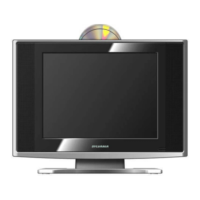
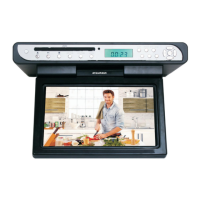
OPERATING CONTROLS AND FUNCTIONS
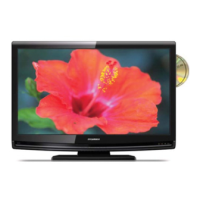
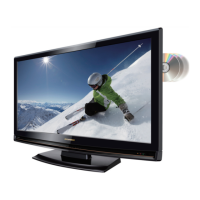
TV/DVD FRONT PANEL
REMOTE CONTROL
[Fig. 2]
[Fig. 1]
1. Disc loading tray
2. VIDEO input Jack [page 11]
Connect to the video output jack of a video
camera or VCR, Video game system.
3. AUDIO L/R input Jacks [page 11]
Connect to the audio output jacks of a video
camera or VCR, Video game system.
4. POWER Button [page 13]
Press to turn the power on and off.
5. VOLUME K/L (VOL.
m
/
n
) Buttons
Press to control the volume level.
6. CHANNEL K/L (CH. K/L) Buttons [page 14]
Press to select memorized channel.
Press to change to TV mode when in DVD mode.



 To Next Page