16
Quick Start Guide
6408 216th Street SW | Mountlake Terrace, WA 98043 USA
T +1.425.778.7728 F +1.425.778.7727 | www.symetrix.co
6.
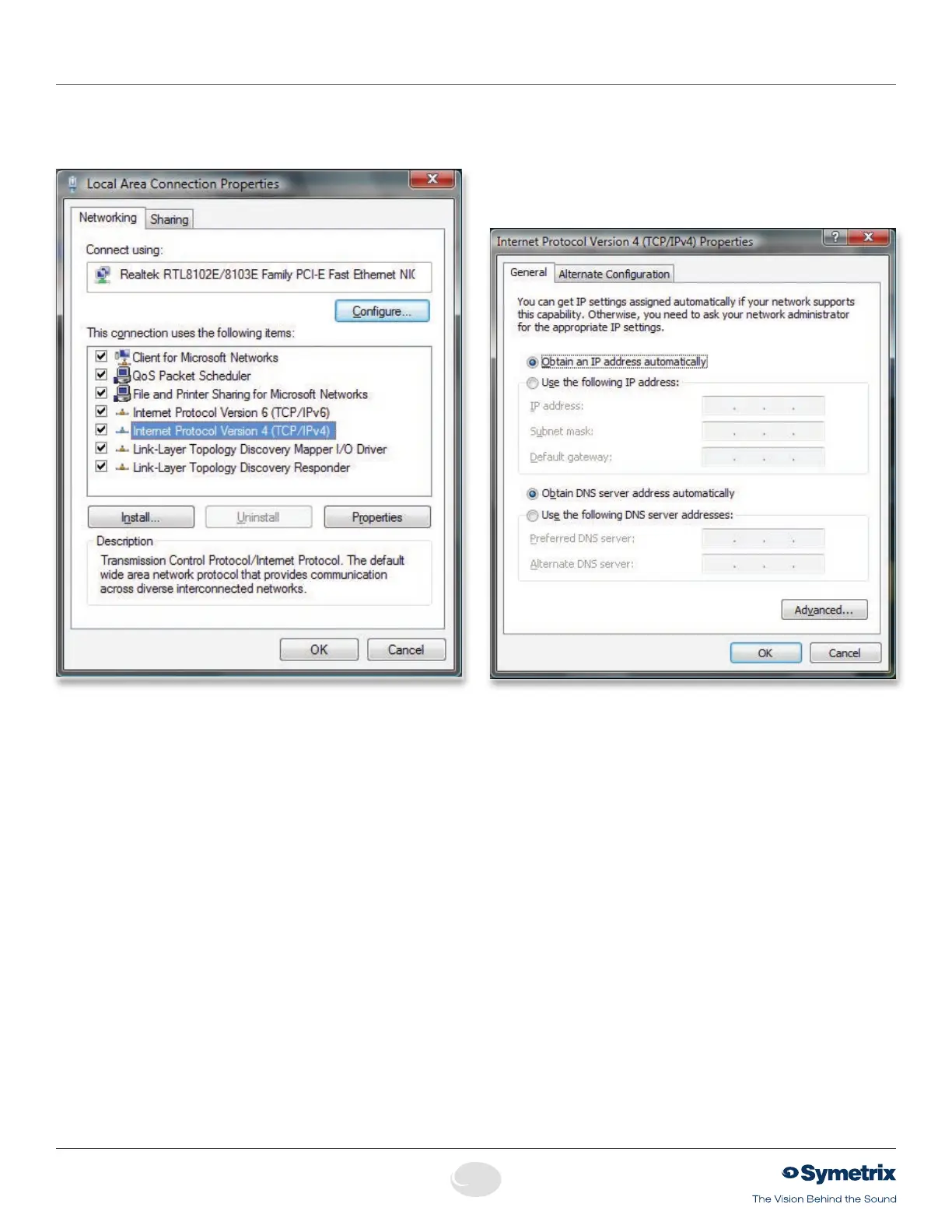
Under “This connection uses the following items”, select
“Internet Protocol Version 4 (TCP/IPv4)” and press
“Properties”.
7.Onthe“General”tab,youmayselect“Usethefollowing
IPv4 address” to enter in the appropriate information
if using static assigned addresses. (DNS server is not
required for connection to Jupiter hardware). Otherwise,
leave set to “Obtain an IPv4 address automatically” if
using DHCP. Press OK to close.
8.Repeatsteps6and7for“InternetProtocolVersion6
(TCP/IPv6)” if on an IPv6 network. Consult your IT staff if
you are unsure.
9.PressOKtosaveand“Close”toexitoutofthe“Local
Area Connection Properties”.
For more information about configuring the host computer,
visit http://www.microsoft.com.
Note: Typically, only Admins or users belonging to the
Network Configuration Operators group can alter networking
configurations in Windows Vista or higher.
Once you have completed the setup of your network and
any network hardware/interfaces, you may install the Jupiter
software or launch the software if you have already installed
it, then run the Connection Wizard.
Jupiter Networking


 To Next Page