9
Jupiter
6408 216th Street SW | Mountlake Terrace, WA 98043 USA
T +1.425.778.7728 F +1.425.778.7727 | www.symetrix.co
Power
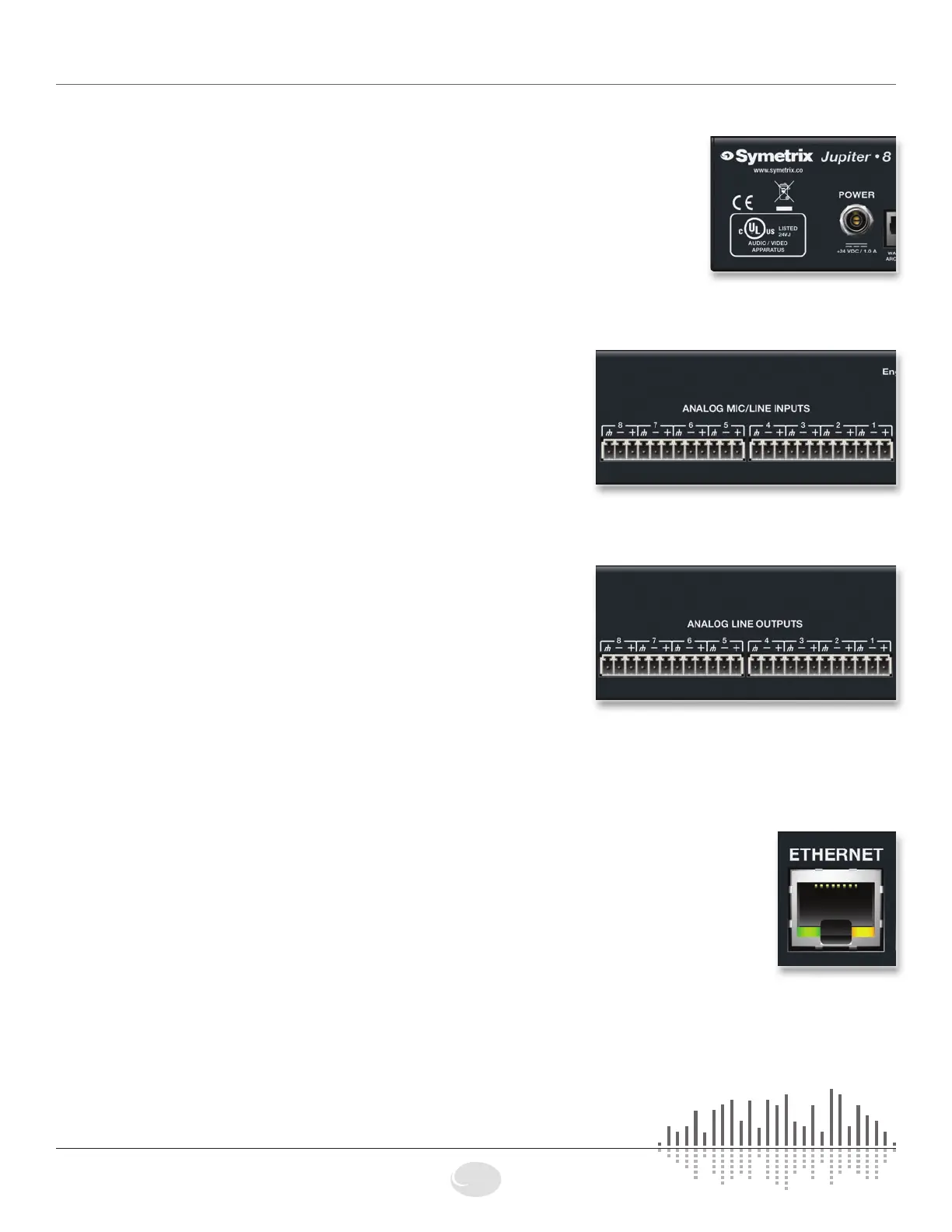
POWER INPUT Connect the locking power plug connector end of the supplied AC cord
to the receptacle on the rear of Jupiter. Connect the AC connector end of
the supplied AC cord to an AC power source that is of the correct voltage
and frequency (100-240 VAC, 50-60 Hz). Use only the power cord and
connector specified for the product and your operating locale.
WhenJupiterispoweredupcorrectly,thePOWERLEDonthefrontofthe
device will be lit solid green.
Audio
ANALOG
MIC/LINE INPUTS Using standard mic/line cables terminated on one end with
terminal block connectors and appropriate connectors for your
mic/line sources on the other end, connect the terminal block
endsintotheANALOGMIC/LINEINPUTSofJupiterandthe
opposite ends into your source devices’ outputs. Refer to the
Audio Wiring Reference for more information.
NOTE: Wiring the inputs to an unbalanced cable will typically
resultinaninputlevelthatis6dBlowerthantheinputlevel
achieved using a balanced cable. If wiring to an unbalanced
source, you may need to adjust Jupiter’s input level. Refer to the
INPUTLEVELwithintheINPUTSpanelinthesoftware.
ANALOG
LINE OUTPUTS Using standard mic/line cables terminated on one end with
terminal block connectors and appropriate connectors for your
destination devices on the other end, connect the terminal
blockendsintotheANALOGLINEOUTPUTSofJupiterand
the opposite ends into your destination devices’ inputs. These
outputsare+4dBubalancedlineleveloutputsbydefault.If
you need an unbalanced output, see the analog audio wiring
diagrams in the Audio Wiring Reference.
NOTE: Wiring the outputs to an unbalanced cable will typically
resultinanoutputlevelthatis6dBlowerthantheoutputlevel
achieved using a balanced cable. If wiring to an unbalanced destination,
you may need to change Jupiter’s output level. Refer to the OUTPUT
LEVELwithintheOUTPUTSpanelinthesoftware.
Control
ETHERNET Using a standard straight-through CAT5 cable terminated with RJ45
connectors, connect Jupiter’s ETHERNET port to either your computer’s
Ethernet port or to an existing Ethernet network. You may wish to review
the Network Configuration section for more information. When Jupiter has
aphysicalnetworkconnection,theamber“link”LEDontheETHERNET
connector will be lit solid. When there is network communication, the green
“activity”LEDontheETHERNETconnectorandtheNETWORKLEDonthe
front of the device will flash accordingly.
NOTE: Jupiter’s Ethernet port will automatically sense a device-to-device
connection so that a standard straight-through Ethernet cable may always
be used. A cross-over cable is not required.
NOTE 2:TheEthernetconnectionisalsoavailablefor3rdpartycontrol.
Refer to the control protocol document available on the Symetrix web site
or within the Jupiter software help file for more information.
Hardware Connections


 To Next Page
 Loading...