18
Quick Start Guide
6408 216th Street SW | Mountlake Terrace, WA 98043 USA
T +1.425.778.7728 F +1.425.778.7727 | www.symetrix.co
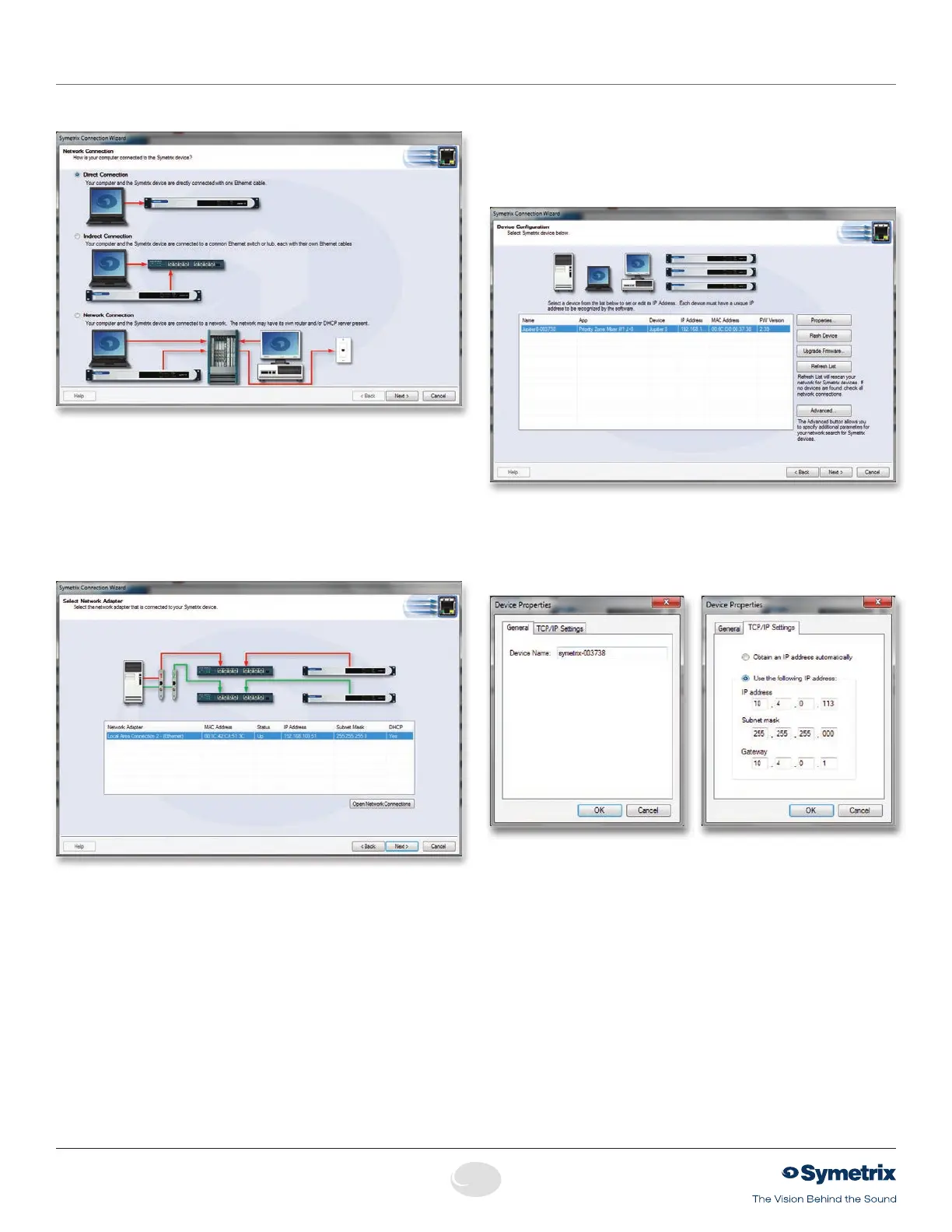
The Connection Wizard opens with the following screen:
Select the option that best represents your network
topology and then click the Next button. (Refer to Network
Configuration for further help.)
In the event that your computer has multiple Network
Interfaces Cards (NICs), the following screen will allow you
to select the network you wish to search for Jupiter devices.
Note that only valid NICs will be selectable (those with a
network connection and valid IP address).
Select the NIC you wish to use and then click the Next
button. If you are unsure which NIC to use or need to
configure a NIC, you can view the NICs currently configured
on your PC by pressing the Open Network Connections
button which will open the Windows network connections
window.
The following screen displays a list of Jupiter devices found
on your network. At the very least, you can select the device
you wish to connect to and click the Next button. However,
there are a few more functions on this screen worth
mentioning...
Properties:
The (device) Properties dialog allows you to give a device a
unique name to help identify it. It also allows you to switch
the device between dynamic (DHCP) IP addressing and
static IP addressing.
Flash Device:
ClickingtheFlashDevicebuttonwillcauseallLEDsonthe
front of the device to flash for a short time. This can be
helpful to distinguish devices which have the same or similar
names.
Upgrade Firmware:
The Jupiter firmware must be matched with the version of
the Jupiter software you are using. The correct firmware
for the software is always distributed with the software and
installed on your hard drive by the software’s installer. If there
is ever any doubt, follow the instructions in the Upgrade
Firmware topic to check your firmware version or to upgrade
the firmware.
Connection Wizard


 To Next Page