EasyManua.ls Logo

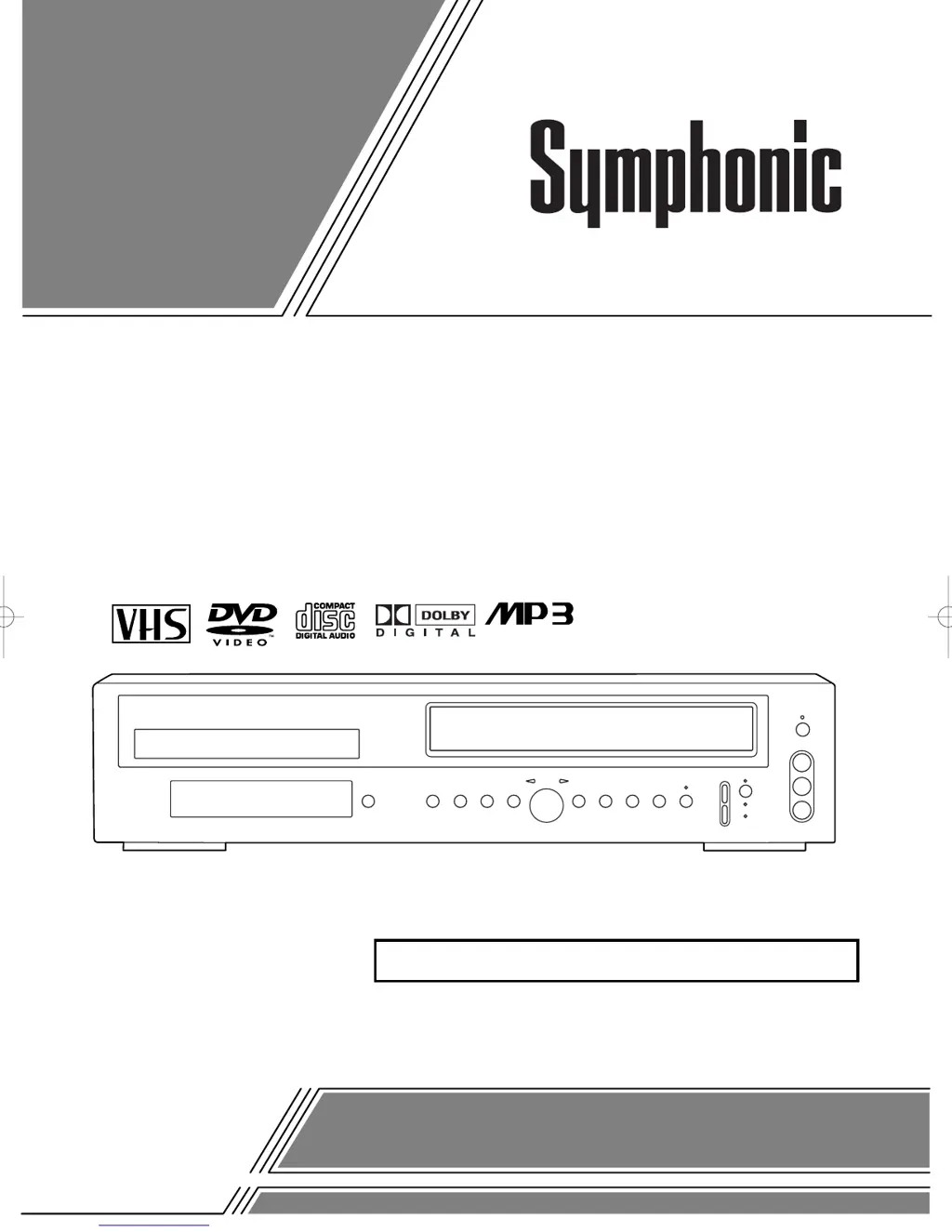
Symphonic WF802 - User Manual

Symphonic WF802
48 pages
Print Icon
To Next Page IconTo Next Page
Loading...
OWNER’S
MANUAL
If you need additional assistance for set-up or operating
after reading owner’s manual, please call
TOLL FREE : 1
-
800
-
242-7158
Please read before using this equipment.
INSTRUCCIONES EN ESPAÑOL INCLUIDAS.
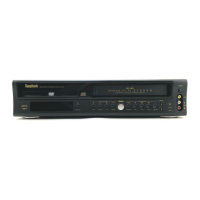
DVD PLAYER with VIDEO CASSETTE RECORDER
WF802

Table of Contents

Other manuals for Symphonic WF802

Questions and Answers

  • C
    Caitlin MartinezSep 3, 2025
    What to do if Symphonic WF802 DVD VCR Combo has no picture?
    • A
      Adam JohnsonSep 3, 2025
      If there is no picture on your Symphonic DVD VCR Combo, connect the video cables firmly. Ensure you've inserted a video disc that is playable on this unit. Press the DVD button on the remote control and check if the DVD OUTPUT Light is lit. Then try other DVD feature buttons.
  • M
    Megan MendezSep 1, 2025
    What to do if Symphonic DVD VCR Combo timer recording is impossible?
    • M
      Michael HansenSep 1, 2025
      If timer recording is not working on your Symphonic DVD VCR Combo, verify that the timer recording is set correctly, the power is off, and the DVD/VCR clock is set correctly.
  • O
    ohaydenAug 31, 2025
    What to do if Symphonic WF802 cannot remove the tape?
    • E
      Ebony HamiltonAug 31, 2025
      If you cannot remove the tape from your Symphonic DVD VCR Combo, make sure the player is in VCR mode. If not, press the VCR button on the remote control to switch the mode.
  • J
    Joanne JonesAug 29, 2025
    What to do if Symphonic DVD VCR Combo cannot go into Record mode?
    • J
      Jacob WeeksAug 29, 2025
      If your Symphonic DVD VCR Combo won't enter Record mode, ensure the tape has a safety tab. If there is no tab, cover the hole with cellophane tape. Also, put the player in VCR mode by pressing the VCR button on the remote control so that the green VCR OUTPUT light is lit.
  • N
    novakalexAug 27, 2025
    What to do if Symphonic WF802 DVD VCR Combo disc cannot be played?
    • S
      Stephanie DixonAug 27, 2025
      If your Symphonic DVD VCR Combo won't play a disc, make sure the disc is inserted correctly with the label side up. If it still doesn't work, try cleaning the disc. Also, check if the parental lock is enabled and cancel it or change the control level if necessary.
  • K
    kelli45Aug 26, 2025
    Why are TV programs not seen normally on Symphonic WF802?
    • D
      Debbie KrauseAug 26, 2025
      If TV programs are not displaying correctly on your Symphonic DVD VCR Combo, re-check the ANT. IN and ANT. OUT connections. Press the VCR/TV button so that the VCR/TV indicator on the DVD/VCR disappears. Alternatively, press the VCR button on the remote control to put it in the VCR mode, and check if the green VCR OUTPUT light is lit, then set it to the TV position by pressing the VCR/TV button, so the VCR/TV light goes off.
  • M
    melissaescobarAug 25, 2025
    What to do if Symphonic WF802 has no sound?
    • L
      Lisa WrightAug 25, 2025
      If there is no sound from your Symphonic DVD VCR Combo, check that the audio cables are firmly connected. Also, ensure the power of the audio component is on, the audio output settings are correct, and the input settings on the audio component are properly configured.
  • L
    Luis MartinezAug 22, 2025
    What to do if Symphonic WF802 DVD VCR Combo has no power?
    • C
      Cameron LeAug 22, 2025
      If your Symphonic DVD VCR Combo has no power, ensure the power plug is securely connected to an AC outlet and that the power is turned on.

Summary

LASER SAFETY

IMPORTANT SAFEGUARDS

PRODUCT INFORMATION

RECYCLING NOTES

Guidelines for responsible disposal of packaging and batteries.

COPYRIGHT NOTICE

Information on copyright laws and restrictions for use.

SUPPLIED ACCESSORIES

List of items included with the DVD/VCR player.

MANUAL SYMBOLS GUIDE

Explanation of symbols and their meanings within the manual.

FEATURES

VCR MODE OPERATIONS

HARDWARE SPECIFICATIONS

Details on the VCR's hardware capabilities and features.

AUTOMATIC FUNCTIONS

Explanation of automatic functions like power on and tracking.

PRECAUTIONS AND INSTALLATION

INSTALLATION LOCATION

Guidelines for proper placement of the DVD/VCR unit.

SAFETY AND ENVIRONMENTAL HAZARDS

Warnings about electrical shock, fire, and moisture.

DISC COMPATIBILITY

PLAYABLE DISCS

Information on which types of discs can be played.

DISC TYPE DETAILS

Details on how data is organized on different disc formats.

OPERATING CONTROLS

FRONT PANEL LAYOUT

Identification and description of controls on the front of the unit.

REMOTE CONTROL LAYOUT

Explanation of buttons and their functions on the remote control.

REAR PANEL AND CONNECTIONS

REAR PANEL LAYOUT

Diagram and identification of rear panel ports and connections.

DISPLAY AND BATTERY INFORMATION

DISPLAY INDICATORS AND OPERATION DISPLAYS

Explanation of symbols and messages shown during operation.

LOADING THE BATTERIES

Instructions for inserting batteries into the remote control.

VCR;DVD MODE SWITCHING

HOOKUPS AND CONNECTIONS

DVD;VCR TO TV CONNECTION

Steps to connect the DVD/VCR to a television.

CH3;CH4 SWITCH SETTINGS

Guide to setting the TV output channel for VCR mode.

CONNECTING TO TV WITH S-VIDEO;COMPONENT INPUTS

Instructions for connecting to TVs with advanced video inputs.

CONNECTING TO DIGITAL AUDIO EQUIPMENT

ADVANCED AUDIO CONNECTIONS

CONNECTING TO A DOLBY DIGITAL DECODER

Steps to connect for surround sound via a Dolby Digital decoder.

CONNECTING TO ANALOG AUDIO SYSTEM

How to connect to a standard stereo system using analog audio.

SETUP PROCEDURES

AUTOMATIC CHANNEL SETUP

Guide to automatically scanning and storing TV channels.

CHANNEL SELECTION AND PRESETTING

Instructions for manually selecting and re-running channel setup.

ADVANCED SETUP OPTIONS

CHANNEL MANAGEMENT

How to manually add or remove channels from memory.

ON-SCREEN LANGUAGE AND CLOCK SETTING

How to change menus and set the device's clock accurately.

PLAYBACK FUNCTIONS

NORMAL, PAUSED, AND REPEAT PLAYBACK

How to play, pause, control speed, and set auto-repeat.

SEARCH FUNCTIONS

Methods for finding specific points on a tape.

RECORDING OPERATIONS

RECORDING PROGRAMS AND OTR

How to record, use One-Touch Recording, and view/record simultaneously.

TIMER RECORDING SETUP

Setting up scheduled recordings for future playback.

TIMER RECORDING GUIDANCE

TIMER RECORDING HINTS AND PROGRAM MANAGEMENT

Tips for timer recording and managing scheduled programs.

SPECIAL FEATURES

VIDEO COPYING AND MONITORING

Instructions for dubbing video tapes and monitoring recordings.

MULTI-CHANNEL SOUND SYSTEM (MTS)

Explanation of TV stereo and SAP sound modes.

DISC PLAYBACK BASICS

PLAYING A DVD VIDEO OR AUDIO CD

Step-by-step guide to playing discs.

TAPE REWIND AND COUNTER

Information on tape rewinding and time display.

DVD MENU AND PLAYBACK CONTROL

USING DVD MENUS AND TITLE SELECTION

How to navigate and select options within DVD menus.

PAUSING, STILL PICTURE, AND RESUMING PLAYBACK

Controlling playback by pausing, holding frames, and resuming.

ADVANCED DISC PLAYBACK MODES

SPEED CONTROL AND SEARCHING

Controlling playback speed for fast forward, reverse, and slow motion.

TITLE, CHAPTER, AND TRACK SELECTION

Methods to jump to specific tracks, titles, or chapters.

TIME COUNT, MARKER, AND RANDOM PLAYBACK

STARTING FROM A DESIRED TIME COUNT

How to start playback from a specific time.

USING THE MARKER FUNCTION

Defining and recalling specific points on a disc.

RANDOM PLAYBACK FOR AUDIO CDs

Playing audio CD tracks in a random order.

REPEAT PLAYBACK MODES

REPEAT FUNCTION

How to repeat playback of discs, tracks, or chapters.

A-B REPEAT FUNCTION

How to set and repeat a specific segment of playback.

PROGRAM AND ZOOM PLAYBACK

PROGRAMMING AUDIO CD TRACKS

Creating custom playback sequences for audio CDs.

ZOOM PLAYBACK FUNCTION

Enlarging parts of the DVD image on the screen.

PLAYING MP3 DISCS

MP3 DISC DISPLAY INFORMATION

ADVANCED MP3 DISC PLAYBACK

SPECIFIC TRACK AND PROGRAMMED PLAYBACK

Finding specific tracks and creating custom playback sequences.

RANDOM MP3 PLAYBACK

Playing MP3 tracks in a random order.

SETTINGS AND AUDIO OPTIONS

CHANGING AUDIO LANGUAGE AND SOUND MODE

How to select desired audio tracks and sound modes.

SUBTITLE AND CAMERA ANGLE SETTINGS

CHANGING SUBTITLE LANGUAGE

How to select preferred subtitle languages.

CHANGING CAMERA ANGLE

How to switch between different camera views on DVDs.

DISPLAY AND PICTURE SETTINGS

CUSTOMIZING ON-SCREEN DISPLAY

How to control the information shown during playback.

ADJUSTING BLACK LEVEL SETTINGS

How to adjust the brightness of dark picture areas.

SETUP MENU OPTIONS

LANGUAGE SETTINGS CONFIGURATION

How to configure language preferences for audio and subtitles.

DISPLAY SETTINGS AND OPTIONS

DISPLAY SETTINGS CONFIGURATION

How to adjust TV aspect ratio, panel brightness, and background color.

AUDIO SETTINGS AND OPTIONS

DRC, DOLBY DIGITAL, AND DOWN SAMPLING

Settings for Dynamic Range Control, Dolby Digital output, and audio down sampling.

PARENTAL LOCK CONTROL

LANGUAGE CODE LIST

TROUBLESHOOTING GUIDE

HANDLING PRECAUTIONS AND CARE

SERVICING AND CLEANING GUIDELINES

Instructions for servicing, cabinet cleaning, and auto head cleaning.

DISC HANDLING AND CARE

Proper methods for handling, cleaning, and storing discs.

PRODUCT SPECIFICATIONS

LIMITED WARRANTY INFORMATION

Symphonic WF802 Specifications

General IconGeneral
TypeDVD VCR Combo
BrandSymphonic
ModelWF802
Number of VCR Heads4
DVD PlayerYes
VCR PlayerYes
Region Code1
TV SystemNTSC
Output Resolution480i
Remote ControlYes
Playable Media FormatDVD, VHS
Video Playback FormatsMPEG-2
Audio Playback FormatsPCM
ConnectionsComposite Video

Related product manuals