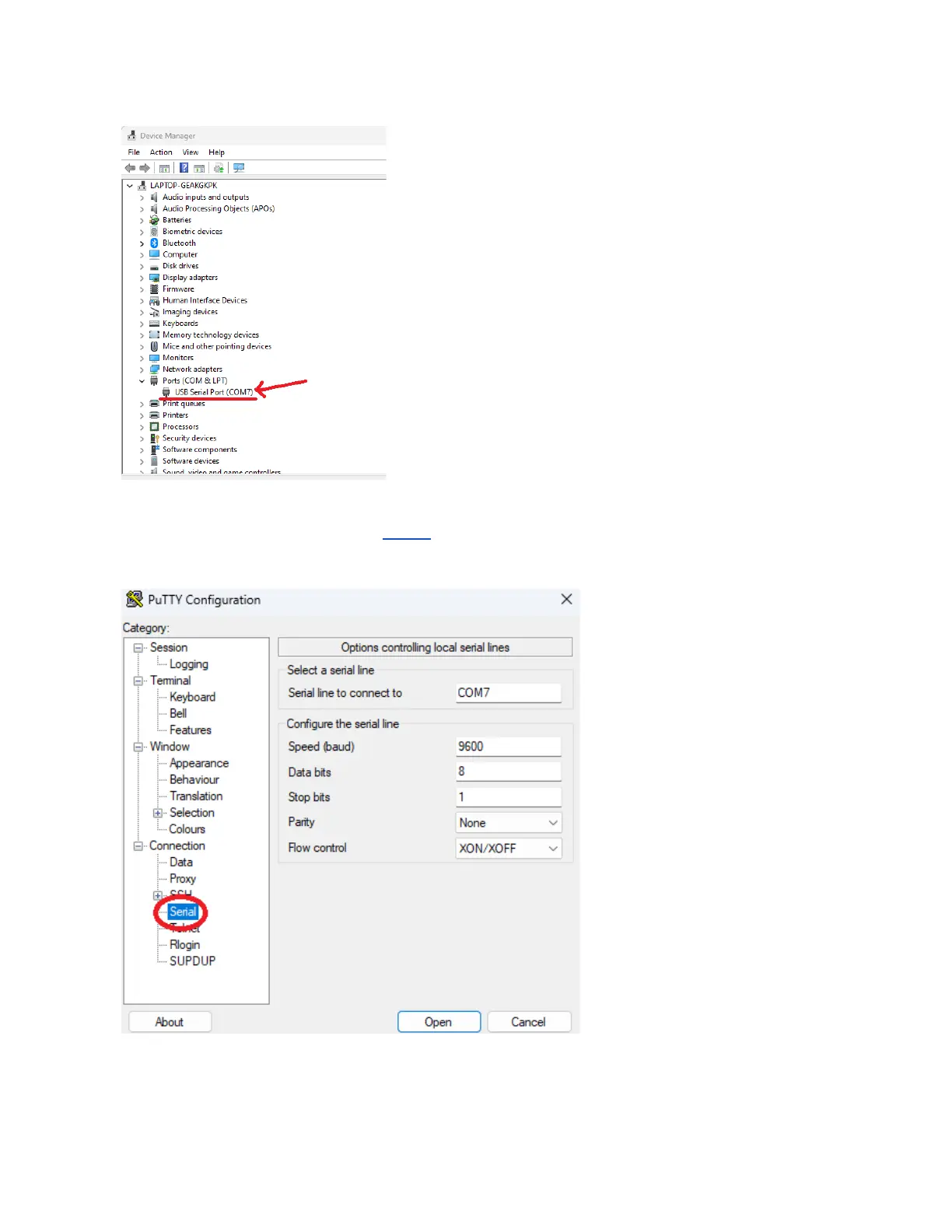
For devices with USB serial ports, no extra drivers are needed
for modern versions of Windows. We will need to first retrieve
the COM port assigned to your device. For DB9 devices, this
will correspond to the assigned COM port that you have
connected your device to.
For USB devices, navigate to Device Manager (Windows Key
+ search “Device Manager”), and expand the “Ports (COM &
LPT)” section (pictured on the left).
You should see a “USB Serial Port (COMx)” entry, where x
corresponds to your device connection’s assigned COM port.
Now we can connect to your device now that we know the device is connected and you know your COM
port.Instructions here are provided for PuTTY, a popular client for Windows used to connect via telnet,
serial, and more. Ensure PuTTY is installed, or adapt the instructions to your client of choice.
Once PuTTY is installed, open the
application, and navigate to the
“Serial” section under Connection
on the left hand menu.
The default settings for serial
connections are as follows (also
pictured on left image):
Speed: 9600
Data Bits: 8
Stop Bits: 1
Parity: None
Flow Control: XON/XOFF



 To Next Page