8AV
8.1 AV
Contrast
Brightness
Channel
Preference
Setting
12
12
AV
Game
Installation
Main Menu
4
1
2
3
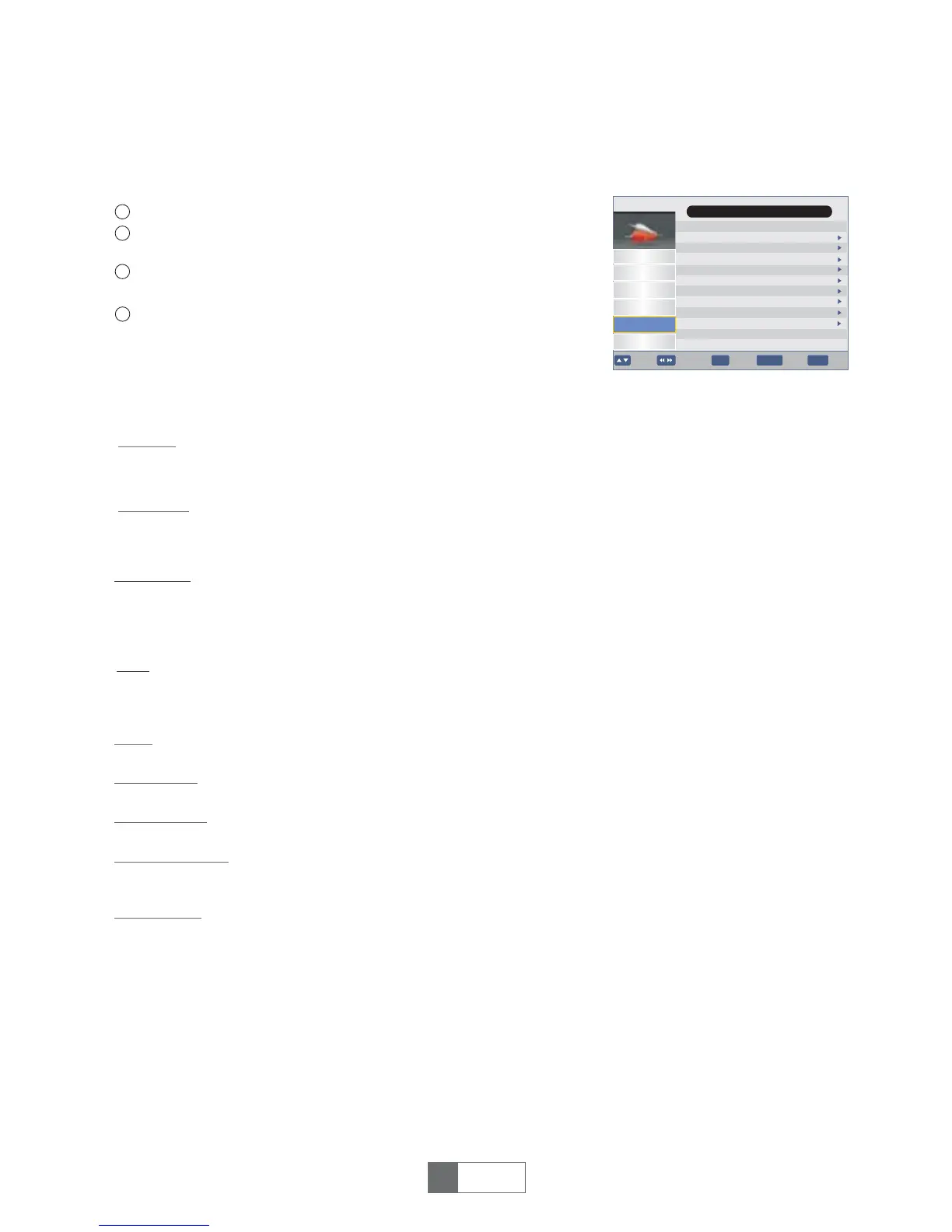
Press the "MENU" button to enter main menu.
Press"UP"or"DOWN"buttontohighlight"AV",press
"RIGHT" button to enter the AV menu.
Press"UP"or"DOWN"cursorbutton tohighlightthedesireditem
andpress"OK"buttontoenterthesub-menu.
Press"EXIT"buttontoexit.
Contrast
Brightness
SPDIF
Aspect Ratio
Video Output
Video Resolution
HDMI Audio:
Mute/Bitstream/PCM
4:3LB/ 4:3PS/16:9 /Full Screen
RGB/ CVBS
480p_60/480i_30/576p_50/576i_25/720p_60/720p_50/
1080i_30/1080i_25/1080p_60/1080P_50/Auto Detect
HDMI Mute/HDMI PCM/HDMI RAW
Highlight "Contrast" and press "RIGHT" button, then you can press"RIGHT"
and "LEFT" button to adjust contrast.
Highlight "Brightness" and press "RIGHT" button, then you can press"RIGHT"
and"LEFT"buttontoadjustBrightness.
1
English
10
Saturation
HUE
Highlight "Saturation" and press "RIGHT" button, then you can press"RIGHT"
and "LEFT" button to adjust Saturation.
Highlight "HUE" and press "RIGHT" button, then you can press"RIGHT"
and"LEFT"buttontoadjust HUE.
Mute
4:3 LB
CVBS
576p_50
HDMI PCM
SPDIF
Aspect Ratio
Video Output
Video Resolution
HDMI Audio
Saturation
HUE
18
1
OK
EXIT
Move Enter
Exit
BACK
BackPage+-


 To Next Page