4
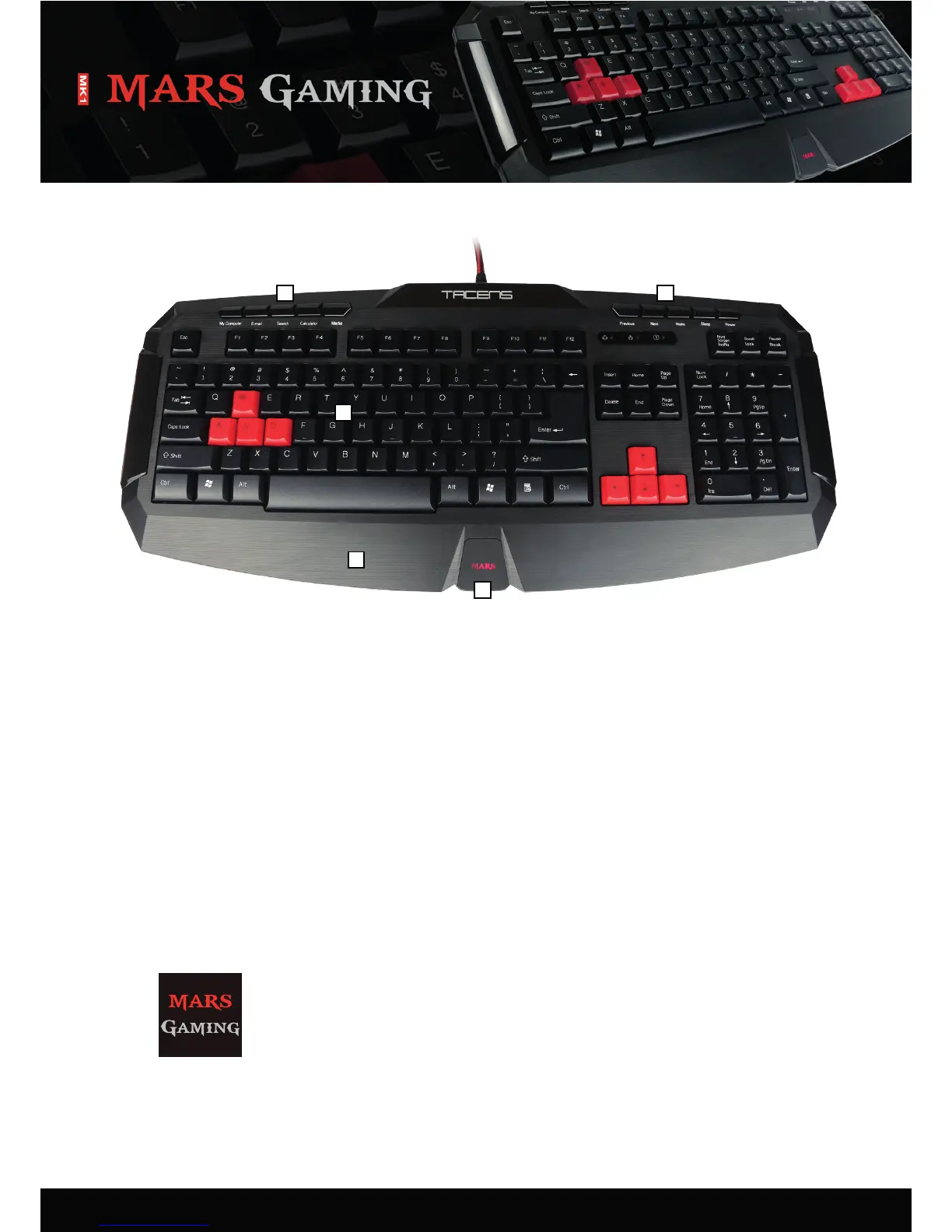
5. The keyboard at a glance
6. Connecng to the PC
7. Installing the soware
á
A
A
A
A
B
C
D
1. Before installing the included soware, remove all other installed keyboard soware from your system.
2. Put the included Tools CD into your CD/DVD drive.
3. Open the CD/DVD drive’s folder (e.g. D:).
4. Open the folder “MARS GAMING“.
5. Start “MK1.exe“ and follow the instrucons of the installaon wizard.
6. Aer compleng the installaon process the following icon will appear on your desktop and in the task bar:
7. Double click (le mouse buon) this icon, to start the program.
A – Mulmedia keys
B – English keyboard layout
C – Illuminated logo
D – Palm rest
A
B
C
D
A
1. Plug the keyboard’s USB connector into an available USB port on your PC.
2. The operang system will automacally recognize the keyboard and install all needed drivers.
3. If your keyboard is not recognized, disconnect it and try another USB port on your PC.


 To Next Page