6
8.3 Programming the keys
8.3.1 Buon assignment
á
A
B
C
D
E
F
G
H
I
J
K
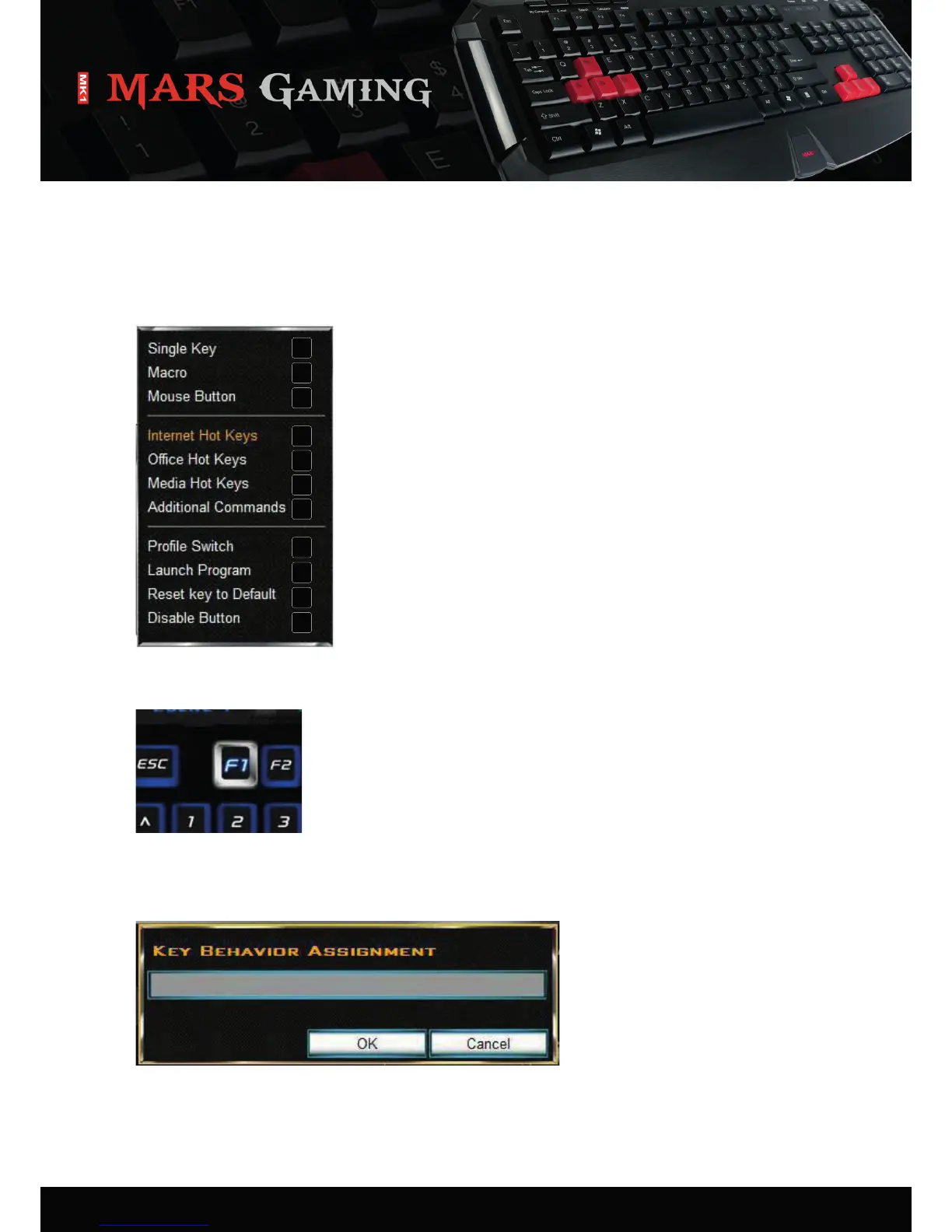
Every single key of the keyboard can be programmed individually, please proceed as follows:
1. Select the key you wish to program by le-clicking it in the configurator with the mouse. The following
dropdown menu will open up:
2. Select the desired funcon.
3. The funcon will be assigned to a key.
4. The programmed key will be highlighted in white:
Each key can be assigned any other key funcon using the configurator:
1. Select “Single key” from the dropdown menu (see 8.3). The following window will appear:
2. Press the key, which will then be assigned to the selected key.
3. Click “OK” to confirm your selecon or “Cancel” to discard it.
A – Assigns the key as another key (8.3.1).
B – Assigns the key a macro (see 8.3.2).
C – Assigns the key a mouse funcon (8.3.3).
D – Assigns the key an Internet funcon (8.3.4).
E – Assigns the key an Office funcon (8.3.5).
F – Assigns the key a Media funcon (8.3.6).
G – Assigns the key addional commands (8.3.7).
H – Defines the key as switch between different profiles (8.3.8).
I – Runs a program (8.3.9).
J – Discards already assigned funcons.
K – Deacvates the key.


 To Next Page