9
SETTING UP THE CAMERA
SETTING UP YOUR ACCOUNT
DOWNLOADING THE APP
ADD CAMERA TO THE APP
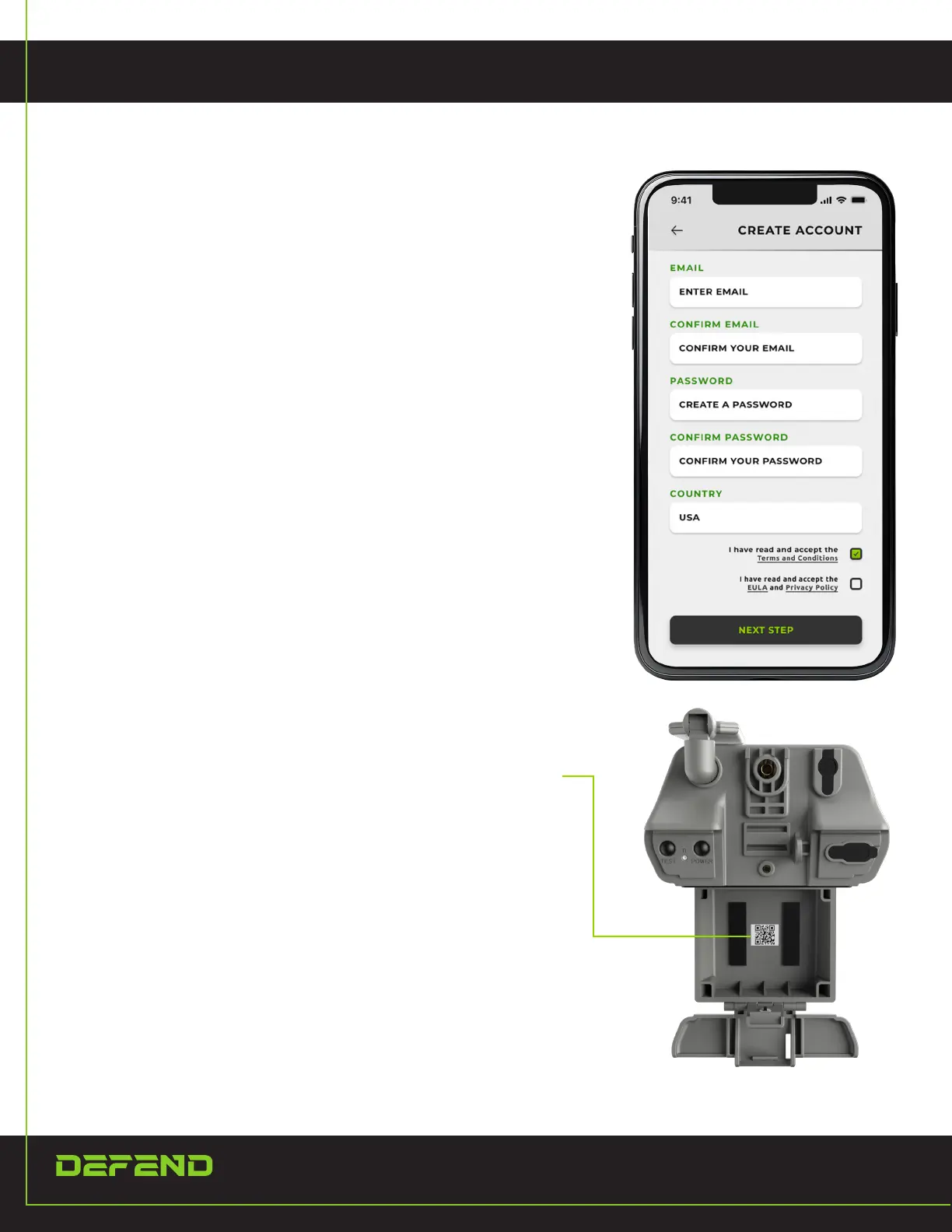
If this is the rst Defend camera you will be activating, please
create an account through the mobile app or on the Defend Web
Portal at www.defendcellcam.com. Once the account is created,
select a subscription plan to be able to receive images to your
app. On Apple devices, you must purchase a plan through the Web
Portal. If you already have a Defend account with ACTIVE cameras,
you can simply log in to your app and add your new camera.
In your Apple App Store or Google Play Store, download the
Defend by Tactacam app and sign in using the same TactaID
account email and password you created on the web portal.
1. Once on the Home page, click on the left-side menu icon.
2. From the menu, click the “+ Add a Camera” option.
3. Choose an existing subscription plan and and select your
camera model
4. The app will prompt you to scan the QR code located inside
the battery door of the camera.
5. Follow the in-app prompts to activate your Defend camera.


 To Next Page