• Access the Quick Connect option: right-click the
Bluetooth icon, select Quick Connect, and then select
the type of service to which you wish to connect.
• Start/Stop Bluetooth on this computer.
Basic Operations
NOTE: For a complete user’s guide with detailed
instructions on configuring Bluetooth devices, please
refer to the full Widcomm manual located on the CD-
ROM included in this package.
START OR STOP BLUETOOTH
To start Bluetooth
In the Windows system tray, right-click the Bluetooth icon
and select Start the Bluetooth Device. The Bluetooth icon is
blue in color with a white insert when the Bluetooth
software is running.
To stop Bluetooth
In the Windows system tray, right-click the Bluetooth icon
and select Stop the Bluetooth Device. The Bluetooth icon is
blue in color with a red insert when Bluetooth is stopped.
Troubleshooting
Please visit Micorsoft Windows Update to ensure you have
the latest updates and service packs.
Windows XP - After installing service pack 2 for Windows
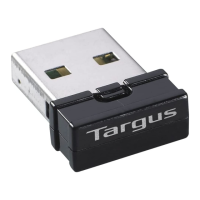
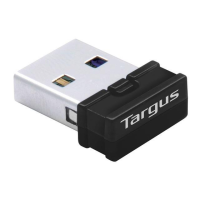
XP, reinstall the software included with your Targus USB
Bluetooth Adapter.
For complete troubleshooting and configuration details,
please see the full user’s guide on the CD included.
6



 To Next Page