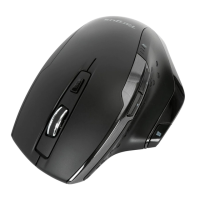
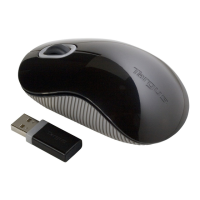
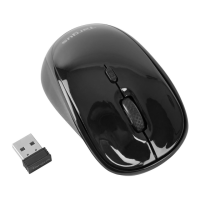
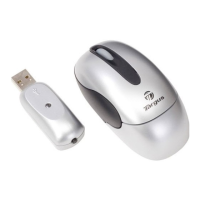
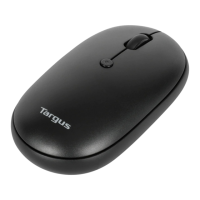
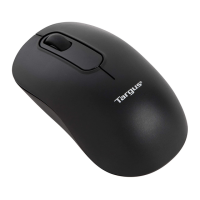
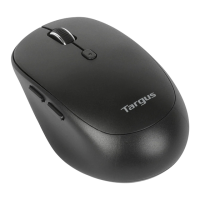
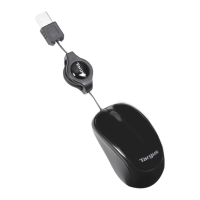
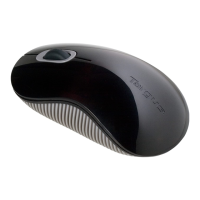
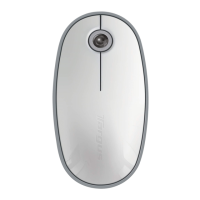
Wireless Mouse
16
Wireless Mouse
17
Receiver Information:
FCC ID: FSUKM009
IC: 3760A-00016
Rating: 5V 25mA
Troubleshooting
The mouse is not working.
• Make sure that the polarity of the batteries is correct. The positive (+)
and negative (-) ends of each battery must match the positive (+) and
negative (-) connections in the battery housing.
• Make sure the batteries are charged. Recharge or replace if necessary.
• Verify that the computer is Bluetooth enabled.
• Verify that the device drivers are installed:
1. Click Start/ Settings/ Control Panel/ System/ Hardware/ Device
Manager
2. Check under “Bluetooth Devices” that a “Targus Bluetooth Laser mouse”
is installed
• Paired devices are always displayed in My Bluetooth Places, even if the
mouse is out of range or not powered up.
BG – Въведение
Поздравления за закупуването на безжичната мишка
Targus. Безжичната мишка използва технология 2.4GHz RF,
която осигурява непрекъсната връзка в обхват от 33 ft (10
m).
Системни изисквания
Hardware
• USB порт
Операционна система
• Microsoft Windows
®
XP
• Microsoft Windows Vista
®
• Microsoft Windows
®
7
• Mac OS
®
X 10.4 или по-нова
Съдържание
• безжичната мишка Targus
• Ръководство на потребителя


 To Next Page