Targus USB 2.0 Laptop Docking Station with Video
8
Targus USB 2.0 Laptop Docking Station with Video
9
D C 5 V
• Green Tx light illuminates when connected to a network and the yellow Rx
light ashes when data is transmitting to or from the network.
NOTE: THE DOCKING STATION SUPPORTS HOT SWAPPING OF THE NETWORK CABLE.
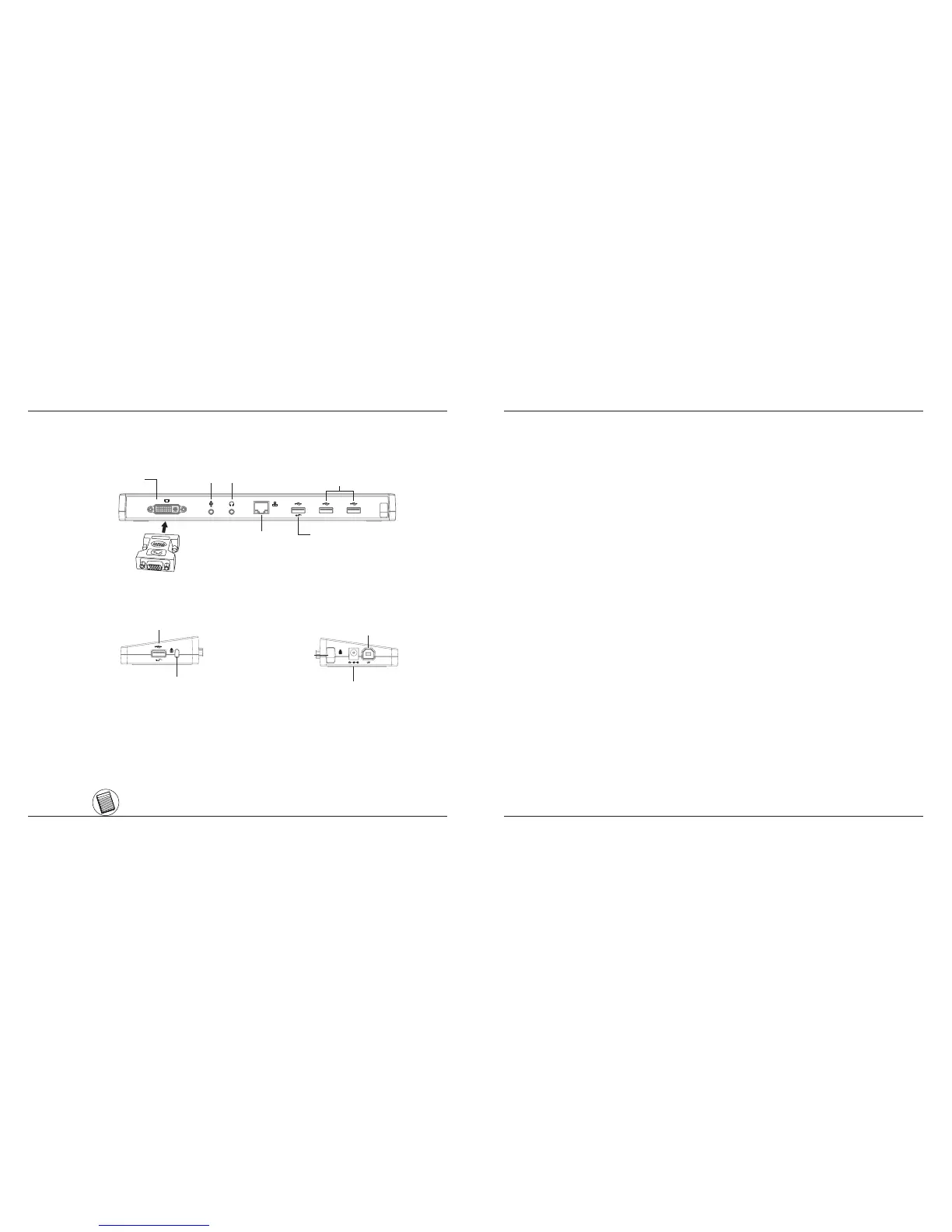
Docking Station Ports
DVI
Audio In (MIC)
Audio Out (SPK)
Network Cable
DVI to VGA adapter
USB Ports (White)
High Power USB Ports
(BLACK)
High Power USB Ports
(BLACK)
USB to PC Connection
Lock loop
AC adapter
Standard lock slot
Back View
Right side Left side
Connecting New Devices
To avoid possible damage when connecting a new device, do not force the
cable connector into the port on the docking station. If the cable connector
does not attach smoothly, turn the connector over and try attaching it again.
Connecting to a Local Area Network
To connect an ethernet cable with RJ-45 connect, attach the cable con-
nector to the ethernet/network port on the docking station. Additional pro-
cedures to connect to an actual network depend on the type of network
you are using. Contact your network administrator for detailed instructions.
Connecting a USB Device
To connect a USB device, plug it into a USB port on the docking station
and follow the additional instructions provided with the device. All four USB
ports meet USB hi-speed requirements by providing 480Mbps through-put
and 500mA of power.
The white USB ports are high-speed ports that provide standard 500mA
of power. The black USB power ports are high-speed ports that provide
up to 1Amp.





 To Next Page