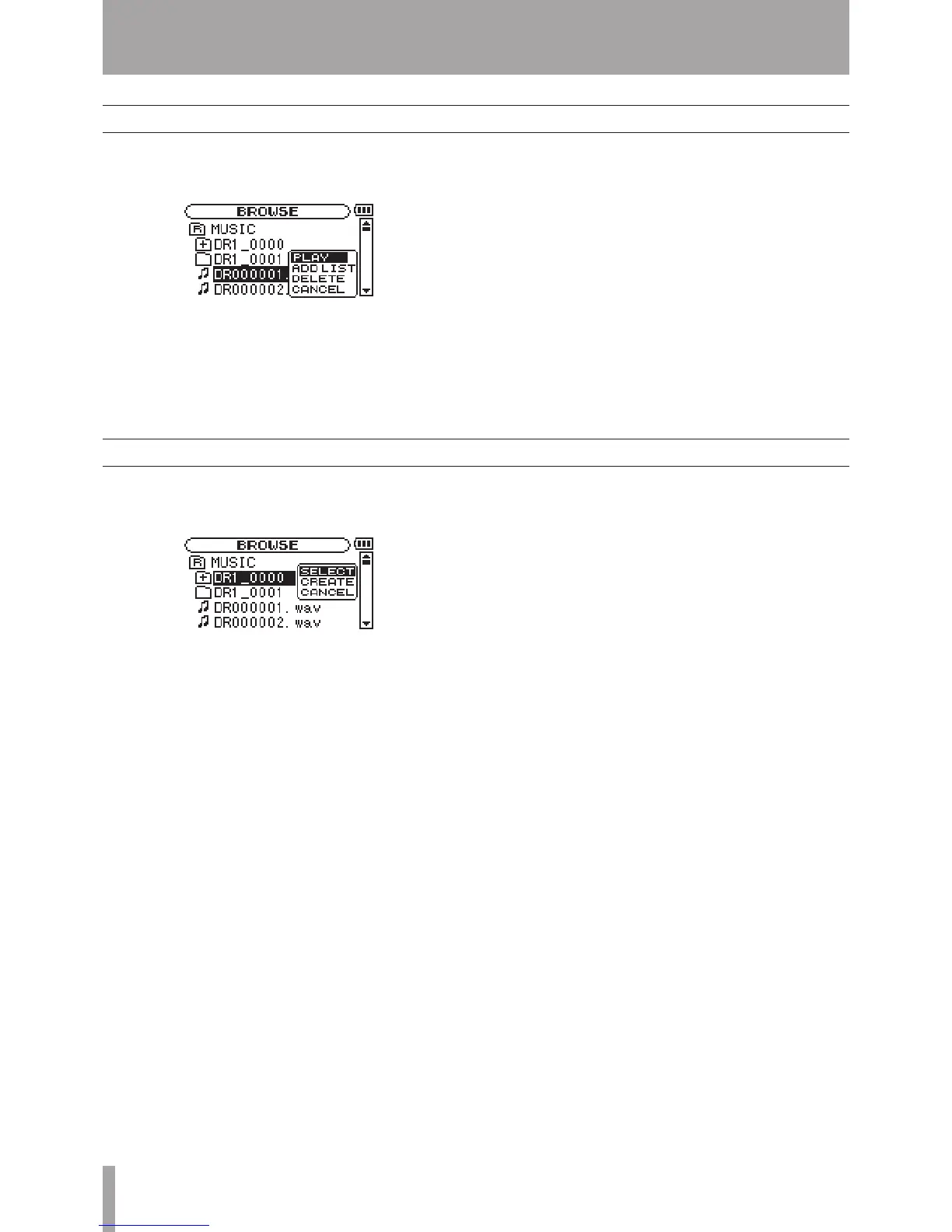
Select the desired audio le on the Browse Screen and
press the
¥/π key to open the pop-up window that is
shown below.
Use the wheel to select the item you want from the list
to the right and press the
¥/π key to execute it.
PLAY
Plays the le. The display returns to the Home Screen.
If the playback area is set to
FOLDER
, the playback
area becomes the folder that contains the playing le.
ADD LIST
Adds the selected le to the playlist. (See “Playlist”
on page 25.)
DELETE
A message appears to conrm that you want to delete
the le. Press the
¥/π key to erase the le and the
STOP/HOME key to cancel the deletion operation.
CANCEL
No operation is conducted and the selected le is
left as is.
10–Browse Screen
File operations
Folder operations
Select the desired folder on the Browse Screen and
press the
¥/π key to open the pop-up window that is
shown below.
Use the wheel to select the item you want from the list
to the right and press the
¥/π key to execute it.
SELECT
Returns to the Home Screen and selects the rst le in
the folder. This folder becomes the new playback area
regardless of the previous playback area setting. When
recording, les are created in this folder.
CREATE
A pop-up appears to conrm that you want to create a
new folder. Press the
¥/π key to create a new folder,
or press the STOP/HOME key to cancel the operation.
However, if you try to create a new folder inside a
second level subfolder the message, “
Layer too
deep
” appears and the folder is not made.
CANCEL
No operation is conducted and the selected folder is
left as is.


 To Next Page