To use the Cloud functions, you need to initiate the WiFi module first:
● Download and unpack the firmware files for the WiFi module from TBS
● Connect the Crossfire TX to your radio and power it up
● On your PC or phone search for a new WiFi network like “TBS_XF_AP_xxxxxx”
● Connect your pc with this network. On Windows machines this can take up to one minute
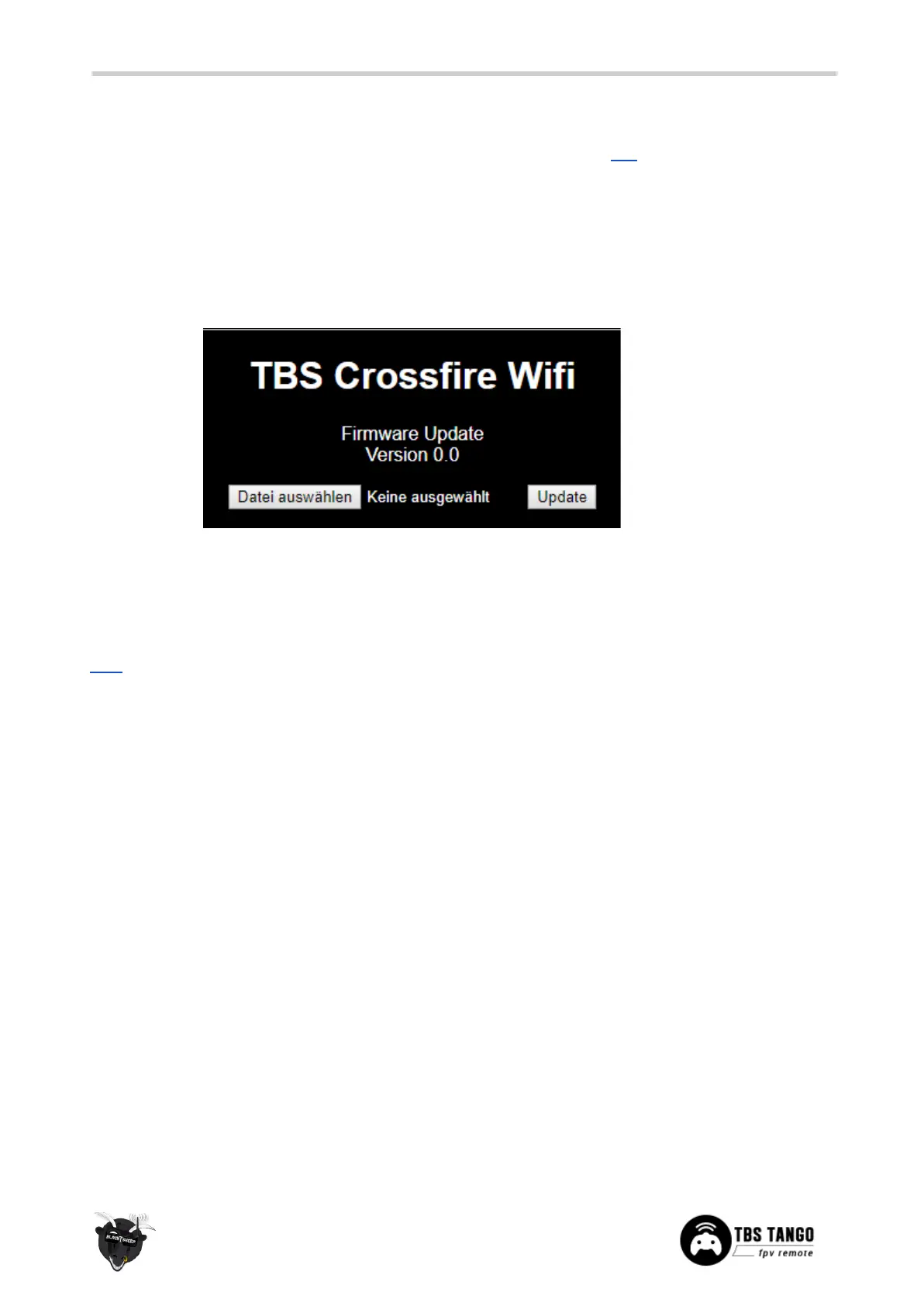
● Open your browser and enter IP in the address bar: 192.168.4.1
● Click on
Select file
and search for the unpacked firmware files you downloaded before
● Hit
Update
and wait for the website to reload
○ Do not shut down your radio during WiFI module updating process
● Now you can see the WiFI module of your Crossfire TX in
menu/ LUA script and Agent X
Here you can find the whole process as video
Connection to a WiFi hotspot
Once your WiFI module is initiated, you can now connect to external hotspot. The easiest way is to connect
it by the Web-ui:
● Connect the Crossfire TX to your radio and power it up
● On your PC or phone search for a new WiFi network like “TBS_XF_AP_xxxxxx”
● Connect your pc/ phone with this network. On Windows machines this can take up to one minute
● Open your browser and enter ip in the address bar: 192.168.4.1
● Open the
WiFI
tab
● Click on Scan to search for available WiFi hotspot/ networks
● Click on the name of the found network you want to connect to - the name will be entered for you
● Enter your password and hit Connect/ Disconnect
● When you refresh the WebUi page after a few seconds, you will see the IP address assigned by the
WiFi network for Crossfire TX
Note: if WIFi hotspot/ network has no internet connection, cloud based features will not work.


 To Next Page