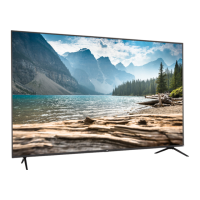
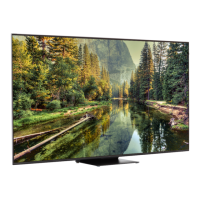
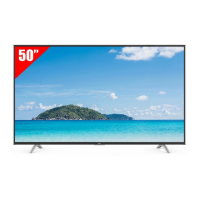
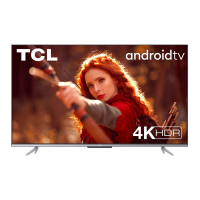
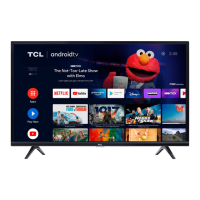
This document describes the 65G651G 4K UHD Smart TV, a television designed for home entertainment.
Function Description
The 65G651G is a 4K UHD Smart TV that provides a high-resolution viewing experience and integrates smart features for accessing online content. It supports various input sources, including HDMI, USB, and antenna/cable connections, allowing users to connect external devices like Blu-ray players, game consoles, and sound systems. The TV is equipped with Wi-Fi for internet connectivity, enabling access to streaming services and smart functionalities. It also features an optical digital audio output for connecting to external audio receivers.
Important Technical Specifications
Display:
- Resolution: 4K UHD (3840 x 2160 pixels)
- Aspect Ratio: 16:9
- Screen Size: 65 inches (diagonal)
Audio:
- Audio Output Power: 2 x 10W (RMS)
- Audio Modes: Standard, Music, Movie, Sports, User
- Surround Sound: On/Off
Connectivity:
- HDMI Inputs: 3 (HDMI 1, HDMI 2, HDMI 3)
- USB Ports: 2 (USB 2.0)
- Ethernet (LAN) Port: 1
- RF Input: 1 (for antenna/cable)
- Optical Digital Audio Output: 1
- Composite Video Input: 1 (shared with YPbPr)
- YPbPr Input: 1 (shared with Composite Video)
- Headphone Output: 1
- Wireless: Wi-Fi (802.11 b/g/n)
Broadcasting System:
- Digital: ATSC/QAM (US System), DVB-T/T2/C (EU System)
- Analog: NTSC (US System), PAL/SECAM (EU System)
Power:
- Power Supply: AC 100-240V, 50/60Hz
- Power Consumption: 180W (typical), <0.5W (standby)
Dimensions (without stand):
- Width: 1458 mm
- Height: 841 mm
- Depth: 79 mm
Dimensions (with stand):
- Width: 1458 mm
- Height: 890 mm
- Depth: 290 mm
Weight (without stand): 19.5 kg
Weight (with stand): 20.0 kg
Operating Conditions:
- Temperature: 5°C to 35°C
- Humidity: 20% to 80% (non-condensing)
Usage Features
Initial Setup:
- Unpacking: Carefully remove the TV from its packaging, ensuring all accessories are present.
- Stand Installation: Attach the two stand legs to the bottom of the TV using the provided screws. Ensure the stand is stable and securely fastened.
- Wall Mounting: The TV is VESA compliant (400x200mm for 65-inch model). Follow the instructions provided with your wall mount kit. Ensure proper ventilation and cable management.
- Connecting Devices:
- Antenna/Cable: Connect an RF cable to the ANT/CABLE IN port.
- HDMI Devices: Connect HDMI cables from external devices (e.g., Blu-ray player, game console) to the HDMI 1, HDMI 2, or HDMI 3 ports.
- USB Devices: Insert USB drives into the USB ports for media playback.
- Ethernet: Connect an Ethernet cable to the LAN port for wired internet access.
- Composite/Component: Use the shared AV/YPbPr input for older devices.
- Audio Output: Connect an optical cable to the OPTICAL DIGITAL AUDIO OUT port for external sound systems.
- Headphones: Plug headphones into the headphone jack.
- Power On: Plug the power cord into an AC outlet and press the power button on the remote control or TV.
- First Time Setup Wizard: Follow the on-screen prompts to select language, country, time zone, network settings (Wi-Fi or Ethernet), and channel scan.
Smart TV Features:
- Internet Connectivity: Connect to your home Wi-Fi network or use a wired Ethernet connection to access online content.
- Streaming Services: Access pre-installed streaming apps or download new ones from the app store.
- Google Assistant: Use voice commands via the remote control to search for content, control playback, and access information.
- Chromecast Built-in: Cast content from compatible mobile devices or computers to the TV.
- Live TV: Access broadcast channels via antenna or cable.
- Media Playback: Play photos, videos, and music from USB drives.
Remote Control Functions:
- Power: Turn the TV on/off.
- Input: Select input source.
- Volume: Adjust volume up/down.
- Channel: Change channels up/down.
- Navigation: Arrow buttons for menu navigation.
- OK: Confirm selection.
- Back: Return to previous screen.
- Home: Access the Smart TV home screen.
- Google Assistant: Activate voice control.
- Netflix/YouTube/Prime Video/Google Play: Dedicated buttons for quick access to popular streaming apps.
- Menu: Access TV settings.
- Info: Display program information.
- Mute: Mute/unmute audio.
Picture and Sound Settings:
- Picture Modes: Standard, Dynamic, Movie, Sports, User. Customize brightness, contrast, color, sharpness, and backlight.
- Sound Modes: Standard, Music, Movie, Sports, User. Adjust bass, treble, balance, and enable/disable surround sound.
- Advanced Settings: Access more detailed picture and sound adjustments, including white balance, gamma, noise reduction, and audio delay.
Safety Precautions:
- Ventilation: Ensure adequate space around the TV for proper ventilation to prevent overheating. Do not block ventilation openings.
- Power Cord: Use the provided power cord and ensure it is not damaged or pinched. Unplug the TV during lightning storms or when unused for long periods.
- Cleaning: Unplug the TV before cleaning. Use a soft, dry cloth. Do not use liquid or aerosol cleaners.
- Mounting: If wall-mounting, ensure the wall mount is rated for the TV's weight and installed by qualified personnel.
- Children: Keep small parts (e.g., batteries, screws) out of reach of children. Do not allow children to climb on the TV or furniture.
- Temperature/Humidity: Avoid exposing the TV to extreme temperatures or high humidity.
Maintenance Features
Cleaning:
- Screen: Gently wipe the screen with a soft, lint-free, dry cloth. For stubborn marks, lightly dampen the cloth with water or a specialized screen cleaner (never spray directly onto the screen).
- Cabinet: Wipe the TV cabinet with a soft, dry cloth.
- Dust: Regularly dust the ventilation openings to prevent dust buildup, which can impede cooling.
Software Updates:
- The TV may receive software updates to improve performance, add new features, or fix bugs. These updates can be performed over the internet.
- Check for updates periodically through the TV's settings menu (System -> About -> System update).
Troubleshooting:
- No Power: Check if the power cord is securely plugged into the TV and the wall outlet. Test the outlet with another device.
- No Picture/Sound: Verify the correct input source is selected. Check cable connections to external devices. For no sound, check volume levels and mute status.
- Poor Picture Quality: Adjust picture settings. Check antenna/cable connection for signal strength.
- Remote Control Not Working: Check batteries and ensure there are no obstructions between the remote and the TV's IR sensor.
- No Internet Connection: Check Wi-Fi router and modem. Reconnect to the Wi-Fi network or try a wired Ethernet connection.
- Smart Features Not Working: Restart the TV. Check internet connection.
- Factory Reset: If persistent issues occur, a factory reset can restore the TV to its original settings (Settings -> Device Preferences -> Reset). Note that this will erase all personal settings and installed apps.
Battery Replacement (Remote Control):
- The remote control uses two AAA batteries. Replace them when the remote's performance degrades.
- Ensure correct polarity when inserting new batteries.
- Dispose of old batteries responsibly according to local regulations.
FCC Compliance:
- The device complies with Part 15 of the FCC Rules, indicating it is designed to operate without causing harmful interference and to accept interference received.
- Any unauthorized modifications to the device could void the user's authority to operate the equipment.
Warranty Information:
- The product comes with a limited warranty. Refer to the warranty card or contact customer service for details on coverage and duration.
- Keep your proof of purchase for warranty claims.
- For service, contact the customer support center. Do not attempt to repair the TV yourself.

 Need help?

 To Next Page
 General