Need help?
Do you have a question about the TCL L43P6US and is the answer not in the manual?
Read all instructions before operating the set. Keep these instructions well for future use.
Never place a television set in an unstable location, as it may fall and cause injury or death.
Do not block ventilation openings, insert objects, open the cabinet, touch the screen with fingers, or impact the screen.
Unplug the set if not used long, if cord/plug is damaged, or if set is dropped. Ensure disconnect device is operable.
Protect power and signal cables from resting on them, being trampled, overloading, or moisture.
Place the set on a stable, well-ventilated area away from damp, heat, or direct sunlight. Avoid dusty environments.
Dust the set with a soft, clean cloth. Do not use water or chemical cleaners on the screen.
Requires two people. Ensure wall support, use correct mounting instructions, install on vertical wall, use suitable screws.
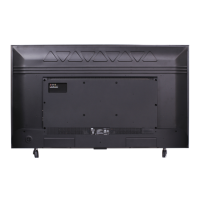
Details various input/output ports like LAN, HDMI, USB, Antenna, AV, Headphone, and Common Interface.
Explains the functions of various buttons on the remote control for navigating menus and operating the TV.
Instructions for opening the remote cover, inserting AAA batteries with correct polarity, and replacing the cover.
Instructions for inserting batteries, connecting power cable to TV then socket, and connecting aerial.
Put TV into standby mode by pressing the power button. Unplug from socket to switch off completely.
Explains how to connect the TV to a home network via wired (LAN) or wireless connection.
Steps to configure wireless or wired network settings, including Wi-Fi connection and password entry.
How to perform a network connection test to check if the TV is successfully connected to the network.
Describes the functions of physical buttons on the TV set for basic operations when the remote is unavailable.
Guides the user through the first-time setup process, including language, network, and channel scanning.
How to change channels using numeric buttons, P∧/∨ buttons, or the channel list.
Instructions to select TV or other input sources using the source list or homepage.
How to increase/decrease volume using +/- buttons and mute/restore sound using the mute button.
Navigate to Home, Videos, TV, and Apps. Use direction buttons and OK to access functions.
Guide to accessing and navigating the TV settings menu for picture, sound, and other adjustments.
Steps to search and store channels automatically, including country selection and tuner mode.
Information on using a common interface module for decoding encrypted digital TV channels.
How to access services provided by a digital TV operator via the common interface module.
Enabling, disabling, and selecting subtitle languages for digital TV channels.
Steps to turn subtitles on or off via the Channel > Subtitle menu option.
How to set primary and secondary subtitle languages for digital TV channels.
Choosing subtitle types, including options for hearing impaired viewers.
Instructions for accessing Teletext services, including decoding page language.
Selecting the correct language for Teletext display to ensure proper rendering.
Choosing a primary language for digital Teletext pages to access multilingual content.
Enabling the TV to be turned on remotely via a network using a supporting app.
Functionality for CEC devices connected via HDMI, enabling auto power on/standby.
Steps to activate or deactivate the T-Link (CEC) feature in the System menu.
Automatically powers on the TV when a connected CEC device (e.g., DVD) is turned on.
Automatically puts all connected CEC devices into standby when the TV is turned off.
How to view scheduled digital TV programs, navigate, select, and filter programs.
Information on the default password and super password for parental control features.
Troubleshooting steps for network connectivity issues, including checking connections and rebooting.
Addressing problems with smooth video playback, possibly due to data transmission or network bandwidth.
Resolving issues with multiple mobile hard disks not being recognized or audio format problems.
Precautions and steps for software updates, including avoiding power cuts and remote operations.
Troubleshooting why USB devices might not be detected after accessing media, possibly due to voltage.
Guidance on external devices like webcams or smartphones not being recognized or supported by the TV.
Checks for fuse, outlet, power plug contact, and signal source when there's no picture or sound.
Steps to resolve color issues by changing color system, saturation, or trying another channel.
Troubleshooting the remote control, including checking batteries and their installation.
Adjusting brightness and contrast, or checking for broadcasting failures.
Resolving no sound issues by increasing volume, unmuting, or changing the sound system.
Addressing visual disturbances like ripples, dots, streaks, or fluttering caused by local or radio frequency interference.
Disclaimers regarding content availability, third-party services, and TCL's liability for device usage.
Instructions for assembling the table stand, including handling screws and protecting the screen.

 To Next Page
 General