EasyManua.ls Logo

Teac AI-501DA - Page 22

Teac AI-501DA
29 pages
Print Icon
To Next Page IconTo Next Page
To Previous Page IconTo Previous Page
Loading...
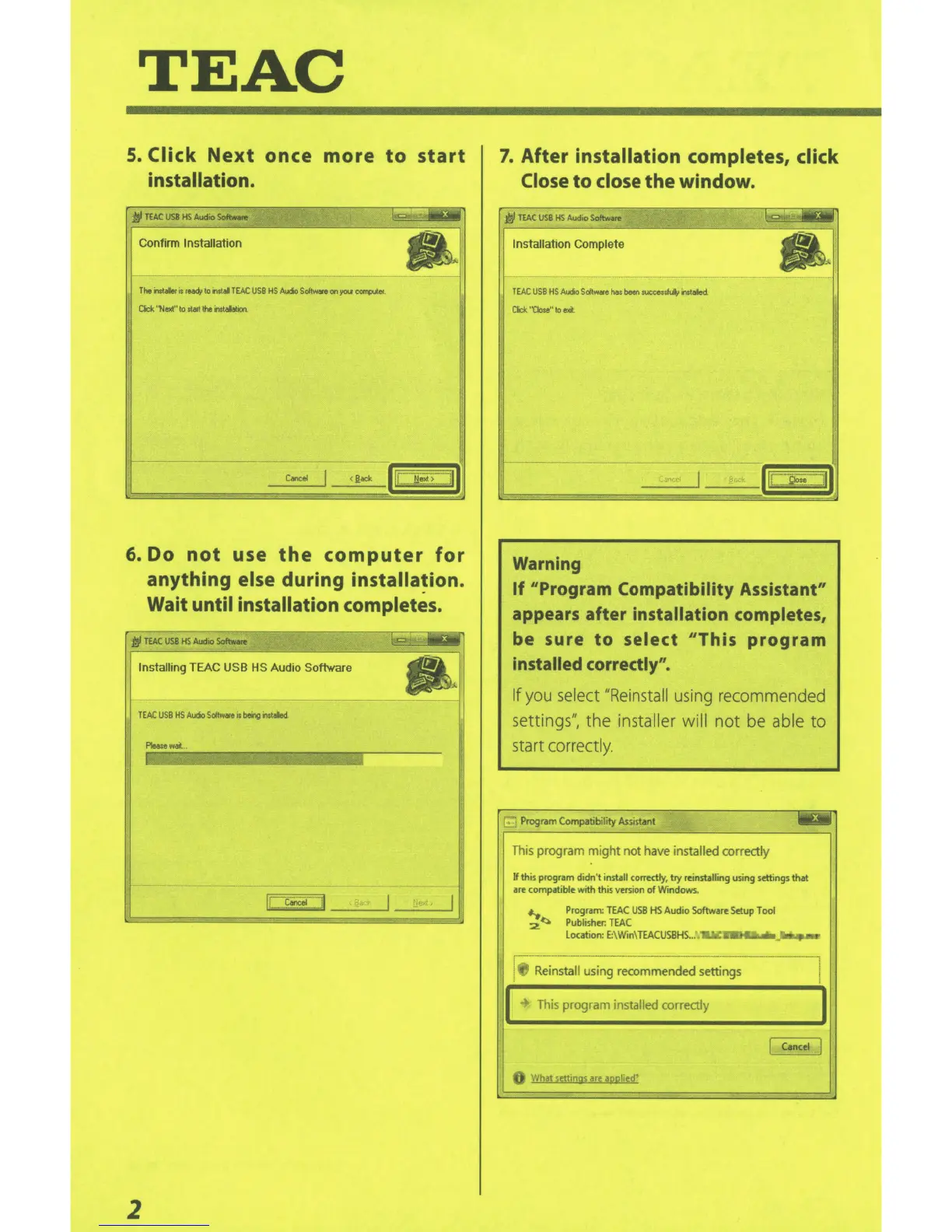
TEAC
S.
Click
Next
once
more
to
start
installation.
Confirm
Installation
The
r..t•
is
r~
to
nstal
TEAC
USB
HS
Auria
Soltwore
on
J10U1
c~er
.
Cick
''N..t''
to
start
the
rmalation.
Concel
6.
Do
not
use
the
computer
for
anything
else
during
installa~ion.
Wait
until installation
completes.
Installing
TEAC USB HS
Audio Software
TEAC
USB
HS
Auria
Soltwore
it
being
rmoled.
Please
d
..
.
2
7.
After
installation completes,
click
Close
to
close
the window.
Installation Complete
TEAC
USB
HS
Atrlo
Soltw5e
ho•
been
NCCOUI.-,
rmoled.
Cick
'Oose"
to
e><it
Warning
---
·
If
"Program Compatibility
Assistant"
appears after
installation completes,
be
sure
to
select
"This
program
installed correctly".
If
you
select
"Reinstall
us
in
g
recommended
settings",
the installer will not
be
able
to
start
correctly.
·
-]
Program Compatibility Assistant
..
This
program might
not
have
installed correctly
If
this
program didn't
install corr.ctly,
try reinstalling
using settings
that
are compatible with this version
of
Windows
.
~(:.,
Program:
TEAC
USB
HS
Audio
Software Setup
Tool
2.
Publisher.
TEAC
Location:
E:\Win\
TEACUSBHS
...
'&loiC~
.
-
f
,.,_
................
.
....
.
..
.
..
.
......
..
..
...
....
.
··
···
···
·
·········
·
························
·
···:
'
Reinstall
using recommended settings
I
I
This
program
installed
correctly
I
I
Cancel
I
What settrngs are
a~Qiied
?

Related product manuals