3
Z
Installation guide for the TEAC ASIO USB DRIVER
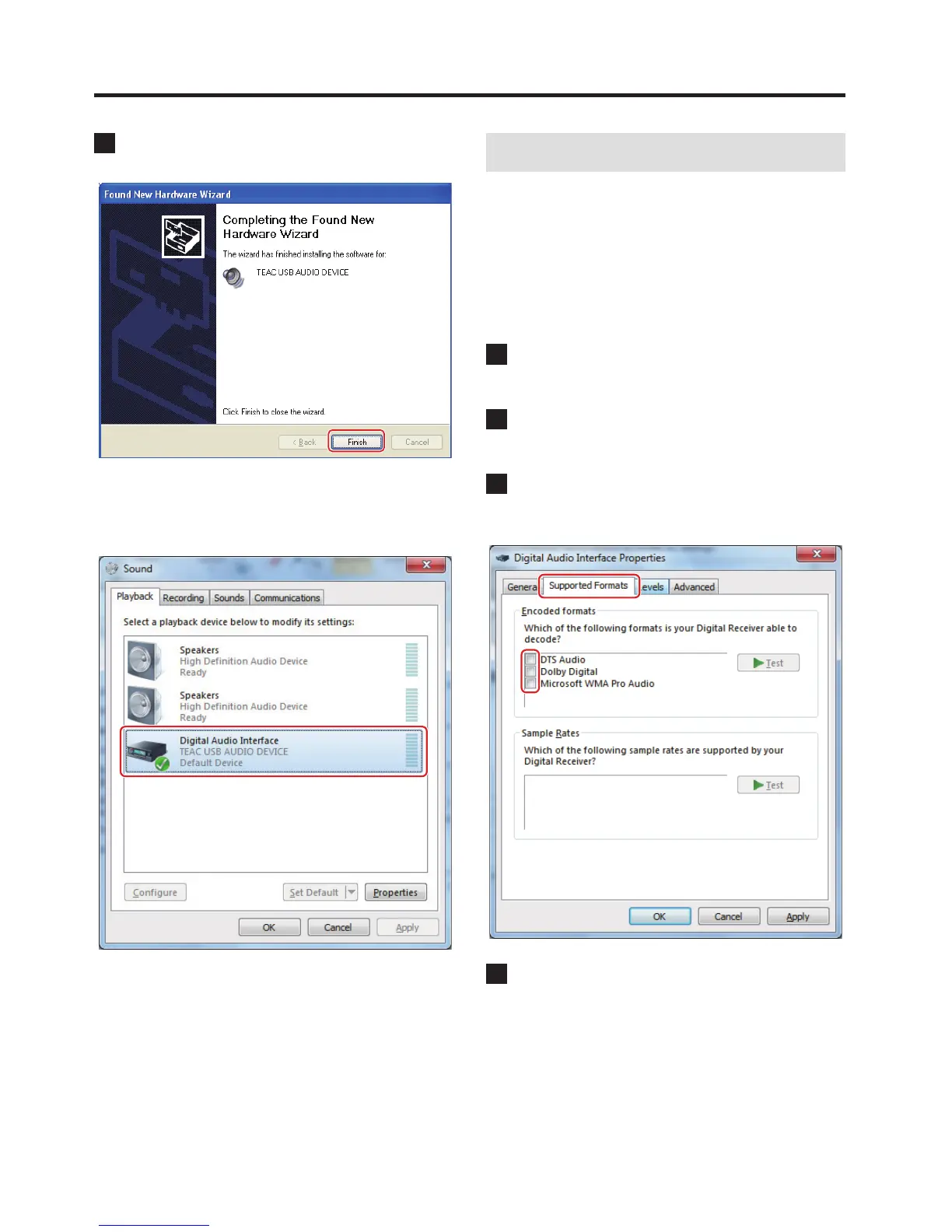
3 When the wizard's completion screen appears, click
“Finish” to nish the installation.
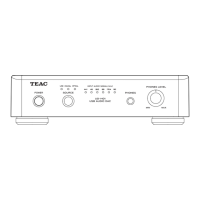
If the connected unit has been recognized properly, when you open
the Windows Sound Control Panel, “TEAC USB AUDIO DEVICE” will
have been added as a playback device.
Windows 7 example
Setting the audio output device
When you open the Windows Sound Control Panel, the “TEAC USB
AUDIO DEVICE“ can be selected as the default device for sound
playback.
The device selected here will be used to output Windows operation
sounds and the sound of playback from Windows Media Player.
You must change the settings as follows to set the
default device for sound playback.
1 After selecting “TEAC USB AUDIO DEVICE” on the
Sound Playback screen, click “Properties”.
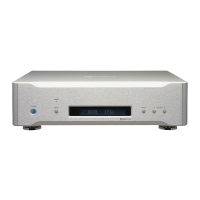
2 Click the Supported Formats tab at the top of the
Digital Audio Interface Properties screen.
3 Click the checkboxes next to DTS Audio and other
formats in the Encoded formats list as necessary to
deselect all the formats (no checks in any boxes).
4 Click “Apply” to conrm the setting.
Continued on the next page e



 To Next Page