Configuration
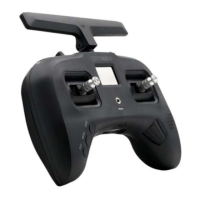
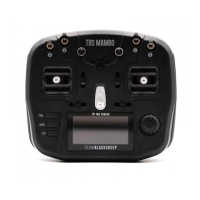
TBS TANGO remote
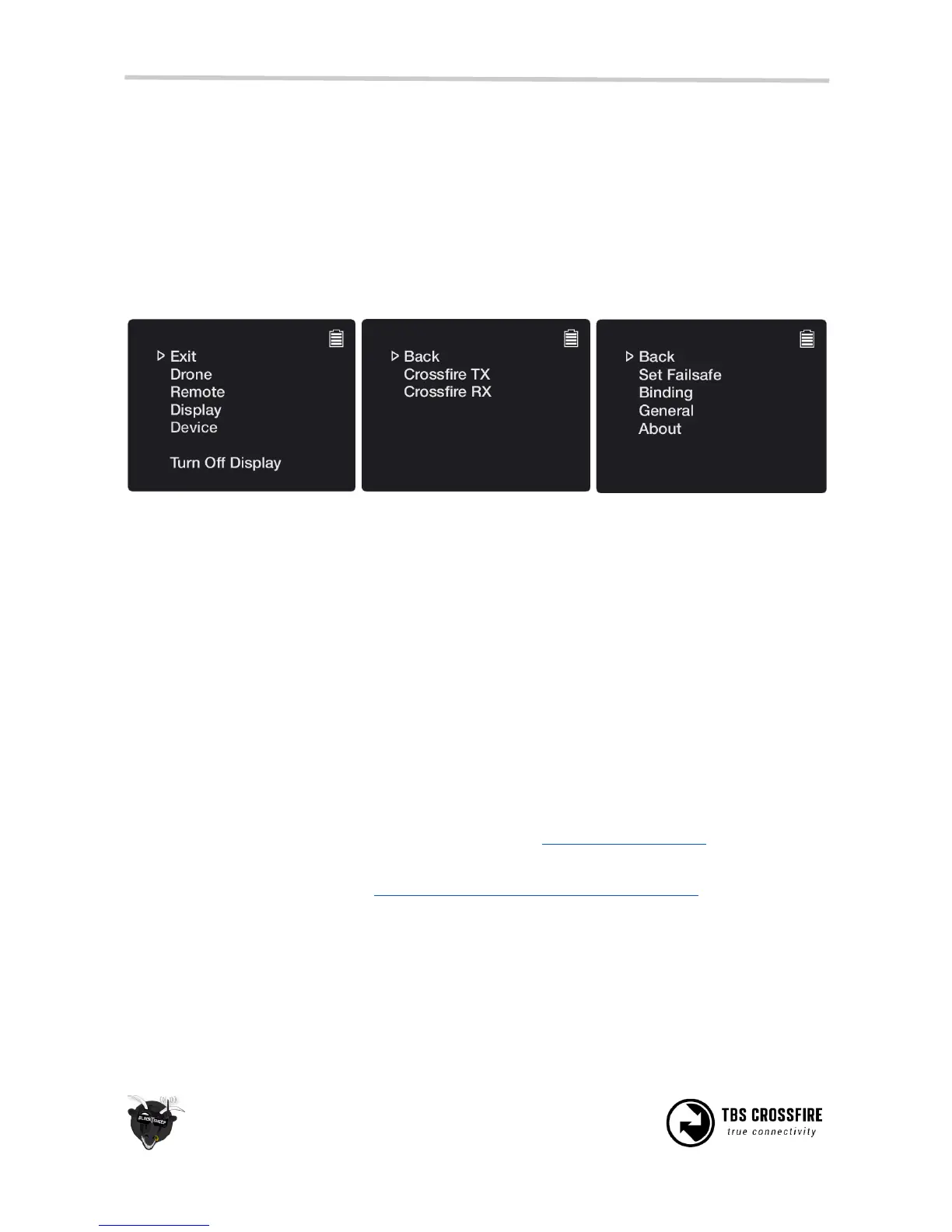
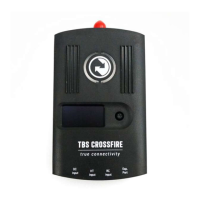
The easiest way to setup and configure the TBS CROSSFIRE Micro TX is via our TBS TANGO remote. Simply
plug in into the back of the remote and bring up the configuration menu by holding the rocker-scroller for
3 seconds, and go to the Device sub-menu.
The changes are stored internally on the transmitter module, so if you do not own a TANGO remote (or
OpenTX radio), you can borrow one for a minute to make the necessary changes and then pop it out.
Enter the configuration menu by
Holding the jog-scroller for 3
seconds
Select Device and the detected
CROSSFIRE modules will be listed
(note the receiver is also present)
Pick the “Crossfire TX” module to
find a listing of all the available
modes and changeable settings
This method is also available on the standard transmitter module.
OpenTX and LUA scripts
The CROSSFIRE allows bidirectional communication, that means the radio display interface (currently only
OpenTX radios supported) can used to remotely configure any TBS device (currently CROSSFIRE, CORE
PRO) over the BST connection.
The following requirements must be fulfilled to be able to use this feature:
• Any OpenTX radio (any Taranis, Horus) with OpenTX 2.2.x or higher
○ Nightly builds provided in the “News” section at http://www.open-tx.org/
• TBS CROSSFIRE LUA script package on root of SD card
○ Currently provided at http://downloads.open-tx.org/2.2/nightly/sdcard/
• TBS CROSSFIRE TX/RX V1.62 or higher
• TBS CORE PRO/FPVision V1.70 or higher
• TBS CORE PRO with SmartAudio (purchased after 07/2015) - for UNIFY PRO control


 To Next Page