
 Need help?
Do you have a question about the Technicolor DGA0122 and is the answer not in the manual?
Steps to physically connect the router, including DSL, network ports, and power.
The router configures itself upon first login and may restart; check the infopack.
Connect via the WAN port to your modem/ONT for PPPoE setup.
Initial WiFi name is random; changed by configuration or Control Pages.
Explains the meaning of Status, Broadband, Internet, and Wireless LED lights.
Guides on configuration, sync problems, and performing a factory reset.
Control Pages allow router settings like WiFi, bridge mode, and passwords.
This document provides a quick start guide and troubleshooting information for the Technicolor DGA0122 router, designed to facilitate internet access primarily through a DSL connection, but also adaptable for use with external modems or ONT devices.
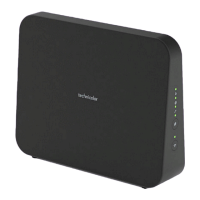
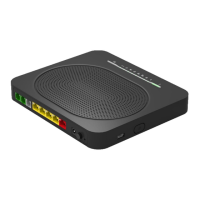
The Technicolor DGA0122 router serves as a central hub for internet connectivity within a home or small office environment. Its primary function is to establish and maintain an internet connection, typically via a DSL line, and then distribute that connection to multiple devices through both wired Ethernet ports and wireless (Wi-Fi) capabilities.
Upon initial setup, the router operates in a "default state" with a randomly generated Wi-Fi name (SSID). However, once the service is live and the router successfully logs in for the first time, it automatically receives its specific configuration. This configuration is tailored to the user's service and includes the correct Wi-Fi name and password, which are typically found on a plastic card included with the router.
The router is designed to handle various network setups. For standard DSL connections, it connects directly to a phone socket, optionally using a splitter. It provides four LAN ports for wired connections to computers or other network devices. For users with Fiber to the Premises (FTTP) or an existing modem, the router can function as a PPPoE router, utilizing a dedicated red WAN port to connect to the external modem or ONT, bypassing its internal DSL capabilities.
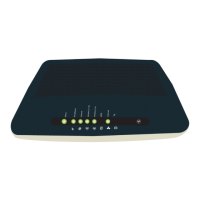
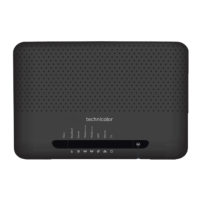
The device also features a series of LED status lights that provide immediate visual feedback on its operational status, including power, DSL sync, internet connectivity, and Wi-Fi status. These lights are crucial for quick diagnostics and understanding the router's current state.
Setting up the Technicolor DGA0122 is designed to be straightforward. For a typical DSL connection, the process involves three main steps:
Once powered on, the router's status light will initially be orange, and the broadband light should blink before becoming steady. This indicates the router is attempting to sync with the exchange or cabinet. After successfully logging in for the first time, the router will receive its configuration, a process that may take a few minutes and typically involves a restart. Users can then find their Wi-Fi password and other details in their Infopack or on the router card.
For users with an existing modem or FTTP, the setup differs slightly:
The router's configuration can be modified through "Control Pages," which are accessible online. These pages allow users to adjust various settings, including Wi-Fi parameters, passwords, and even change the router's operating mode (e.g., to a bridge).
The LED indicators provide valuable real-time information:
The Technicolor DGA0122 incorporates several features and troubleshooting steps to help users maintain its operation and resolve common issues.
Initial Configuration and Restart: It's important to remember that the router will receive its specific configuration only after it has successfully come online for the first time. This process typically involves a restart and should be completed within approximately six minutes of the router being online. If the router doesn't seem to be working correctly immediately after powering on, waiting for this initial configuration to complete is a crucial first step.
Troubleshooting "No Sync" Issues: If the DSL light is blinking or off, indicating a lack of synchronization with the exchange or cabinet, several checks can be performed:
Factory Reset: If issues persist or if the router's configuration needs to be reverted to its default settings, a factory reset can be performed. This is achieved by holding down the reset button for about five seconds until all the LEDs light up. After a factory reset, the router will attempt to get online and obtain its configuration for the line again. This can be useful for resolving complex configuration problems or starting fresh.
Control Pages for Advanced Configuration: For more detailed adjustments and maintenance, users can access the router's "Control Pages" online. These pages allow for modifications to various settings, including Wi-Fi networks, passwords, and even changing the router's operational mode (e.g., to a bridge). This provides a flexible way to manage the router's behavior and adapt it to specific network requirements. The IP address for the router in its default state is 192.168.1.1, with admin/engineer user credentials typically found on the back of the device.
Support Resources: For further assistance, users are directed to the AAISP Support Site (https://support.aa.net.uk/DGA0122), email support (support@aa.net.uk), or a phone number (03333 400 999). This ensures that users have multiple channels to seek help if they encounter problems that cannot be resolved through the provided troubleshooting steps.
The router also makes use of GPL software, with information available at https://www.technicolor.com/distribute/home-experience/regulatory-information, ensuring transparency regarding its software components.
 General
| Firewall | Yes |
|---|---|
| Ethernet Ports | 4 |
| USB Ports | 1 |
| Security | WPA, WPA2 |
| DSL Port | 1 |
| VoIP | No |
| Wi-Fi Frequency Bands | 2.4 GHz |
| DSL Standards | ADSL2+ |

 To Next Page