CONNECTING A TV TO DISPLAY PHOTOS & MOVIES LINE INPUT
13
The LINE-IN input may be used to connect sound sources with
a Line or Headphone analogue output to play through your
player. These may include -
iPod models that cannot be docked to the unit•
MP3 players without USB plug connection•
CD walkman players•
Tape walkman players•
Personal computers or laptops•
CONNECTING TO LINE-IN
You will need a stereo 3.5mm jack cable (not supplied) to
connect between the LINE-IN jack and the audio player/
computer.
Connect the cable between the headphone or LINE/AUX •
output of the personal audio player and the LINE-IN jack
on the back panel.
With the cable connected, select LINE IN from the Media •
Menu.
LINE IN will be shown on the display.
Set your personal audio player/computer to PLAY.•
Set the listening volume to the level you want with the •
Volume buttons.
If there is no sound or if the volume level is not loud enough,
you may need to increase the volume setting on your personal
audio player/computer.
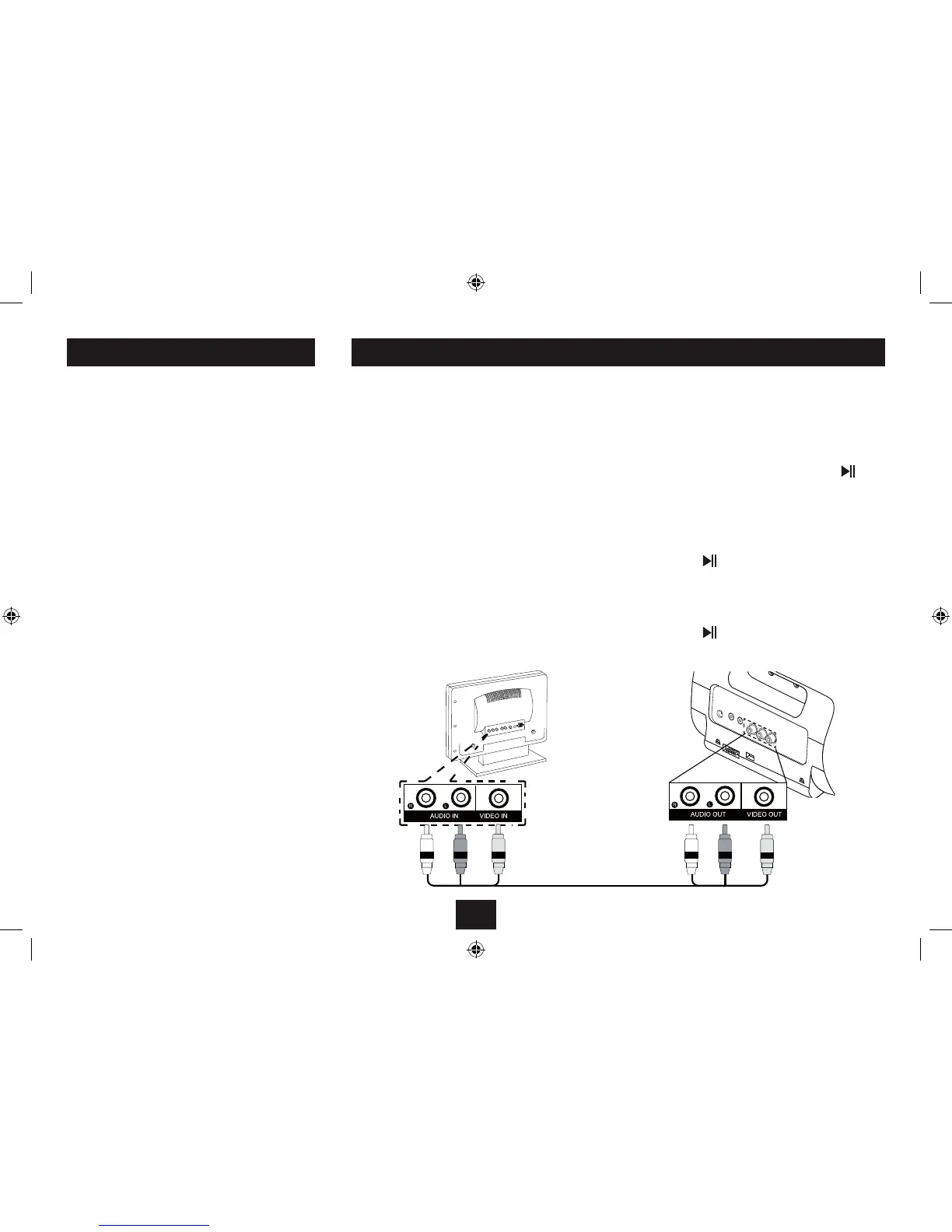
If your TV is equipped with AV input jacks you can connect it
to the AUDIO OUT and VIDEO OUT jacks on the back panel of
your Media Player.
You can then set your player to feed the sound and video from
your Music, Photo or Movie media to the TV.
Connecting a TV:
Connect the red, white and yellow jacks of the AV cable
(supplied) to the AV input jacks of your TV. These are often
located on the front or side of the TV. White and red connect
to the left and right Audio In jacks respectively, yellow
connects to the Video in as shown below.
Connect the other end of the cable to the AUDIO OUT and
VIDEO OUT of your Media player.
NOTE:- If your TV only has a SCART multi-pin AV connector,
you can use an RCA to SCART input adaptor to enable
connection to be made.
Selecting the correct input on your TV:
Set the TV input selector to the AV input that you used •
when connecting the AV cable.
Switching on the AV out jacks:
Select the Setup option from the Media Menu.•
Scroll to the AV Output option and press the •
button
(or the OK button on the Remote Control).
The On and O options will appear.
Scroll across with the • P cursor button and highlight
‘ O n ’.
Press the •
button (or the OK button on the Remote
Control) to select ‘On’.
Scroll left to the main Setup menu listing and down to •
the ‘Exit Setup Mode’ option.
Press the •
button (or the OK button on the Remote
Control) to exit Setup.
White
Red
Yellow
White
Red
Yellow


 To Next Page