1166 UHF Reader User Guide V1.07Copyright © 2019 Technology Solutions (UK) Ltd
16
VIEW LIST OF
BLUETOOTH
®
DEVICES (iOS 7)
BLUETOOTH
®
WIRELESS TECHNOLOGY CONNECTION
iPad
®
:
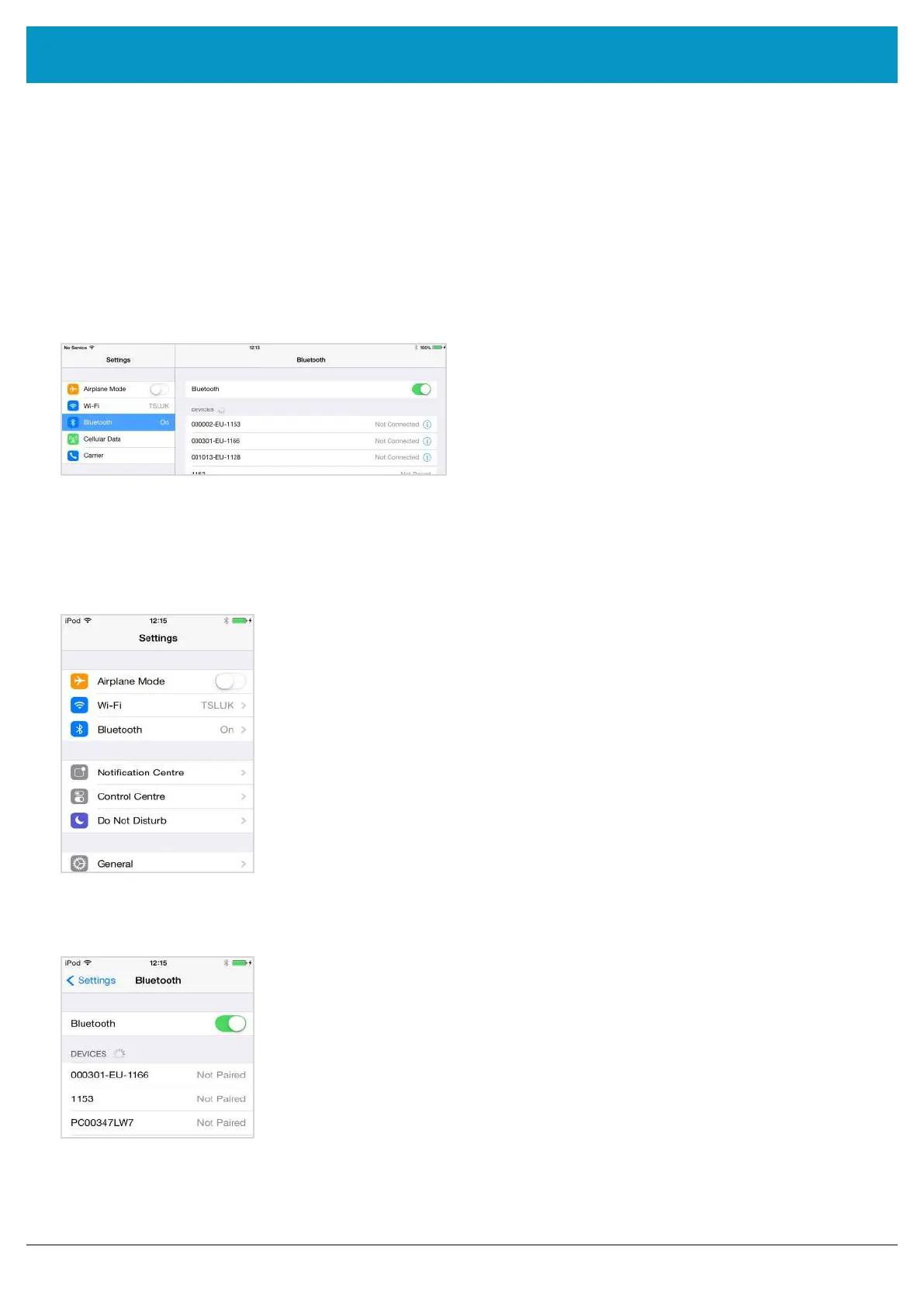
● Go to the Settings App.
Figure 10: Select
Bluetooth
®
settings
Figure 11: List of devices in
Bluetooth
®
settings
● Go to the Settings App.
● Select the
Bluetooth
®
settings in the left hand
column.
Figure 9: List of devices in
Bluetooth
®
settings
iPod
®
/ iPhone
®
:
● Tap on the
Bluetooth
®
row to be taken to the
Bluetooth
®
settings
SETTING UP A
BLUETOOTH
®
CONNECTION WITH AN APPLE PRODUCT
Awaken the 1166 UHF Reader by squeezing the trigger, which is confirmed by the flashing of the blue LED. To pair
with your iOS device, navigate to the
Bluetooth
®
option within the Settings menu on your iOS device.
www.tsl.com



 To Next Page