1166 UHF Reader User Guide V1.07Copyright © 2019 Technology Solutions (UK) Ltd
17
iPod
®
/ iPhone
®
iPad
®
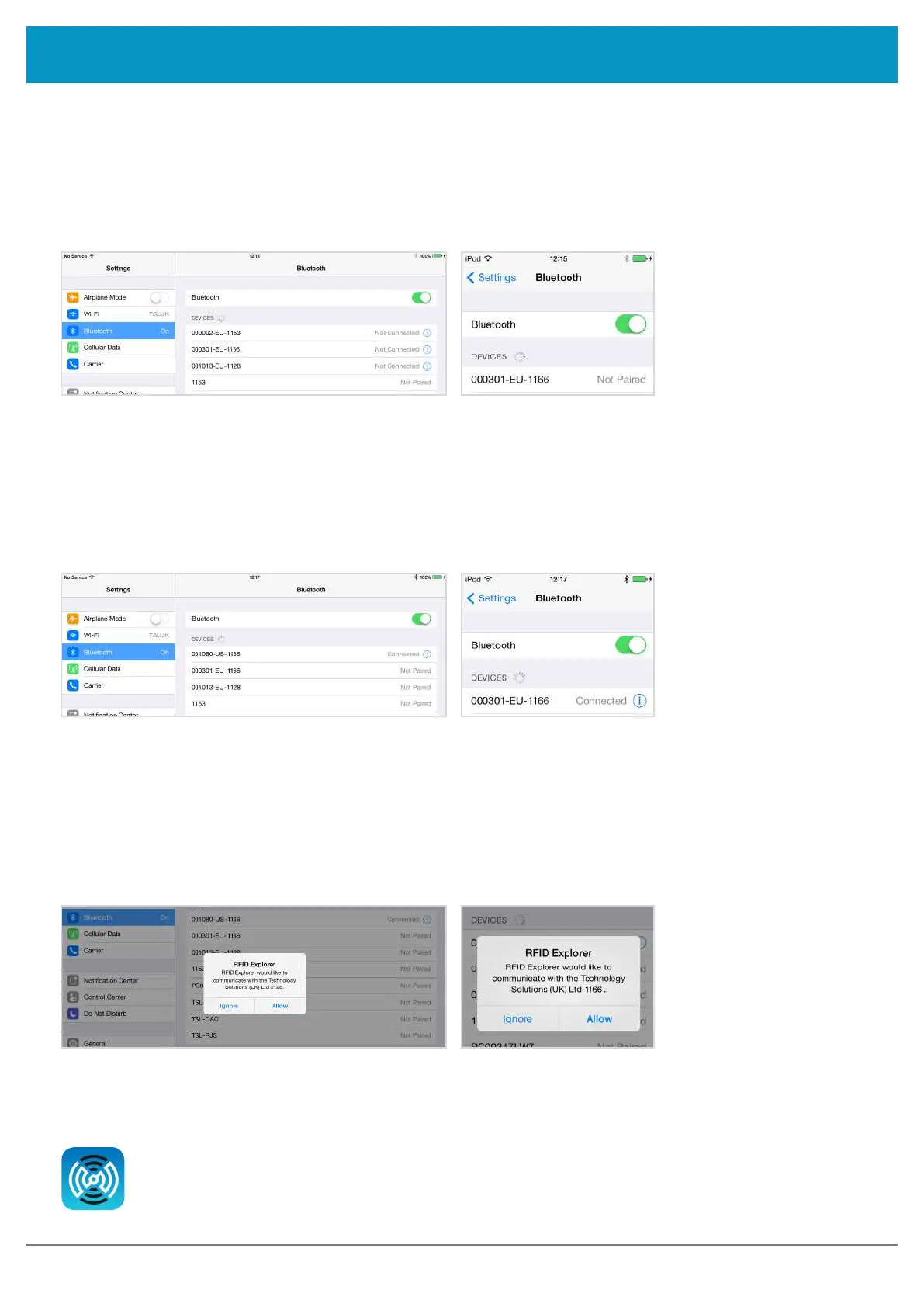
Figure 12: Identify device
After successfully pairing with the 1166 UHF Reader, the device will be shown as ‘connected’.
iPod
®
/ iPhone
®
Figure 13: Device connected
iPad
®
Open TSL’s RFID Explorer App.
The RFID Explorer App can be downloaded from the App Store.
PAIR WITH TSL
BLUETOOTH
®
DEVICE
BLUETOOTH
®
WIRELESS TECHNOLOGY CONNECTION
In the list of
Bluetooth
®
devices, the 1166 UHF reader will be identified by its serial number (1166-xxxxxx). Click on
the corresponding row to pair with the reader.
If RFID Explorer is installed on your device then a prompt will appear requesting a connection to the newly added
reader. Choose ‘Allow’ to launch RFID Explorer or ‘Ignore’ if the device is to be used with a different App.
iPod
®
/ iPhone
®
Figure 14: Allow connection
iPad
®
www.tsl.com



 To Next Page