EasyManua.ls Logo

TECLABEL DT2205 - User Manual

TECLABEL DT2205
42 pages
Print Icon
To Next Page IconTo Next Page
Loading...
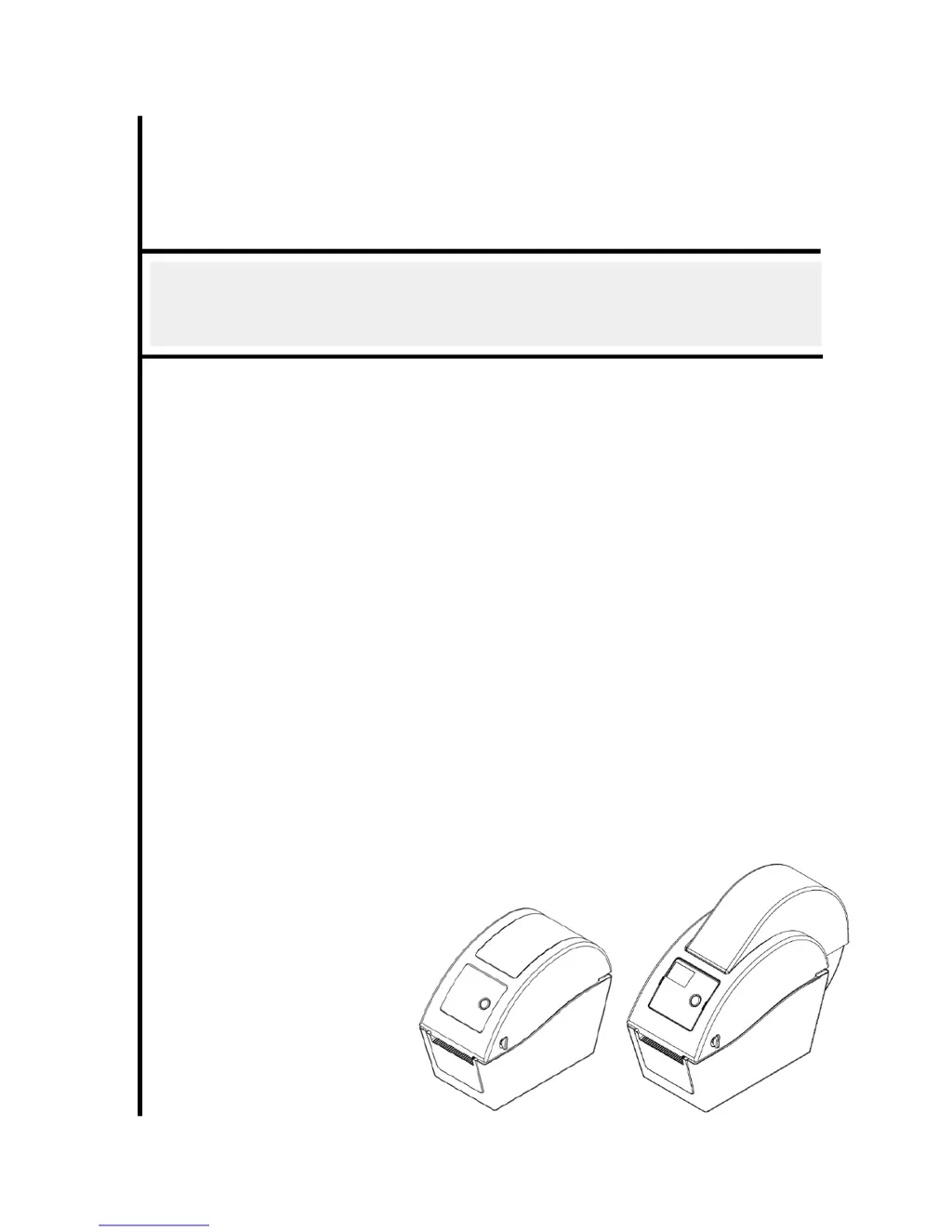
USER’S
MANUAL
DT2205 / DT039-50
DIRECT THERMAL BAR CODE PRINTER

Questions and Answers

  • A
    Andrew HardySep 12, 2025
    What does 'Out of Mem' mean on my TECLABEL DT2205 and how to fix it?
    • R
      Ricardo WarrenSep 12, 2025
      If your TECLABEL Printer displays 'Out of Mem', it means the space in FLASH/DRAM or MicroSD card is full. Delete unused files in the FLASH/DRAM or MicroSD card.
  • S
    Scott MartinezSep 13, 2025
    What to do if my TECLABEL Printer shows an error message?
    • A
      Amber DavisSep 13, 2025
      If your TECLABEL Printer displays 'Error', it could be due to the label being out or incorrect printer settings. If the label is out, load a new roll and follow the media loading instructions, then press the FEED button. If the printer setting is incorrect, initialize the printer using the 'Power on Utility' or 'Diagnostic Tool'.
  • C
    Cheryl PayneSep 15, 2025
    What does 'Take Label' mean on my TECLABEL DT2205?
    • B
      Brian HooperSep 15, 2025
      If your TECLABEL Printer displays 'Take Label', it means the peel function is enabled. If a peeler module is installed, take the label to print the next one. If the message remains after taking the label, check the peeler module connector. If no peeler module is installed, disable the peeler function.

Summary

Introduction

Product Introduction

Overview of the bar code printer's capabilities and performance.

Compliances

List of standards and regulations the printer complies with.

Safety Warnings

Important safety instructions and cautions for operating the printer.

Operations Overview

Unpacking and Inspection

Procedure for safely unpacking and inspecting the bar code printer upon receipt.

Printer Overview

Detailed views and identification of printer components.

Setup and Installation

Setting Up the Printer

Steps for placing and connecting the printer to a power source and computer.

Basic Media Loading

Basic steps for loading roll labels into the printer.

Loading External Media

Instructions for loading external media rolls for the DT2205 model.

Loading Media in Peel-off Mode

Procedure for loading media in peel-off mode, an optional feature.

Loading Media in Cutter Mode

Procedure for loading media when the cutter option is installed.

Diagnostic Tool Usage

Guide to using the diagnostic utility for printer configuration and calibration.

Start the Diagnostic Tool

Steps to launch and access the printer's diagnostic software.

Printer Function Settings

Details on printer functions like sensor calibration and RTC setup via the diagnostic tool.

Ethernet Setup via Diagnostic Utility

Configuring Ethernet settings using the diagnostic tool.

Install MicroSD Memory Card

Instructions for installing a MicroSD card into the printer.

Mount the Printer on the Wall

Guidance on securely mounting the printer onto a wall.

Using PC USB Keyboard

How to use a PC USB keyboard with the printer's USB host interface.

LED and Button Functions

LED Indicator

Explanation of LED colors and their meanings for printer status.

Regular Button Function

Description of the button's functions for feeding labels and pausing jobs.

Power-on Utilities Overview

Overview of six utilities accessible by power-on sequence.

Gap;Black Mark Sensor Calibration

Procedure to calibrate the gap or black mark sensor.

Self-test and Dump Mode

Performing printer self-test and entering dump mode.

Printer Initialization

Steps to reset the printer to default factory settings.

Sensor Configuration

Setting and calibrating sensors for gap or black mark media.

Skip AUTO.BAS Program

Procedure to interrupt the AUTO.BAS program execution.

Troubleshooting

LED Status Indicators

Common problems identified by LED status and their recovery procedures.

Print Problems

Common printing issues, their causes, and solutions.

LCD Display Messages

Explanation of LCD messages and corresponding recovery actions for the DT2205 model.

Maintenance

Cleaning Procedures

Methods and tools for cleaning the print head, platen roller, and other printer parts.

TECLABEL DT2205 Specifications

General IconGeneral
BrandTECLABEL
ModelDT2205
CategoryPrinter
LanguageEnglish

Related product manuals