22
Open review Can only be enabled when music has started playing. When enabled,
leaves a white circle to mark where it started and displays a second
circle to show the current progress of the song. Press the left key
to stop or the right key to cancel. When stopped, it will loop back
and play to the position it was stopped. Go to Options > Close review
to disable this feature and return to normal playback.
Exit Stop playback and exit the audio player. If Exit is not chosen, music will
continue to play in the background.
Using video player
Tips:
1. Video player allows you to watch video les in various formats: AVI, FLV, MP4
and 3GP.
2. Use the / keys to increase or decrease the volume.
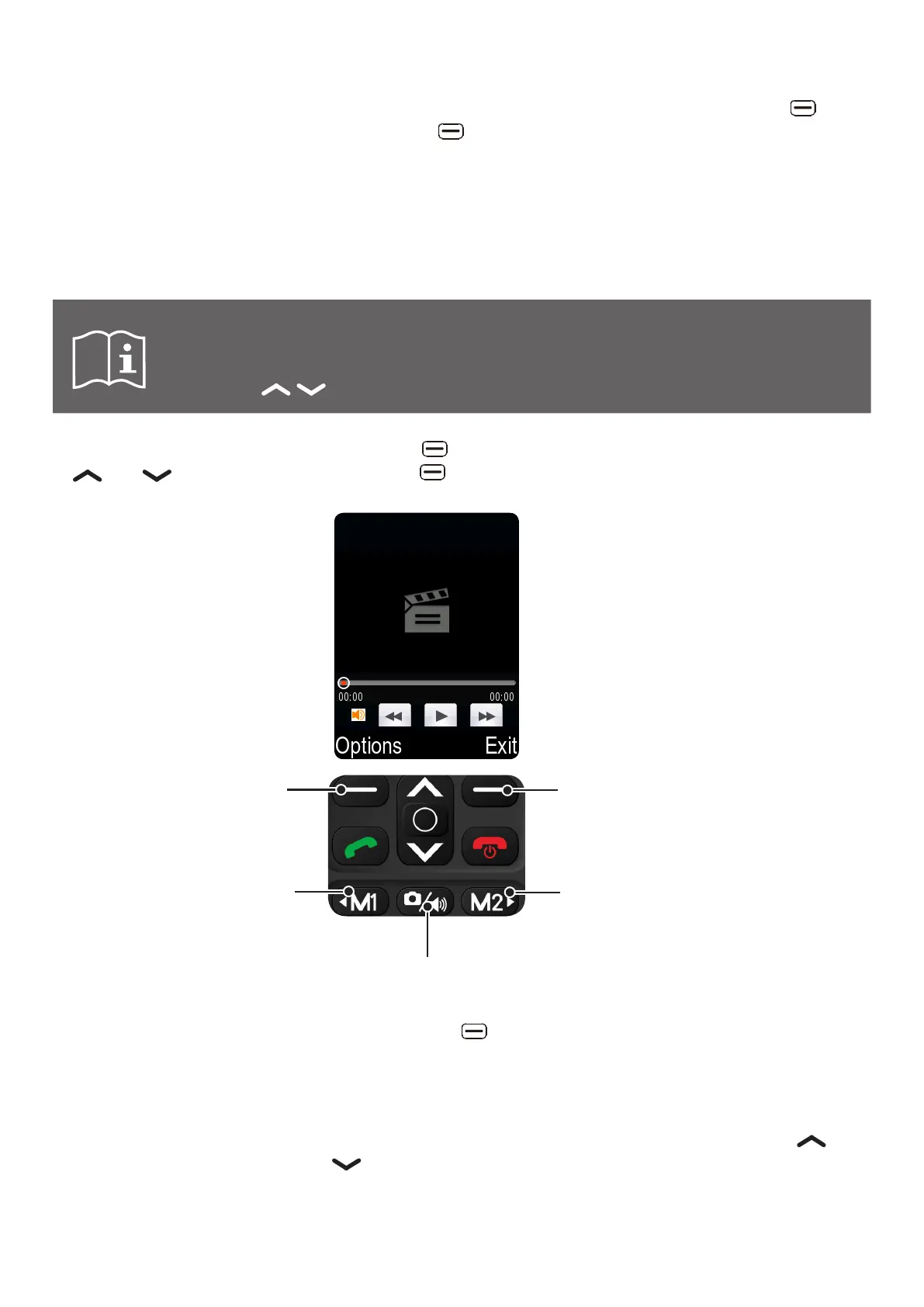
h While in Video player menu, press the left key and select Open to access the video list: Use
and keys select and press the left key, the video player starts to play.
f Press to go to
previous video
f Press and hold to
rewind
fPress to play/pause
f Press to go to next video
f Press and hold to fast-
forward
f Press to stop
f Press to access
options menu
h While in the Video player menu, press the left key to browse available Options:
Open Access the video file list or local playlist.
Fullscreen play (2) Playback videos in full screen. Press the 2 key to switch
between normal and full screens.
Adjust brightness Increase or decrease the screen brightness by pressing and
keys.
Settings reset Reset the video player settings.
Exit Stop video playback and exit the video player.



 To Next Page