Page 8
The ODU supports several management interfaces including TELNET, WEB, and TR-069 for
local or remote managements. However normal end user is only provided with WEB based
access
It is a preferred to setup the CPE using a Web browser from a local PC connected to device LAN
port. The user should ensure that the connected PC acquired IP address via DHCP from the device.
After IP connectivity is established between the PC and CPE device, the user may launch a Web
browser and specify http://192.168.0.1
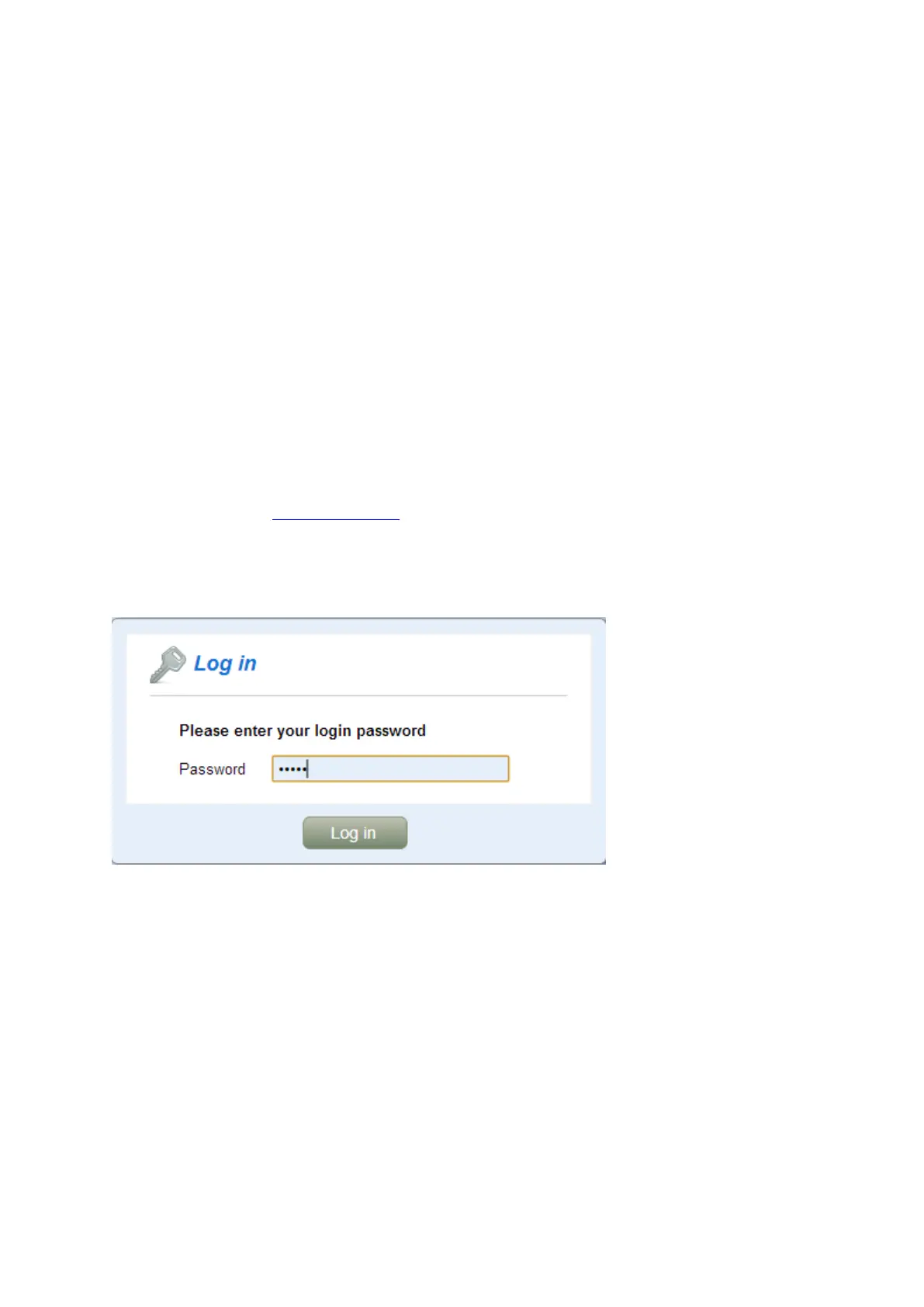
in the address bar. A window will pop up requesting
password. Input the user login password and then click the “Log In” button. After successful log on,
the default home page of the WEB GUI interface will appear. Note that the default user password
is “admin123”.
LTE Status Display-Overview
Once the user is logged in, the following window LTE Information window will be prompted for
viewing. The page gives quite detailed LTE information including the System Information, the
UL/DL Frequency, the PCI and the Connection status


 To Next Page