Telstra MF65 User Manual v1.0 Page 5 of 30
Connection example for Windows 7 computer:
1. On your task bar, next to the clock, click on the Network Interface icon
2. Click on the Wireless device TPPWF_xxxxxx
3. Enter the password exactly as shown on your security card
4. With Connect Automatically enabled your computer will remember the
password and connect to your Wi-Fi device when it is on and in range.
Handy hint
It is also possible to connect via USB connection. See later for details.
MONITOR YOUR WI-FI HOTSPOT ON YOUR ANDROID DEVICE
You can download the ZTE Wi-Fi Monitor app from Google Play Store to
monitor your Wi-Fi status easily using an Android smart phone.
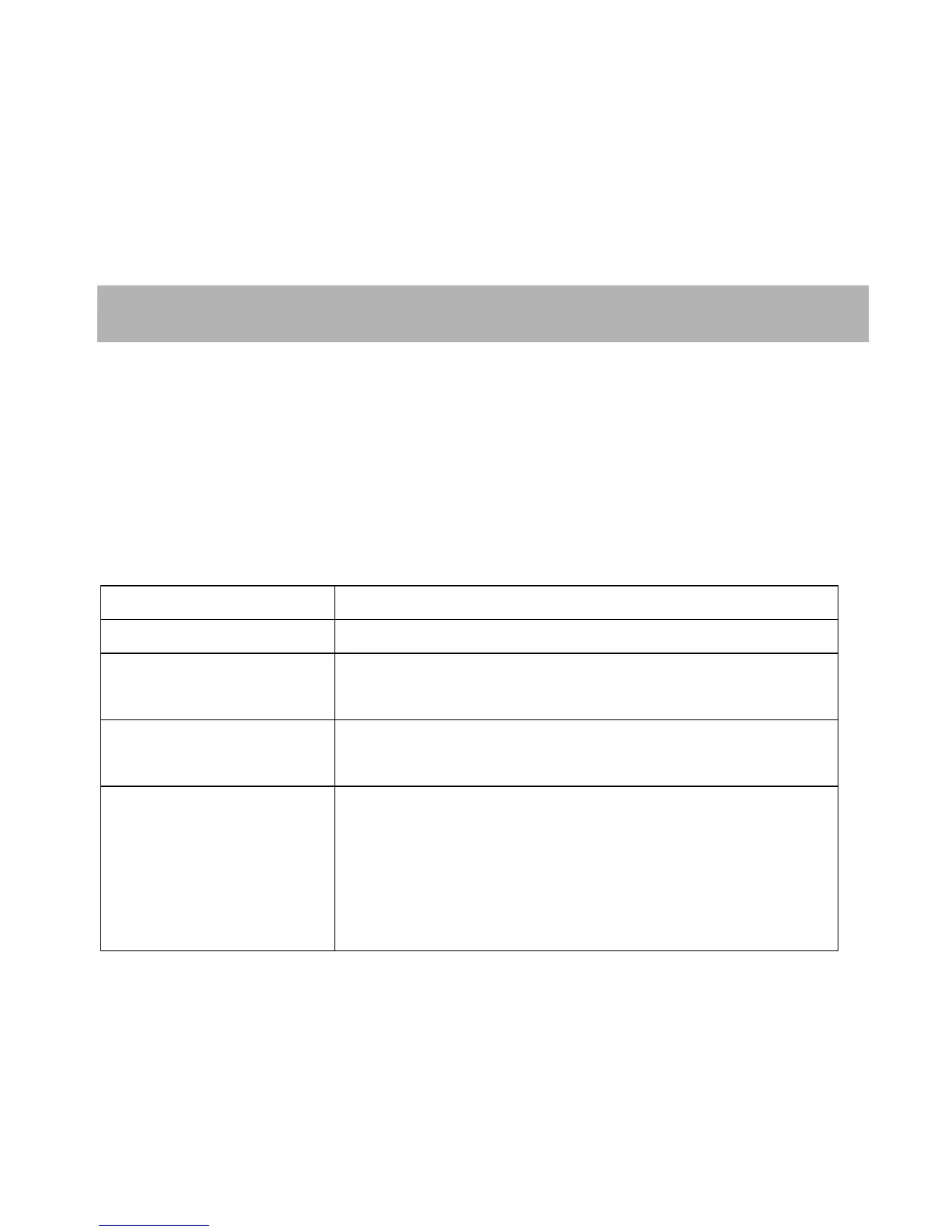
QUICK REFERENCES
Browser home page http://192.168.0.1
Administrator login password
Default SSID TPPWF_xxxxxx.
Supplied on your Security Card.
Default Security Key 10 characters which are case sensitive.
Supplied on your Security Card.
Restore defaults From the powered up state:
Press & hold the power key and the WPS key
simultaneously, hold for about 10 seconds.
All passwords and settings will be restored to
defaults and the router will reboot.



 To Next Page