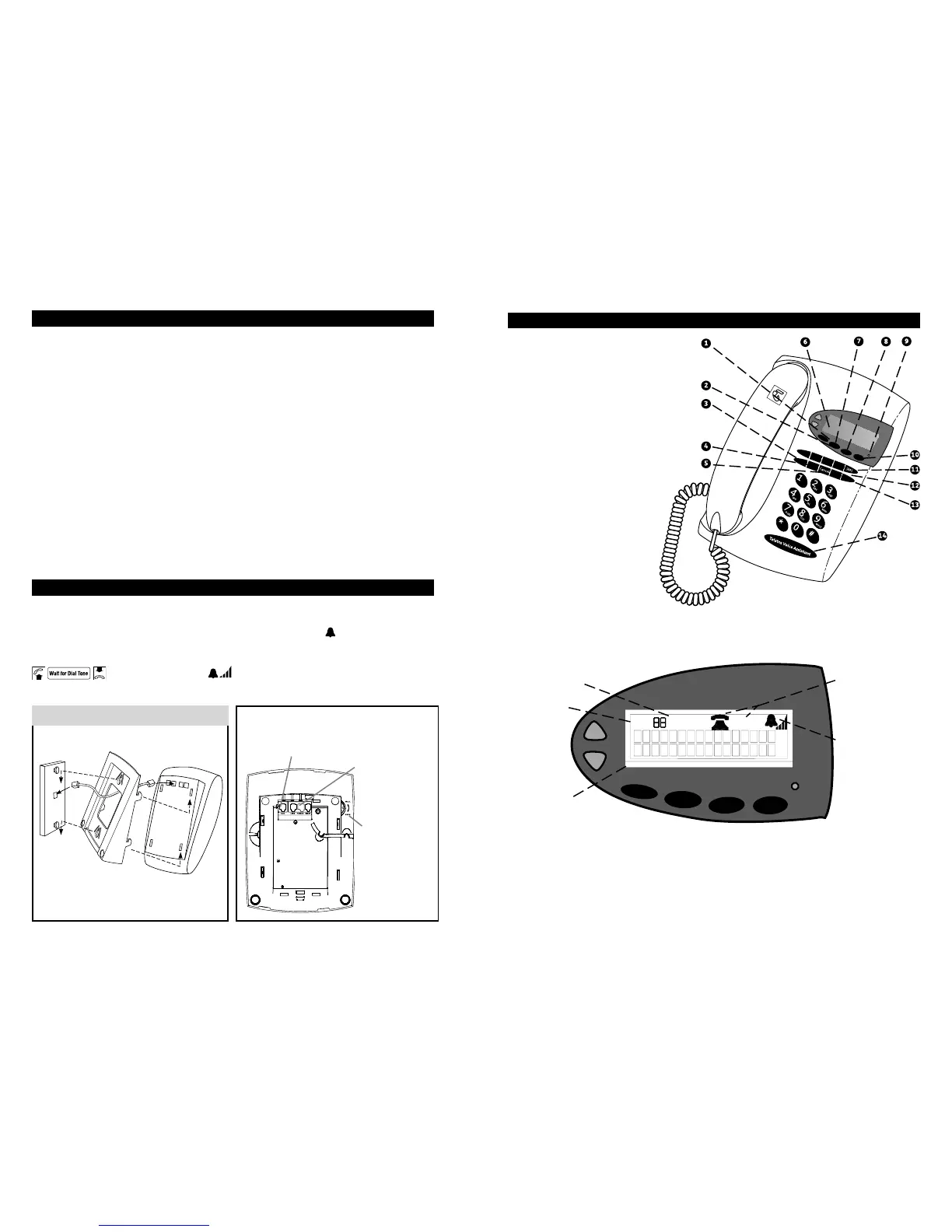
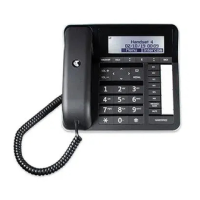
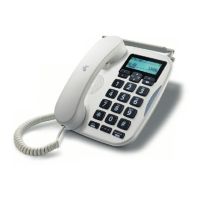
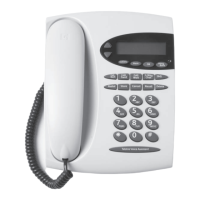
1. Ringer and earpiece level and scroll
through Callers and Memory Lists.
2. Names stored in memory will be
displayed when the callers number
matches the number in memory
1
.
3. Redial button used to easily
redial the last number dialled.
4. Store button used to turn on Phone
Features and adjust ringer and contrast.
5. Cancel button used to turn off
Phone Features e.g. Call Wait.
6. Two line LCD Calling Number
Display with a 20 number call list
1
.
7. 20 number memory directory with
One-Touch dial using OK button.
8. OK button used to confirm
menu selections.
9. Visual Message Wait Indicator.
10. MessageBank button used
to retrieve messages from
MessageBank®.
11. Sending and receiving
text messages
2
.
12. One Touch Phone Feature buttons.
13. Delete button used to delete
numbers from Callers and Memory lists.
14. Telstra Voice Assistant button for voice control of phone features.
1 You need to subscribe to Telstra Calling Number Display in order to receive the number of your callers.
Monthly charges apply. Available most areas. Not available for blocked calls. For more information,
call 13 2200 for Residential or 13 2000 for Business services.
2 Text message functionality available to eligible Telstra and Telstra reseller customers with text capable
phones such as this T1000C. Telstra expects the fixed line text messaging functionality will become more
widely available at a later stage and all other customers wishing to use this function should confirm its
availability with their service provider.
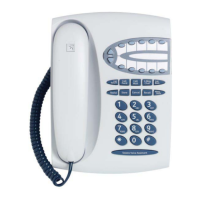
FEATURES OF THE TELEPHONE
When you unpack the telephone you will need to ensure the cords are placed
in the slots provided in the base as shown in the diagram below.
When you connect the telephone to a line, the display will show
Lift the handset to ensure the telephone is powered up, will ring correctly
and is ready to use.
The display will show
Repeat this step whenever the telephone has been disconnected from the line.
GETTING STARTED
Getting started 2
Features of the Telephone 3
Telephone Settings 4
Using MessageBank‚ Button 7
How to use your Telstra T1000C Telephone Features 9
Important Safety Instructions 16
Terms and Conditions 16
Telephone faults 16
Telstra Text Messaging (SMS) Service 16
Care of the Telephone 16
CONTENTS
Visual Message
Waiting Power
Pack socket
is located
at the rear.
An adjustable
handset hook
can be set in
position for wall
mounting by
rotating the dial
on the rear left
side of the phone.
Wall mounting diagram
Desk/Wall Mounting Your Telstra T1000C
An additional line socket is located at the rear
of the phone to allow for connection of other
ACA approved equipment e.g. an answering
machine, extension ringer or modem.
Note: Short cord is provided
with installation of wall socket.
Adjust the handset hook on the base.
2 3
SMS List
Memory List
T1000C Screen
New Caller
Indicator
Ringer Level
Indicator


 To Next Page