8
G3 Pro audio console user manual
5. Computer or Laptop Live Streaming Settings
The charging cable of the sound card is connected to the charging port of the audio console,
and the other end is connected to the USB port on the computer host (recommended to
connect to the black USB2.0 port). The laptop is also connected to the USB port. Turn on the
audio console, the computer prompts that the device is plugged in and it is connected.
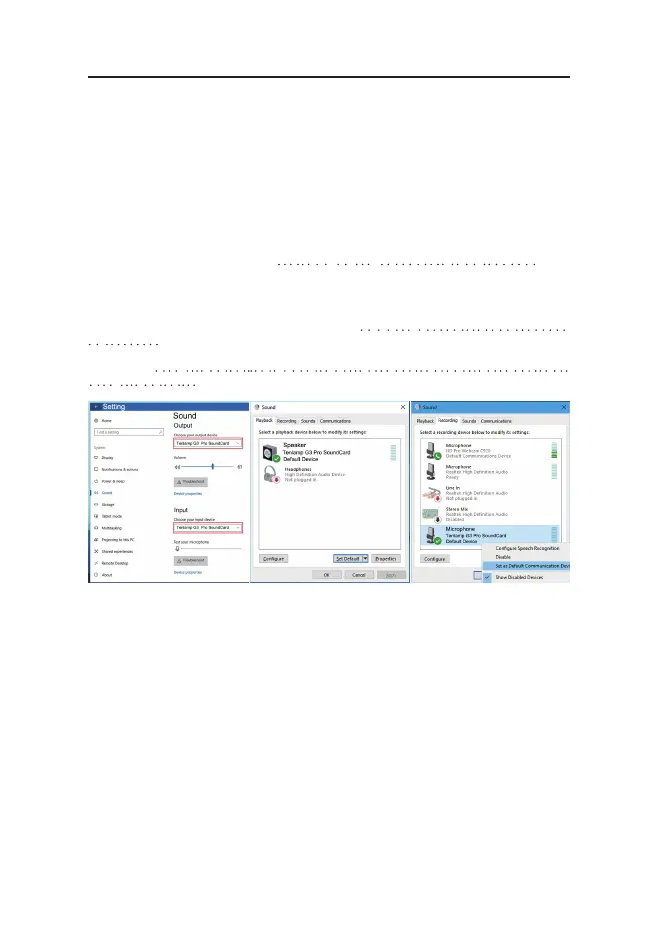
After connected, find the small speaker in the lower right corner of the computer screen,
right-click---select the sound setting, if not, you can select playback device and the recording
device. Then set both the input and output (or speaker on the playback page and the micro-
phone on the recording page) to: "Tenlamp G3 Pro SoundCard" or "MV-AP82X". After
setting, click Apply to confirm.
The software used by the computer also needs to be set, such as accompaniment software
and live stream software. In the software-"Settings", set the audio input and output of "sound
card", "audio output", "microphone", etc. to: "Tenlamp G3 Pro SoundCard" or
"MV-AP82X", click Apply and confirm.
Warm Tip:Above setting is sit for USB digital connection when live streaming or playing
backing track on PC.
It means that the digital signal directly returns to the inside of the software without going
through the physical interface of the sound card. It can capture all the sound sources in the
computer system, including the microphone input, web, and the sound in the music software,
as the input sound source, and send it to the other party on the network. Or record it.
When live streaming on PC and interacting with other streamers in the live room:
Turn on loopback, can hear your accompaniment or other audio sources in the live room,
and can hear the sound of your microphone, but it will cause the other streamer to be unable
to speak;
Close the loopback, the problem(unable to speak) is solved, can still hear the sound of your
microphone in the live streaming room, but cannot hear your accompaniment;
When recording, dubbing, recording songs on computer:
Open loopback, you can record the accompaniment from the computer, the sound of the
web page, and the sound of the microphone together;
Turn off loopback, only the sound of your microphone can be recorded, but the sound from
the computer can not be recorded.
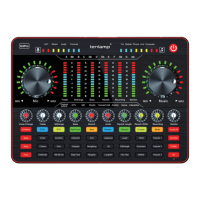
Loopback function(short press the Power button to turn on/off)


 To Next Page