3
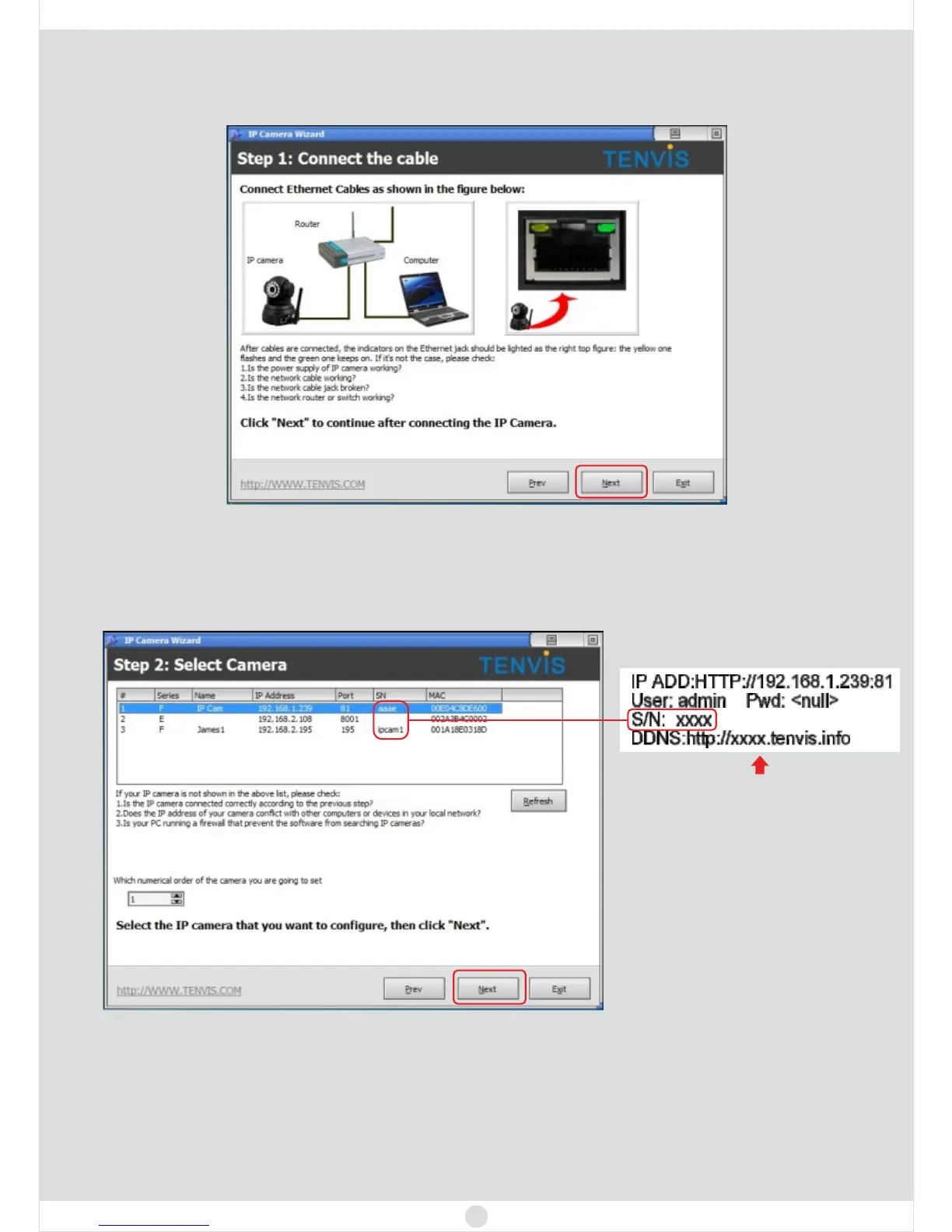
6. Search and select your camera.
7. Set the IP address of the camera. If a red arrow appears, it means you could
visit your camera with your internal network through the browser. If not appear,
please click . If the red arrow still not appear, please contact us.One Key Set
You can find the
label on the cameras
5. Please make sure both the IP camera and your computer are connected with
the wireless router.


 To Next Page