EasyManua.ls Logo

Teradek CUBE - User Manual

Teradek CUBE
2 pages
Print Icon
To Next Page IconTo Next Page
Loading...
Stream Joystick:
, : Selects options from streaming/recording prompts
(button press): Returns to main status screen, start/stop recordings and broadcasts
Menu Joystick:
,: Select menu items, change status screen on main display, select characters
: Back, move to higher menu level
, (button press): Confirm selection, open selected menu
NETWORK CONNECTION
L: Video Input
M: Status
N: Broadcast/Record
O: Fault/Error
P: Stream Joystick
Q: Menu Joystick
Connect power (via A/C adapter or Cubit) to the
power input (F) and video input to (C). Attach
antennas (A) via the threaded RP−SMA connectors.
Move power switch to the
ON position (G).
Use the included hot shoe mount and/or
1
/4" screw to mount Cube to your camera, tripod mount
or other accessory mount, if desired(B).
Cube defaults to Master mode, which will create and
advertise its own network name (SSID). Your computer,
decoder, or mobile device connects directly to Cube,
with no additional network equipment required.
1. On your computer or iOS device, open your
wireless networking utility.
2. Choose your Cube from the list of WiFi devices
in your area and connect to that network.
In Infrastructure mode, Cube connects to an existing network via a wireless access point or Ethernet
connection. Infrastructure mode allows Cube to communicate with all devices on the network and is required
for streaming to the Internet.
Wireless range can be greatly improved by using a wireless access point.
Connecting Cube to an existing wireless network:
POWER & CONNECT
1
2
1
3
2
AC adapter
or
Cubit
SDI
HDMI
OPTION A:
MASTER MODE: Connect Cube to one other device.
OPTION B:
INFRASTRUCTURE MODE: Add Cube to an existing network.
WiFi CONNECTION ON MAC/PC OR iPAD
1. Enter the main menu by pressing
or .
Select
Network Setup with and enter the
menu with
.
2. Select
Configure.
6. If prompted, enter your network password. Choose
characters with
and , choose the position
with
and
, and confirm with . To cancel, press .
4. From the WiFi Configuration menu, choose
Scan.
3. Select Mode, and then choose
Infrastructure.
The Wireless mode will be set.
8. Once configured, you can view the network status
by selecting
Status from the Network Setup menu.
7. Choose Yes to Apply the new Network settings.
5. Select your preferred network, (the
*
icon
indicates a secured network), and the number
on the far right is the signal strength.
NEED MORE HELP?
1. Support forum: http://forum.teradek.com Contains tips, information and all the latest firmware & software updates.
2. Training videos: http://vimeopro.com/teradek/cubetrainingvideos
TERADEK SUPPORT STAFF: support@teradek.com or call 8889412111 ext2 (MonFri 9am to 6pm PST)
L
N
O
P
Q
CUBE’S WEB UI LOGIN
username: admin
password: admin
M
A
B
G
H
I
J
K
F
E
D
C
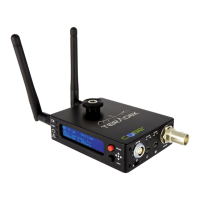
A: Wireless Antenna
B: Hot shoe mount &
1
/4" screw
C: Video Input (SDI or HDMI)
D: Line/MIC Audio Input
E: Headphone Audio Output
F: Power Input
G: Power Switch
H: Stream Joystick
I: Menu Joystick
J: OLED Display
K: Status LEDs

Other manuals for Teradek CUBE

Questions and Answers

  • J
    Jimmy Thompson MDSep 12, 2025
    What to do if my Teradek CUBE Media Converter cannot connect in Infrastructure mode?
    • C
      Christopher BlackSep 12, 2025
      If your Teradek Media Converter cannot connect in Infrastructure mode, you may be disconnected from the network, or the network settings may be incorrect. If the Wifi LED stays red, connect ethernet to the Teradek Media Converter, access the web UI and double check that the infrastructure SSID, password, and security type are correct.
  • R
    Robert MillerSep 12, 2025
    Why is my Teradek Media Converter video stream breaking up or freezing?
    • M
      Michelle Collins PhDSep 12, 2025
      If your video stream is breaking up or freezing, the bitrate/resolution may be set too high for the network’s available bandwidth. Lower the bit rate and/or resolution to avoid lost/late video data.
  • A
    Amanda Lam DDSSep 12, 2025
    How to fix Teradek Media Converter that cannot connect in Ad Hoc mode?
    • N
      Nichole PerezSep 12, 2025
      If your Teradek Media Converter cannot connect in Ad Hoc mode, you may be disconnected from the network, or the network settings may be incorrect. Verify you are connected to the Teradek Media Converter’s wireless network and that the Cube Wifi LED is green. Also, verify your computer is set to DHCP or has an IP address in the 172.16.x.x range.
  • H
    Holly Roberts PhDSep 9, 2025
    Why can't I verify my login on my Teradek CUBE Media Converter?
    • R
      Randall FlemingSep 9, 2025
      If you cannot verify your login, it could be due to incorrect account information or no internet connection. Verify that your Livestream account information is entered correctly and check your network’s internet connection. Also, check the Teradek Media Converter’s Network Configuration for valid gateway and name server values.
  • K
    Kimberly YoungSep 8, 2025
    How to troubleshoot a Teradek CUBE Media Converter that will not power on?
    • H
      Hannah CookSep 8, 2025
      If your Teradek Media Converter doesn't power on, the power cable might be incorrectly connected, or the external battery may be discharged. Remove the video cable, then verify the power cable or battery plates are securely connected and that the cables are not damaged. Also, check the battery charge.
  • A
    Andrew BensonSep 7, 2025
    What to do if I cannot open Teradek Media Player video stream?
    • W
      Wendy PriceSep 8, 2025
      If you cannot open a video stream on your Teradek Media Player, verify that the Media Player is encoding (ENC LED is green). If the ENC LED is red, but VID is green, wait for the encoder to start. Also, verify the stream URL is correct; the stream URL is available to copy on the Dashboard page, as the stream URL may be incorrect.
  • K
    Kathy RoblesAug 23, 2025
    What to do if I cannot start a broadcast with my Teradek CUBE Media Converter?
    • R
      Ronald NguyenAug 23, 2025
      If you cannot start a broadcast, verify the Teradek Media Converter's internet connection. Check that the ENC LED is green and solid.
  • R
    Rodney WilliamsSep 5, 2025
    What does it mean when the VID LED stays orange on Teradek Media Player?
    • M
      Mitchell RuizSep 6, 2025
      If the VID LED stays orange on your Teradek Media Player, there is a resolution mismatch. Change the Media Player's input format to match your source or set the input format to 'Auto'.
  • A
    Angela JordanSep 4, 2025
    Why is there more than a ten second delay with Teradek Media Player video to iPad?
    • E
      Emily YoungSep 4, 2025
      If there's more than a ten-second delay with Teradek Media Player video to iPad, HTTP Live mode is enabled. Enable the Quickview stream and use a third party video player.
  • W
    Wendy WaltonSep 4, 2025
    Why does my Teradek Media Player video stream not have audio?
    • C
      Casey FrancisSep 4, 2025
      If your Teradek Media Player video stream doesn't have audio, audio may be disabled or the Quickview stream is being used. Enable audio (embedded or analog) on the Device Settings page. Note that audio is not currently supported for Quickview stream.

Summary

Network Connection

Master Mode

Connect Cube directly to your computer or iOS device without additional network equipment.

Infrastructure Mode

Connect Cube to an existing network via a wireless access point or Ethernet connection.

Power and Connectivity

Connecting Power and Video Inputs

Connect power adapter/Cubit to power input and video input (SDI/HDMI). Attach antennas.

Mounting the Cube

Use the hot shoe mount or screw to mount Cube to a camera, tripod mount, or accessory.

Powering On

Move the power switch to the ON position.

Streaming Options

Stream to the Internet

Configure Cube for Internet streaming via its Stream Settings page using RTMP.

Local Monitoring with iOS Devices

Monitor Cube streams locally using the TeraCentral app on iOS devices.

Viewing Other Streams

Instructions on how to select and view different streams on your device.

Decoder Setup

Selecting Stream to View

Choose the specific stream you want to view on a monitor or switcher.

Changing Output Format

Adjust output resolution and audio settings for the stream.

Teradek CUBE Specifications

General IconGeneral
Video CompressionH.264
Video InputsSDI, HDMI
Video OutputsSDI, HDMI
Audio CompressionAAC
Audio InputEmbedded (HDMI/SDI)
Audio OutputEmbedded (HDMI/SDI)
Streaming ProtocolsRTMP, RTSP
Network ConnectivityEthernet, Wi-Fi
Ethernet10/100/1000 BASE-T
Wi-Fi802.11 a/b/g/n

Related product manuals