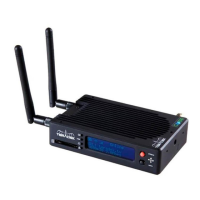
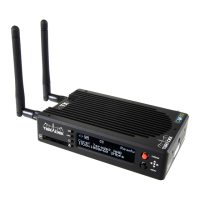
Stream Joystick:
, : Selects options from streaming/recording prompts
● (button press): Returns to main status screen, start/stop recordings and broadcasts
Menu Joystick:
▲,▼: Select menu items, change status screen on main display, select characters
: Back, move to higher menu level
,● (button press): Confirm selection, open selected menu
▲
▲
▲
▲
NETWORK CONNECTION
L: Video Input
M: Status
N: Broadcast/Record
O: Fault/Error
P: Stream Joystick
Q: Menu Joystick
Connect power (via A/C adapter or Cubit) to the
power input (F) and video input to (C). Attach
antennas (A) via the threaded RP−SMA connectors.
Move power switch to the
ON position (G).
Use the included hot shoe mount and/or
1
/4" screw to mount Cube to your camera, tripod mount
or other accessory mount, if desired(B).
Cube defaults to Master mode, which will create and
advertise its own network name (SSID). Your computer,
decoder, or mobile device connects directly to Cube,
with no additional network equipment required.
1. On your computer or iOS device, open your
wireless networking utility.
2. Choose your Cube from the list of WiFi devices
in your area and connect to that network.
In Infrastructure mode, Cube connects to an existing network via a wireless access point or Ethernet
connection. Infrastructure mode allows Cube to communicate with all devices on the network and is required
for streaming to the Internet.
Wireless range can be greatly improved by using a wireless access point.
Connecting Cube to an existing wireless network:
POWER & CONNECT
1
2
1
3
2
AC adapter
or
Cubit
SDI
HDMI
OPTION A:
MASTER MODE: Connect Cube to one other device.
OPTION B:
INFRASTRUCTURE MODE: Add Cube to an existing network.
WiFi CONNECTION ON MAC/PC OR iPAD
1. Enter the main menu by pressing
▲
or ●.
Select
Network Setup with ▼ and enter the
menu with
▲
.
2. Select
Configure.
6. If prompted, enter your network password. Choose
characters with
▲ and ▼, choose the position
with
▲
and
▲
, and confirm with ●. To cancel, press ●.
4. From the WiFi Configuration menu, choose
Scan.
3. Select Mode, and then choose
Infrastructure.
The Wireless mode will be set.
8. Once configured, you can view the network status
by selecting
Status from the Network Setup menu.
7. Choose Yes to Apply the new Network settings.
5. Select your preferred network, (the
*
icon
indicates a secured network), and the number
on the far right is the signal strength.
NEED MORE HELP?
1. Support forum: http://forum.teradek.com → Contains tips, information and all the latest firmware & software updates.
2. Training videos: http://vimeopro.com/teradek/cube−training−videos
TERADEK SUPPORT STAFF: support@teradek.com or call 888−941−2111 ext2 (Mon−Fri 9am to 6pm PST)
L
N
O
P
Q
CUBE’S WEB UI LOGIN
username: admin
password: admin
M
A
B
G
H
I
J
K
F
E
D
C
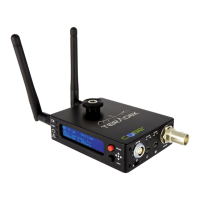
A: Wireless Antenna
B: Hot shoe mount &
1
/4" screw
C: Video Input (SDI or HDMI)
D: Line/MIC Audio Input
E: Headphone Audio Output
F: Power Input
G: Power Switch
H: Stream Joystick
I: Menu Joystick
J: OLED Display
K: Status LEDs


 To Next Page

 General