13
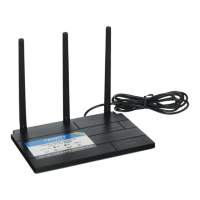
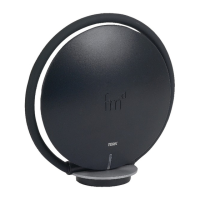
Connect your devices to the Terk Xtend.
5
Once you’ve finished setup, wait for the Xtend to reboot with its new settings.
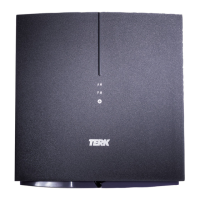
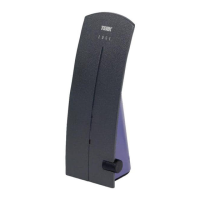
When the LINK light on the Xtend’s front panel turns solid blue, go into the WiFi
connection menus of the devices you want to use with the Xtend’s extended WiFi
range and choose the Xtend from the list of available devices to connect to.
IMPORTANT: You must connect to the Xtend in order to use it—otherwise, you
will still be using your existing WiFi router and you won’t get the benefits of the
extended WiFi range.
The final screen of the Xtend setup shows
you the name and password of your
existing Wi-Fi network and the name and
password of the Xtend. You might want to
take a screenshot of this screen for your
records.
Press FINISH when you’re ready to
continue.
The final screen confirms that you’ve
finished setup and reboots the Xtend to
apply the network settings.
WIFI EXTENDER SETUP with the APP (continued)
What to expect...
Once you’ve connected all of the streaming devices near the Xtend to the Xtend’s
network, you’re ready to take advantage of the Xtend’s enhanced WiFi coverage.
You should notice a stronger WiFi signal, which gives your streaming devices a
better chance to perform to their full potential given then speed of the connection
from your provider!
Keep in mind, however, that the connection speed you experience in your home
depends ultimately on the speed of the Internet connection you receive from your
service provider.




 To Next Page
