Using browser-based setup
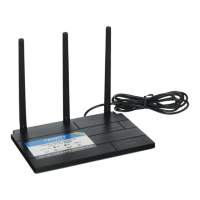
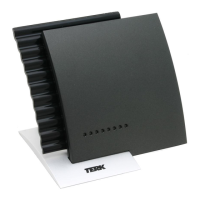
The Terk Xtend WiFi Extender can also be set up via web browser on your computer.
1. In your computer’s WiFi connection menu, choose the Wi-Fi Name (SSID) from the bottom
sticker of the Terk Xtend. The password is also on the bottom sticker.
Give your computer a full minute to connect to this new network. You’ll see limited
connectivity.
2. Launch your web browser and enter the following URL:
http://192.168.168.1
If prompted for a user name and password, use admin for the user name and admin for the
password.
3. Follow the directions in the browser-based setup to configure the Xtend with your network.
4. When you’ve finished browser-based setup, wait for the Xtend to restart (about a minute or
so—the LINK light will turn solid blue), then connect the streaming devices you want to use
with the Xtend to the Xtend’s network.
WIFI EXTENDER SETUP with COMPUTER





 To Next Page
