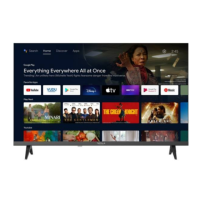
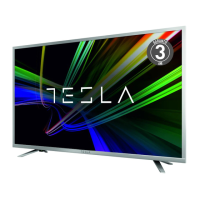
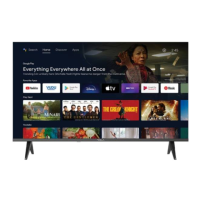
This document is a quick start guide for Tesla LED TVs from the Series 6, covering models such as 32E620BHS, 40E620BFS, 43E620BFS, 50E620BUS, 55E620BUS, 58E620BUS, 65E620BUS, 70E620BUS, 75E620BUS, and their '625' counterparts (e.g., 32E625BHS). It provides essential information for setup, operation, and troubleshooting, translated into multiple languages including English, Bosnian/Montenegrin, Bulgarian, Greek, Croatian, Hungarian, Macedonian, Polish, Romanian, Russian, Slovenian, and Serbian.
Function Description
The Tesla Series 6 LED TV is a smart television designed for home entertainment. It offers a range of functionalities including:
- Display: High-definition video output for various content sources.
- Connectivity: Multiple input/output options for external devices and network access.
- Smart TV Features: Integrated Google Assistant, access to a wide array of apps (Netflix, YouTube, etc.), and Chromecast built-in for seamless content streaming.
- User Interface: Intuitive on-screen display (OSD) menu for easy navigation and settings adjustment.
- Remote Control: A dedicated remote with quick access buttons for common functions, including voice control via Google Assistant.
Important Technical Specifications
While specific technical specifications like display resolution, refresh rate, or audio power are not detailed in this quick start guide, the document highlights several key aspects:
- Power Supply: AC 100-240V, 50/60Hz.
- USB Terminal Load: 0.5A under normal operation.
- Operating Environment: Maximum temperature of 35 degrees Celsius, maximum altitude of 2000 meters.
- Wall-mounted screw sizes: M4 for 22-24 inch models, M6 for 28-70 inch models, and M8 for 75 inch models.
- HDMI: The TVs support HDMI High-Definition Multimedia Interface, indicating modern digital video and audio connectivity.
- Dolby Audio: Integrated Dolby Audio technology for enhanced sound quality.
Usage Features
The Tesla Series 6 LED TV is designed for user-friendly operation, offering features such as:
The TV can be controlled via physical buttons (either a single multi-function button or seven dedicated buttons) on the unit itself, or through the remote control.
- Single Button Control: In standby mode, pressing this button turns the TV on/off.
- Seven Button Control: Dedicated buttons for ON/OFF Power, External Signal Input Selection, Main MENU/Confirm, Channel Selection (CH+/-), and Volume Adjustment (VOL+/-).
The terminal interface provides various connectivity options:
- AV Input: For external AV signals.
- CI Slot: For card readers requiring a CAM (conditional access module) for pay TV.
- HDMI Input: For digital signals from HDMI video connectors.
- ANT 75: For connecting antenna/cable TV (75/VHF/UHF).
- EARPHONE Output: Disables speakers when earphones are plugged in.
- USB Input: For playing media files or recording programs via PVR function.
- OPTICAL Output: For connecting SPDIF receivers.
- RJ45: For Internet connection.
Remote Control
The remote control is central to the TV's smart features:
- Power Button: Switches between on and standby.
- Indicator Light: Provides visual feedback.
- Microphone Hole: For Google Assistant voice commands.
- Mute/Restore Sound: Toggles TV audio.
- Media Controls: Fast forward/back, play last/next program, play/pause/stop/record.
- Inputs Button: Displays/selects signal source options.
- Menu Button: Displays the OSD menu.
- Navigation Buttons: Cursor UP/LEFT/RIGHT/DOWN for menu navigation.
- Back Button: Moves back through menus.
- Google Assistant Button: Activates voice control.
- Exit Button: Exits the OSD menu.
- HOME Button: Displays the home screen.
- NETFLIX/YouTube Buttons: Direct access to streaming services (requires internet connection).
- SUBT Button: For subtitles.
- Teletext Button: Toggles teletext function (DTV mode).
- Audio Button: Displays audio language list and selection options.
Initial Installation
The guide walks users through the initial setup process:
- Language Selection: Choose preferred language.
- Android Phone Setup: Option to quickly set up the TV using a Google-enabled Android phone.
- Network Configuration: Connect to wired or wireless internet.
- Google Account Sign-in: Sign in to access apps, recommendations, and Google Assistant. This can be done via phone/computer or directly using the remote.
- Google Settings: Configure Terms of Service, Location, Help improve Android, Google Assistant, and other Google functions.
- Play Auto Installs: Select recommended and Google apps for installation or uninstallation.
- Bluetooth Remote Pairing: Pair the remote by simultaneously pressing 'BACK' and 'VOL-' buttons.
- Country Selection: Choose the operating country.
- Parental Controls Password: Set a password (note: "0000" is invalid).
- TV Mode Selection: Choose between "Home mode" (energy-efficient) and "Retail mode" (for store demos).
- Chromecast Built-in: Enable or disable.
- TV Channel Setting: Scan for Antenna/Cable/Satellite channels.
- Setup Completion: Acknowledge disclaimer terms.
Home Screen
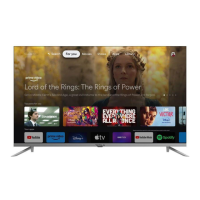
The home screen provides quick access to:
- Google Assistant: Voice control for shows, devices, etc.
- Apps: List of downloaded and pre-loaded applications.
- Play Next: Content based on watch history (next episodes, unfinished movies).
- Settings: Manage apps, TV controls, preferences, sounds, and accounts.
- Favorite Apps: Quick access to frequently used applications.
- Channels: For easy content discovery.
Allows users to adjust various TV performances and preferences:
- Network & Internet: Adjust network settings, check connection status (Wi-Fi, add new network, scanning availability, proxy settings, IP settings).
- Channel: Access parental controls (requires PIN).
- Device Preferences: Access options like About, Date & Time, Timer, Language, Inputs, Picture, Sound, Google Assistant, Reset, etc.
- About: View system updates, device name, restart options, and status.
- Reset: Erase all data from internal storage, including Google account, system/app data, and downloaded apps.
App Management
- Install: Install apps from the "Get more apps" section.
- Move: Rearrange app positions on the home screen.
- Uninstall: Remove unwanted applications.
TV Source Setting
Access TV source via the Home screen by selecting "Live TV" or pressing the dedicated button on the remote, then navigate to "Channels" to find "New Channels Available."
Maintenance Features
The guide includes a troubleshooting section to address common issues:
- No Power: Check AC cord, reconnect after 60 seconds.
- Signal Not Received Properly: Adjust antenna direction, consider external antenna for better reception.
- No Picture: Check antenna connection, try other channels.
- Video with No Audio: Increase volume, check mute status.
- Audio Present, No/Discolored Video: Adjust contrast and brightness.
- Static Noise: Check antenna connection, turn off interfering electrical appliances.
- Remote Not Working: Remove plastic bag, use closer, check/replace batteries.
- No Video (PC Mode): Check VGA cable connection.
- Vertical/Horizontal Line Blinking/Tearing (PC Mode): Adjust vertical/horizontal position in main menu.
- Screen Too Bright/Dark (PC Mode): Adjust brightness/contrast in main menu.
- No Response from PC: Check PC display resolution compatibility.
- Lines with RCA Connection: Ensure good quality RCA cable.
- Unresolved Problems: Unplug power for 30 seconds, then reconnect. If issues persist, contact service center.
Important Note: Avoid displaying static images for extended periods to prevent screen damage and image burn-in.
The guide also emphasizes safety precautions, including proper installation, avoiding heat sources, protecting power cords, and using manufacturer-specified accessories. It highlights that the TV is a Class II, double-insulated electrical appliance, not requiring a safety connection to electrical earth.

 Need help?

 To Next Page
 General