Chapter 4 – Limit Controller
Page 4-2 TestEquity 106 & 107 Temperature Chamber
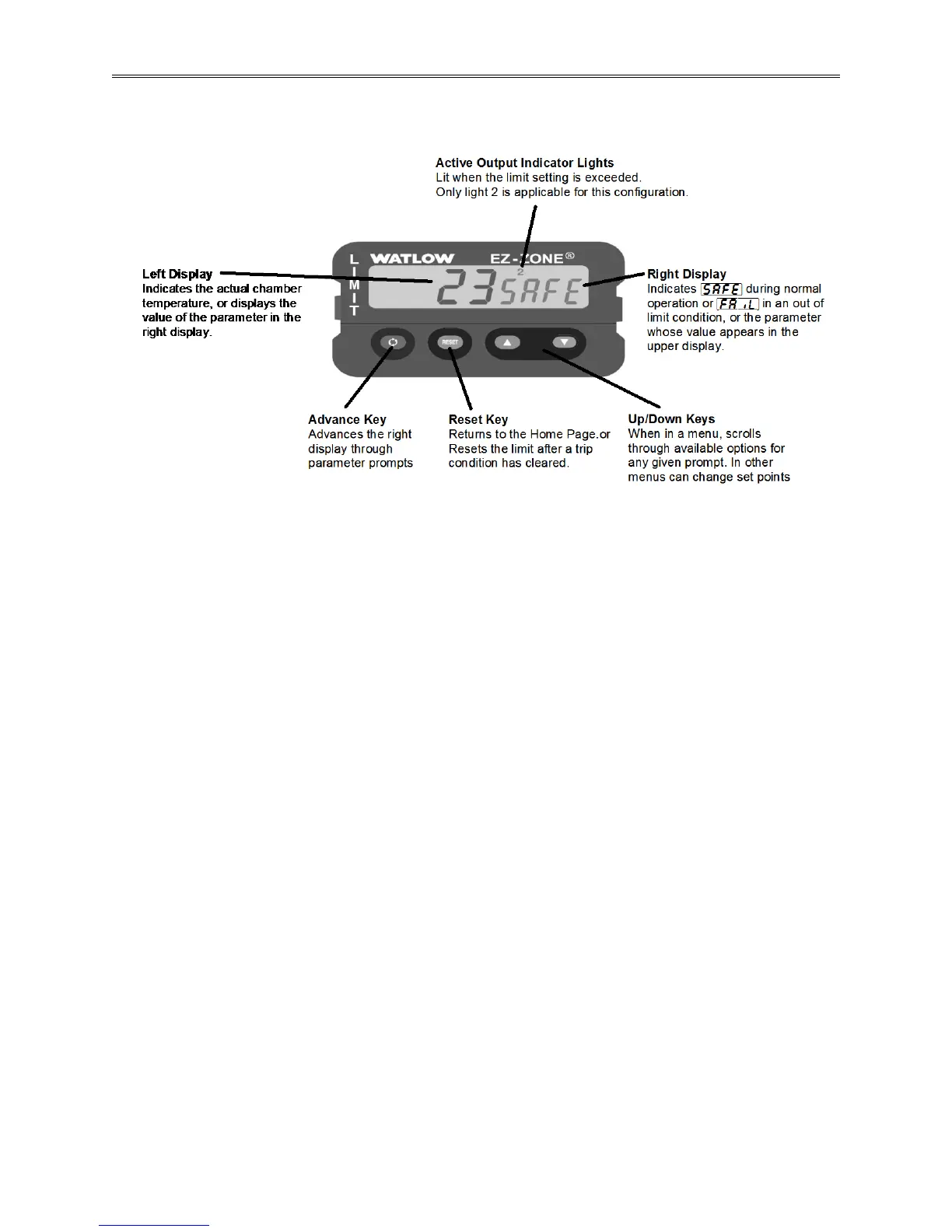
Limit Controller Keys and Displays
Figure 4.1 – Limit Controller Keys and Displays
How to Set the High and Low Temperature Safety Limits
1. Press the ‰ key once to get the [`LL;s] prompt in the right display. This is the Low Limit
Set Point prompt.
2. Press the ▲or ▼ key to enter the desired Low Limit Set Point in the left display. Make sure
it is lower than your actual chamber temperature set point, and at least below room
temperature to prevent nuisance tripping.
3. Press the ‰ key once again to get the [`lh;s] prompt in the right display. This is the High
Limit Set Point prompt.
4. Press the ▲or ▼ key to enter the desired High Limit Set Point in the right display. Make
sure it is higher than your actual chamber temperature set point to prevent nuisance tripping.
5. Press the RESET Key to return to the Home Page.
6. The left display will show the actual chamber temperature while the right display will show
[SAFE] as long as the limits are not exceeded.
Resetting an Out of Limit Condition
If the limit is exceeded, the Limit Controller will flash [Li;h1] (high limit) or [Li;L1] (low
limit) in the right display and [Attn] in the left display, alternating with the actual chamber
temperature in the upper display and [FAiL] in the right display. It will also shut down all
chamber functions. The Limit Controller cannot be reset until the temperature returns to within
the limit set points. Then, you must press the RESET Key to resume normal operation.


 To Next Page