6 Using the product
28
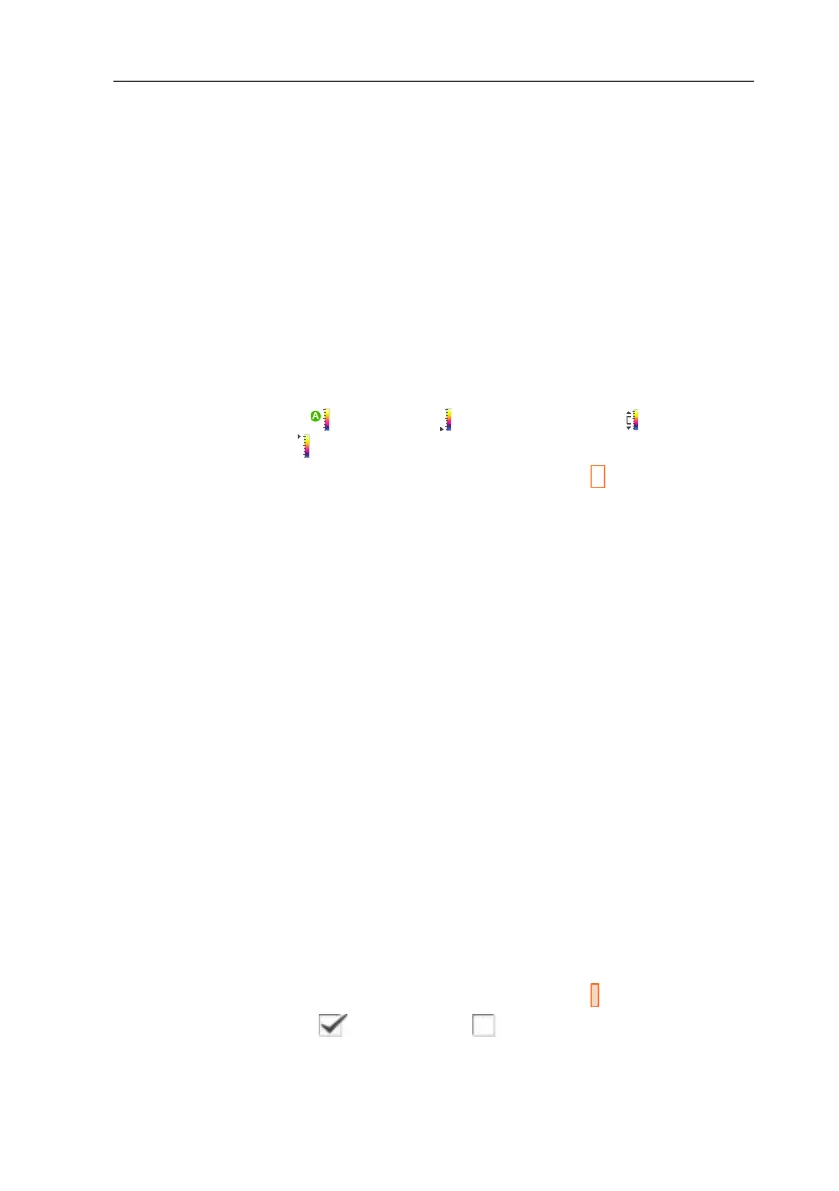
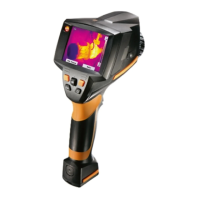
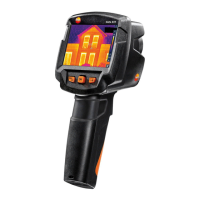
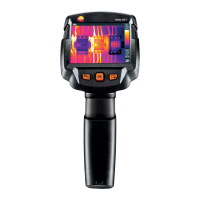
6.1.3. Scale...
Set scale limits
You can choose between auto-scaling (continuous, automatic
adjustment to the current min./max. values) and manual scaling.
The scale limits can be set within the activated measuring range
(see Measuring range, page 26). All temperatures that undershoot
or exceed the limit value are shown in the colour of the limit value
(depending on the selected colour palette, see Palette, page 31).
Temperature ranges that are not relevant can thus be hidden.
1. [OK] | Scale… | [OK].
- The Set scale dialogue is opened.
2. Move Joystick left/right to select the desired option: Auto-
scaling ( ), min. value ( ), temperature range ( ) or max.
value ( )
- The selected option has an orange border ( ).
3. With the selection of min. value, temperature range or max.
value: Move Joystick up/down to change the value(s).
- Changes are applied immediately so that the effects on the
display of the infrared image can be checked directly.
4. Close dialogue with [OK] or [Esc].
- The changes are saved.
6.1.4. Display...
Select display options
The presentation can be adapted by means of showing/hiding the
following elements: Crosshairs, temperature scale and quick select
buttons.
Hidden quick select buttons can be shown again by pressing a
quick select button: the first press of the button shows the function
again. To trigger a function, the button must be pressed again.
The instrument can indicate values exceeding or falling below the
measuring range via message notification. This message
notification can be enabled or disabled.
1. [OK] | Display… | [OK].
- The Display options dialogue is opened.
2. Move Joystick up/down to select the desired option.
- The selected option has an orange border ( ).
3. Activate ( ) or deactivate ( ) option with [OK].


 To Next Page