1
5033-ENG.DOC TI-5033 SV, English Bob Fedorisko Revised: 06/16/00 4:05 PM Printed: 06/22/00 2:52 PM Page 1
of 8
English
INTRODUCTION
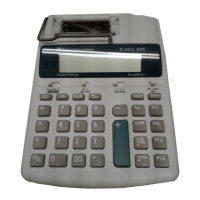
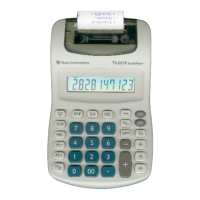
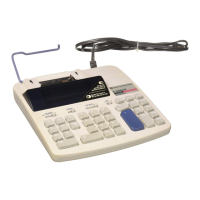
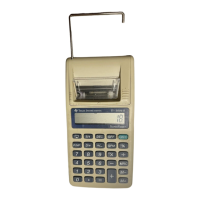
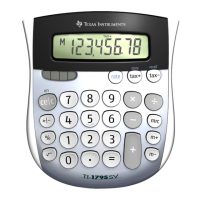
Your Texas Instruments calculator has a built-in printer for producing a permanent record printout of
your calculations. A big easy-to-read display enables you to check entries or perform quick
calculations without printing.
GETTING STARTED
OFF
ON
PRT
IC
POWER
¦
Connect the calculator to a proper power outlet (110–120V or 220–240V, where
available) using the adapter or install 4 AA (LR6) batteries.
¦
The calculator is turned on by setting the power switch to the PRT position.
Inserting the paper
(see illustrations 1, 2, 3, and 4 on page iii).
1. Turn on the calculator.
2. Open the printer compartment cover by pressing down on its front edge and sliding back in the
direction of the arrow.
3. Fit the roll of paper on the holder so that it unrolls from the bottom, with the loose end toward the
calculator.
4. Cut the end of the paper squarely and insert it firmly into the printer slot on the back of the
calculator. Press
&
until the paper is in the printing position.
Replacing the ink roller
(see illustrations 5 and 6 on page iii).
1. Turn the calculator off and tear off the excess paper.
2. Remove the printer cover by pressing down on both sides of the front edge and sliding back in the
direction of the arrow.
3. Remove the old ink roller by lifting with the removal tab.
4. Insert the new ink roller into the compartment and press down gently until it snaps into place. Close
the printer compartment.
Note:
The old ink rollers should not be refilled. Replacement rollers can be obtained from your local
retailer. The warranty does not cover ink roller replacement.



 To Next Page
 Loading...